Connections Sub-Chart
This is a sub-report used by the Connections dashboard. This chart displays connection activities performed by Users by associated Branch. The User's Home Branch is selected by default, but can be changed by using the filtering options. The number of activities is displayed on the X-axis and the type of activity (Candidate Log a Call, Client Meetings, etc.) is displayed on the Y-axis.
The data for the chart is gathered using the activity workflow's journal creation date and then branch association:
| Activity | Workflow or Entity | Branch Association | Comment |
|---|---|---|---|
| Candidate Log a Call | Candidate Log a Call | Candidate record | Call Type must be Conversation or Left Message |
| Candidate Send Email | Send an Email (from Candidate) | Candidate record | Does not include Email Job Detail workflow |
| Client Meetings | Schedule a Meeting (from Contact) | Meeting record | Meeting Status must be Completed. |
| Contact Log a Call | Contact Log a Call | Contact record | Call Type must be Conversation or Left Message |
| Contact Send Email | Send an Email (from Contact) | Contact record | |
| Internal Interview | Schedule Internal Interview (from Candidate) | Meeting record | Meeting Status must be Completed. |
| Market Candidate | Market Candidate | Contact record | Each marketed candidate counts toward the total. So, if you include 5 candidates on a single Market Candidate workflow, all 5 are counted. |
You can see the various branches displayed to the right of the Stack Bar graph.
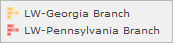
By clicking on an branch name, you can cause that branch's section of the activity bar to disappear/reappear in the chart. You can tell if a branch's section on the bar is not appearing in the chart because 1) the section representing the branch no longer displays and 2) the Branch Name is grayed out. Clicking on the Branch Name toggles it between displayed and not displayed.
The area with the Branch Names also indicates the color on the stack bar associated with the activity.
Executable Formats
This report can be executed in the following formats:
- HTML
- Excel
- PDF (Portable Document Format)
- RTF (Rich Text Format)
- CSV (Comma Separated Values)
Accessing the Chart:
To access the Connections Chart:
- From the Navigator, select Reporting.
- From the fly-out menu, select Reporting & Analytics.
- From Reporting & Analytics page, select System Dashboards in the Folder/Report navigator.
- In the System Dashboards folder, select the Connections folder.
- In the Connections folder, single-click on Connections Sub-Chart and click on the Run Selected Report icon to run in HTML format or the Export Reporticon and select the export format. Alternatively, you can right-click on Connections Sub-Chart and select Run Reportto run in HTML format orExport As > and then the format.
Filters
The Submittal Chart Acc Mgr Tabular report has 3 filters:
-
Creation Date (Required): This defaults to the preceding 365 days. Thus, if today is 02/12/2016, the report defaults to the Condition "Is Between" and the Values "02/12/2015" and "02/12/2016". You may not change the Condition, but you can change the Values. The first value is the "From" value and the second is the "To" value.
You may set the date in 4 ways:
- Type in the date (e.g. 02/14/2015).
- Use the calendar control (
 ) to select a date.
 - Use the drop-list (
 ) to choose from a list of creation dates (based on the other filtering criteria you've selected).
 -
Use the function icon (
 ) to select from the following (all examples are based on Tuesday, July 14th, 2015 date):
- Today: Inserts today's date (July 14, 2015).
- Tomorrow: Inserts tomorrow's date (July 15, 2015).
- Yesterday: Inserts yesterday's date (July 13, 2015).
- Today Plus 7/30/60/90 Days: Inserts the day 7, 30, 60 or 90 days in the future (60 days = September 12, 2105).
- Today Minus 7/30/60/90 Days: Inserts the day 7, 30, 60 or 90 days in the past (60 days = May 15, 2015).
- First Day of Current/Last/Next Month: Inserts first day of selected month (Current = July 1, 2015).
- Last Day of Current/Last/Next Month: Inserts last day of selected month (Current = July 31, 2015).
- First Day of Current/Last/Next Year: Inserts first day of selected year (Current = January 1, 2015).
- Last Day of Current/Last/Next Year: Inserts last day of selected year (Current = December 31, 2015).
- First Day of Current/Last/Next Quarter: Inserts first day of selected quarter (Current = July 1,2015).
- Last Day of Current/Last/Next Quarter: Inserts last day of selected quarter (Current = September 30, 2015).
- Monday of Current/Last/Next Week: Inserts Monday of selected week (Current = July 13, 2015).
- Friday of Current/Last/Next Week: Inserts Friday of selected week (Current = July 17, 2015).
-
Branch Name (Optional): This defaults to the logged-in user's default branch, but can be changed by using the drop-list. You can also remove the Branch Name and the report will search on all branches to which the logged-in user has access.
For performance purposes the following two items should be noted when using the Values droplist. First, in order to enhance performance, once a value is selected, the droplist only displays those items alphabetically/numerically AFTER the selected item. To see all items again, delete the value (select it and press Delete on your keyboard) and then use the droplist. All items will display. Second, in order to enhance performance, the droplist only displays a set number of records. If the list of possible values is longer than the displayed list, select the name at the bottom of the list as the value. When you next click the droplist, the rest of the items display.
-
Activities User Name (Optional): Nothing defaults into this field and the field is optional (if nothing is selected, the report searches all Users). You may select a specific user using the drop list.
The Important note in italics above also applies to this droplist.
Chart Actions
Changes made to the chart do NOT persist. In other words, when you leave the chart and return to it, all default chart settings are re-applied.
By hovering over areas of the chart, a pop-up window will display details from that area of the chart.
Right-Click Actions
-
Type: This option allows you to change the type of chart displayed. Options are Line Types, Bar Types and Column Types. Once you click on one of the Types, you are given additional options. For example, if you select Line Types, additional options are Line, Spline, Area and Spline Area. Click on the option you want and the type of chart changes instantly. The default is Stack Bar.
- You can also select to use 3D Style or not by clicking the Use 3D Style checkbox. 3D style gives the chart depth. Otherwise, the chart displays in flat 2D.
-
Theme: This option allows you to select from pre-set themes. A theme changes the overall look of the chart (mainly by changing the colors on the chart).
- One option is Linear Range. This allows you to select a starting and ending color. The chart then displays lines, bars and columns using a range of colors between the starting and ending color.
- Legend Location: This option allows you to determine where you want the chart's legend located. Options are None (no legend), Right and Bottom. The default is Bottom. Selecting Right places the legend on the right side of the chart.
- Sort By: This option allows you to select how items in the chart are sorted. Select Report Order to follow the order of information on the underlying report (in either ascending or descending order). Select Data Labels to sort the chart by the data labels (in either ascending or descending order).
- Invert Data: Selecting invert data changes the position of the data listed on the x-axis and the legend. In effect, the legend becomes the data on the x-axis and the data on the x-axis becomes the legend. Clicking Invert Data again places the chart back to its normal data presentation.