Create a Company
Use these instructions to create a company record. There are two methods for creating a company through Fast Find and the Advanced Find.
Create a Company via Advanced Find
- Mouse over Companies on the navigator and select the General link from the fly-out menu.
- The Advanced Lookup segment will open, select the appropriate role (Lead, Prospect, Client, or Supplier) to display attribute fields that can be used to look up a specific company.
- Click Find to search for the company that matches the lookup criteria.
-
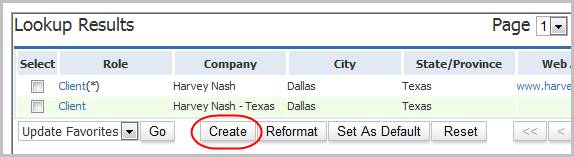
If the Company is not in the Lookup Results click the Create button.
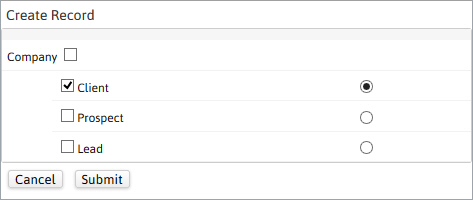
If the Create Entity Role Selection box opens; choose the role of the new company and select it as default, then click Submit to continue.
This screen will appear only if more than one role was selected on the Advanced Lookup prior to clicking find.
-
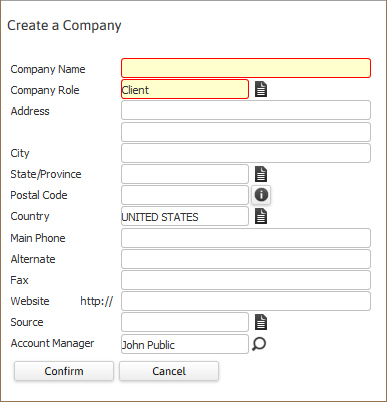
The Create a Company workflow will open in a new window. While updating the form, fields marked in red are required to complete the workflow.

-
Click on the buttons to the right of certain fields to open a new window which will allow you to search and select options related to that specific field.

-
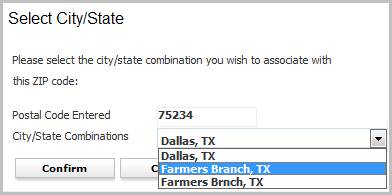
If entering a Postal Code that is used by multiple city names a Select City/State lookup window will open; choose from the options in the drop down menu. These options are tied to the postal code table; after making a selection click confirm to return to the workflow.
-
Click Confirm to complete the workflow.
-
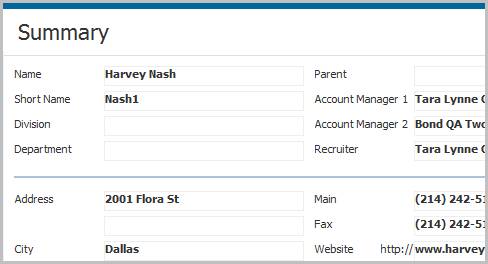
The Adapt screen will refresh to display the Summary segment of the new company record.
Create a Company via Fast Find
-
Select Companies from the Fast Find drop down menu on the main navigation bar.

- Enter all or part of the company name to find active companies, i.e. “ABC Company”, “ABC”, “Comp”, etc. and then press enter.
- All company records that match any or part of the text used to search will display. The results will be separated by their roles. If the client record is already in the database, click on the company name to access the record.
- If the record is not found mouse over the
 icon to open a menu and select the Create a Company.
 -
The Create a Company workflow will open in a new window. Update the form and click Confirm then the Adapt screen will refresh to display the Summary segment of the new company record.
A limitation of this method is, if there are no records that match any part of the search criteria, the lookup results segment will not display thus the workflow menu is not accessible. In this situation the Create via Advanced Lookup method should be followed.