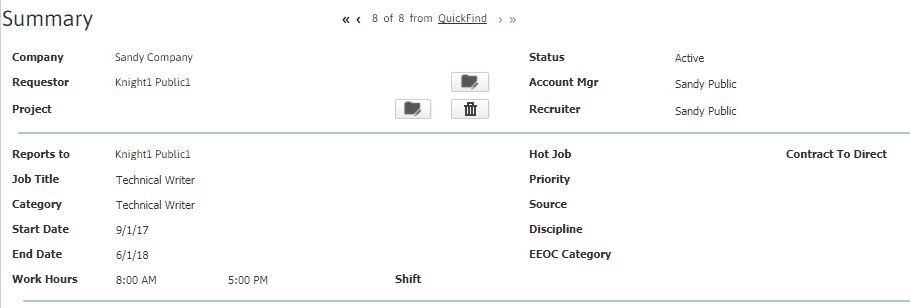
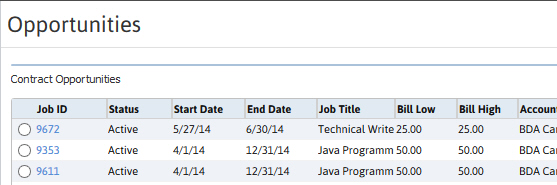
Find a Job Order or Opportunity
Follow these instructions to locate a job order or opportunity record through Fast Find, the Advanced Lookup or a Company, Contact or Project record.
Look-up a Job/Opportunity via Fast Find
-
Select Jobs from the Fast Find drop down menu on the main navigation bar.

-
Enter any one of the following to find active opportunities, and active and partially filled jobs:
- The job / opportunity number
- All or part of the title, i.e. “Administrative Assistant”, “Administrative”, “Assistant”.
- All or part of the contact name, i.e. “John Smith”, "John", "Smith".
- All or part of the company name, i.e. “ABC Company”, “ABC”, “Company”.
- A smaller portion of the title, contact name or company name with the asterisk (*) wildcard, i.e. "Admin*" will return "Administration", "Administrator", "Tom's Administrative Services", etc.
-
All records that match the criteria used to search will display.
-
Mouse over the
 icon to open a menu withworkflows that can be run without opening the record:
 - Click on the
 or
or  icon to add / remove the job / opportunity record from your favorites.
Look-up Job / Opportunity via Advanced Lookup
- Mouse over Job Orders on the navigator and select theGenerallink from the fly-out menu.
-
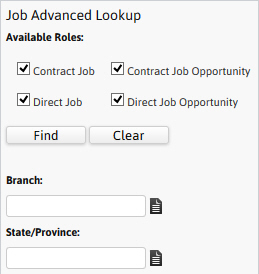
The Advanced Lookup segment will open to display Attribute fields that can be used to look up a specific record.
-
If you do not have specific criteria, click Find to display all jobs / opportunities in the system.
-
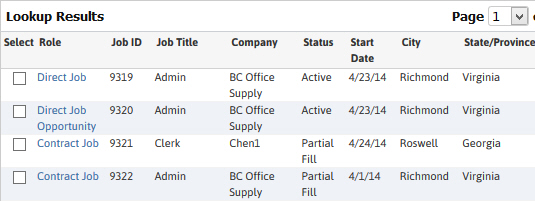
The Lookup Results will display all records that match the criteria entered.
-
The first column is the role of the record. Once you find the record you are looking for click on the role to view.
-
-
The Adapt screen will refresh to display the Summary Segment of the selected record.