General / Advanced Lookup
Use the instructions for the Advanced Lookup to find general records in Adapt. This lookup is intended to locate and enter a specific record.
- Mouse over Searching on the navigator and select the General link to open the Advanced Lookup.
-
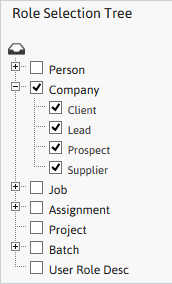
The Advanced Lookup segment will open to display a role selection tree, to the left of the segment, which is used to narrow your search to a specific type of record such as Person or Company.
-
Select the entity, or type of record, you are looking for in the Role Selection Tree to display attribute fields to the right.
Clicking the Entity box will select all roles within that entity; expand and deselect any role that you do not wish to search under, i.e. Supplier or Lead.
-
-
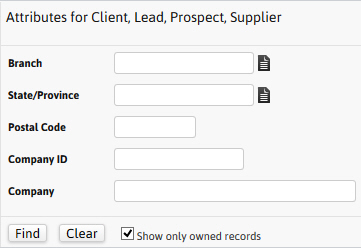
Attribute Fields that can be used to look up a specific record are displayed to the right of the role selection tree; enter any criteria to narrow your search.
- If you do not have specific criteria, click Find to display all records for the selected role(s).
- Clear – will remove any criteria entered into the attribute fields.
-
Edit – will allow you to rearrange the attribute fields in the lookup segment.
Editing the position of the attribute fields in the lookup segments is saved to your personal settings.
- Show only owned records – will display records with a branch that matches the current user’s authorized branch(es).
-
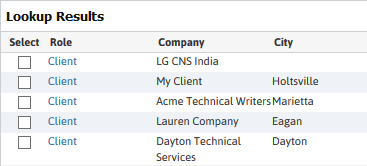
The Lookup Results will display all records that match the criteria entered.
- The first column is the role of the record.
- Once you find the record you are looking for click on the role to view the record.
-
The controls at the bottom of the Lookup results run workflows and allow you to customize the segment.
- Update Favorites – select a record from the results and click Go to bookmark that record. An asterisk appears beside records that you have bookmarked.
-
Create – click this button to start the Create workflow to enter a new record into Adapt.
Not all types of records can be created from the Advanced Lookup segments. Some records are dependant on other entities and must be created through special workflows. If the Create button is not available in your lookup results please see the help on the entity you want to create for additional instructions.
- Reformat – click this button to change what information is displayed in the Lookup Results for this entity. Each entity can be customized to display unique information.
- Reset – use this button to restore the displayed information to system defaults.