Expense Reports for Internal Employees
Overview
This article shows you how to set up expenses for your internal employees. Depending on your intergration you may not be required to set up the user, but in most cases you will. The logic of internal expenses is exactly the same as having an external consultant or temp on expenses, so all components of the set up are required in the same way.
- Client: Your firm.
- Department: Your firm.
- Manager: The expense report approver.
- Internal Employee: The expense report submitter.
- Placement/Assignment: The place where these components are joined together.
Steps
Make Sure Your Firm is Set Up as a Client Company
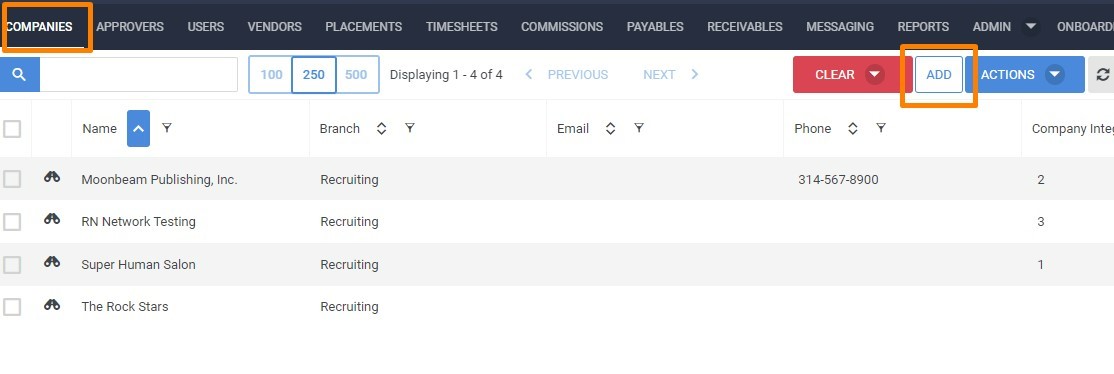
- Navigate to the Companies Tab.
- Select Add.
- Fill out your information.
- Select Save.
Add a Billing Contact
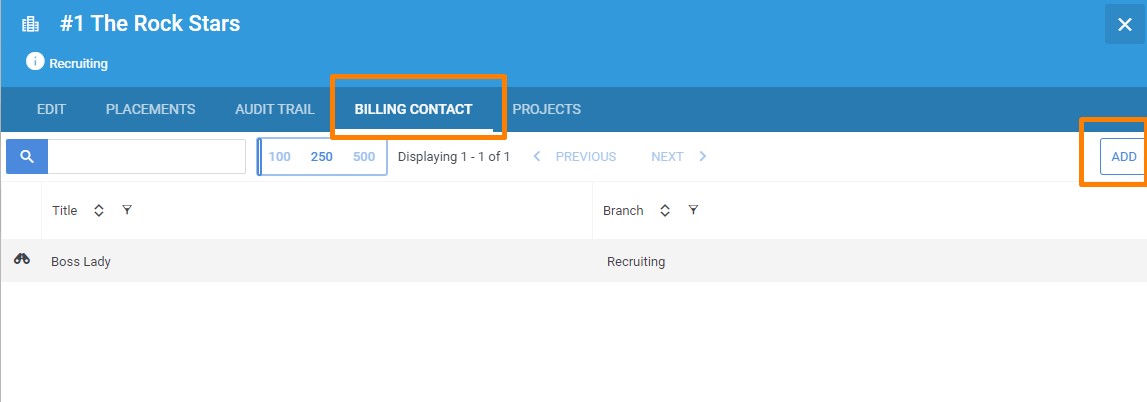
On the Companies Tab:
- Select the Billing Contacttab.
- Select Add.
- Add your data.
- Select Save.
For more detailed information on Billing Departments see (Understanding How Billing Contacts Work).
Add your Internal Expense Approver
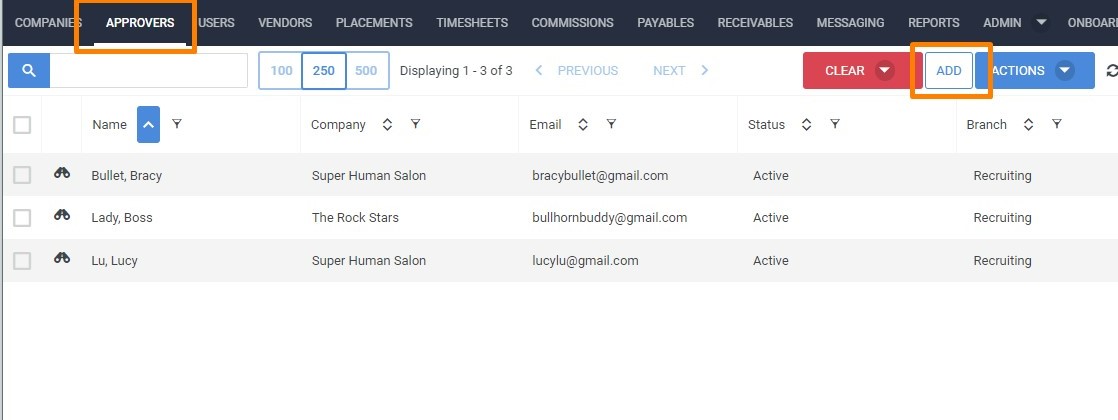
- Go to the Approvers Tab.
- Select Add.
- Add your data.
- Select Save.
Create the User Record for Your Internal Expense Approver
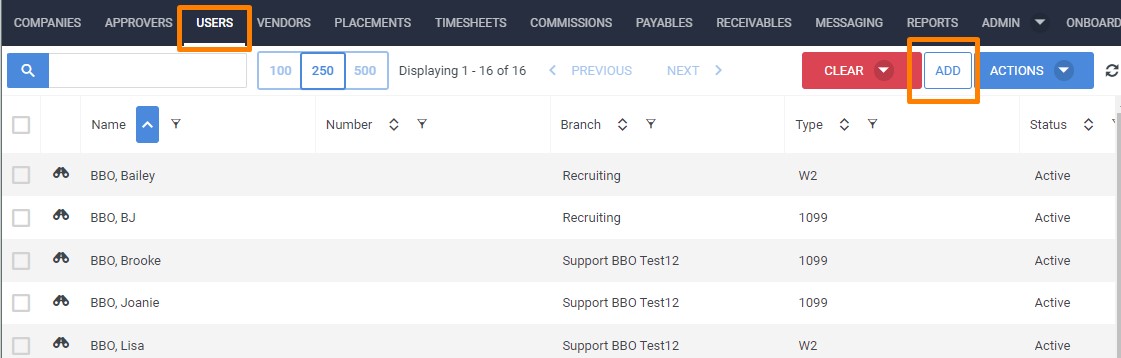
- Go to the Employees Tab.
- Click Add.
- Add the Branch that the user will be assigned to.
- Select the User Type.
- Click OK.
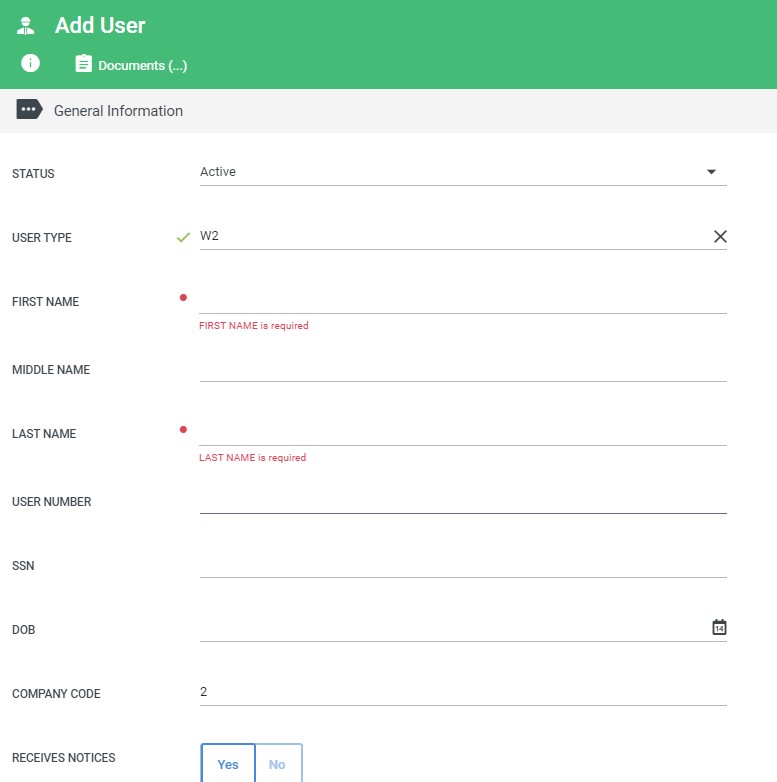
- Fill out the respective information.
- Click Save.
Create the Placement for Your Internal Expense Submitter
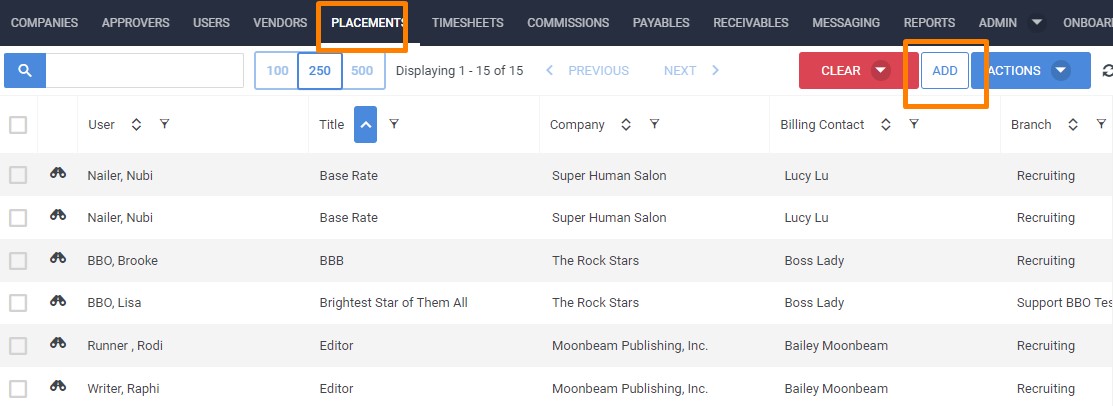
- Go to the Placements Tab.
- Click Add.
- Select the Branch.
- Select your User/Employee.
- Click OK.
- Select the internal Company.
- Select the Department.
- Select the Manager.
- Fill out all other respective data.
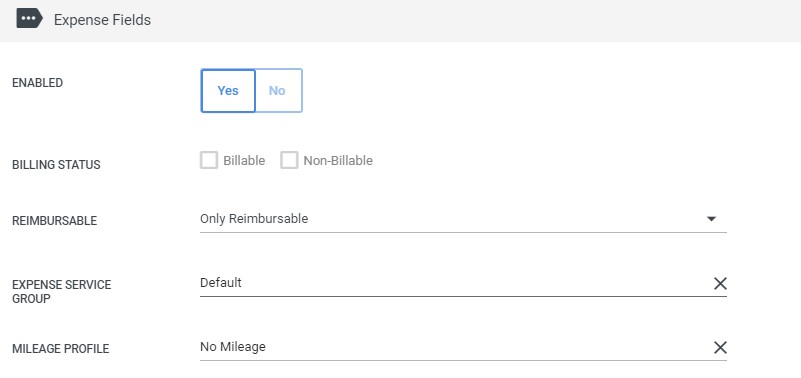
- Select Enabled on the Expense field
- Determine if the internal employee will be able to submit Billable and/or Non-Billable expenses, whether the expenses will be Reimbursable and/or Non-Reimbursable, and which Expense and/or Mileage profiles to be applied to the placement.
- For more on expense settings see (Expense Settings).
- Enter a Start date.
- Add any desired reporting fields.
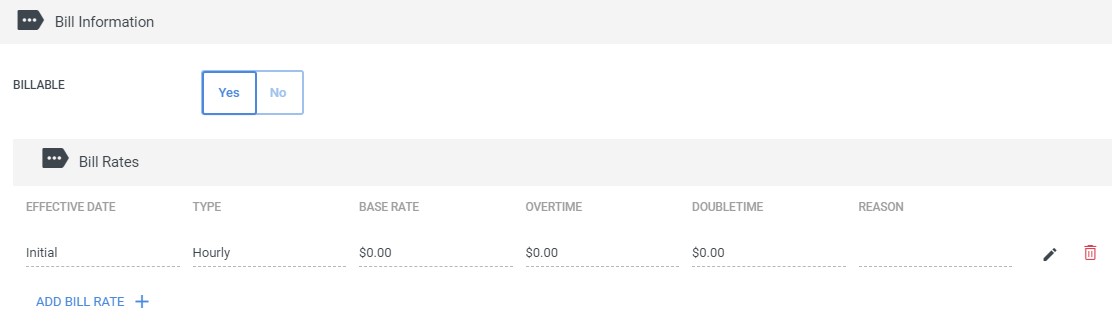
Bill and Pay Fields
While most clients don't use the bill / pay fields for their internal expense submitters, you may have different circumstances around your internal expenses, fill out these sections based on your own internal needs:
- Most clients deselect the Billable radio button in order to keep the internal expense report assignments from showing up on the Receivables tab.
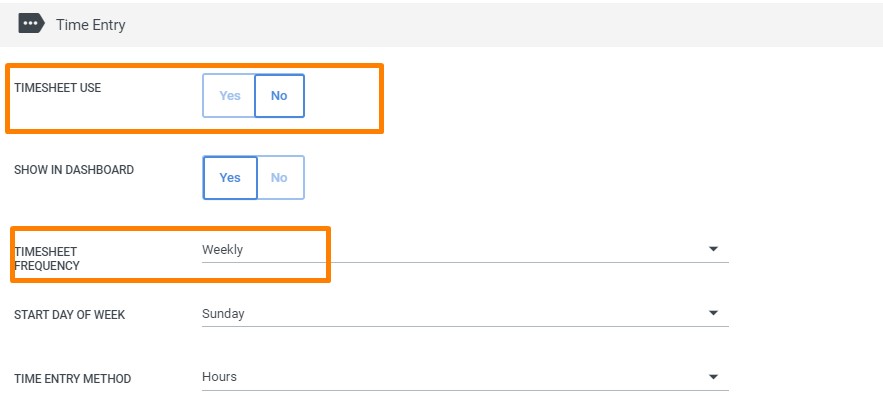
- If your internal employe will not be required to fill out a timesheet, check No Timesheet here. This will hide the Timesheet tab in the Employee Portal.
- Select the Timesheet Frequency that you are going to require for the expense reports to be filled out.
- Select Save.