Logging In to with Multi-factor Authentication
All Time Management Console (TMC) users who log in to (BTE) with an email address and password are required to use Multi-factor Authentication (MFA). MFA works by sending a 6-digit code to the email address associated with the login. Users are required to enter this 6-digit code as an extra layer of security to keep their account and data secure.
Employees logging in to Web Time Entry, single sign-on logins (SSO/SAML), and time clock logins (Virtual Time Clock/Mobile Punch) are not required to use MFA.
Using MFA to Log In to BTE
-
Log in with your email address and password as usual.
-
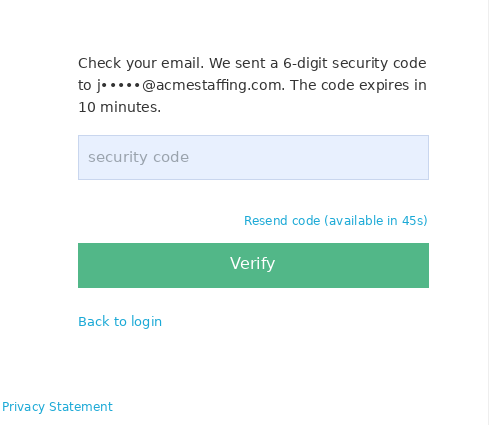
We’ll email a 6-digit code to the email address associated with your login. On the next screen, enter the code in the field provided.
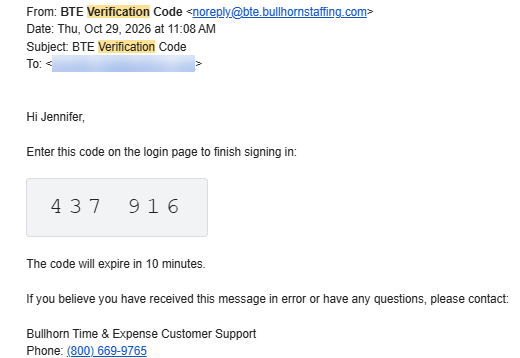
You must have access to the email you use to log in to retrieve your 6-digit code.
-
Select Verify to login into the TMC.
Additional Information on MFA
-
Codes work once and expire after 10 minutes.
-
You have 5 tries to enter the right code. After that, you’ll need to log in again to get a fresh code.
-
Select Resend code to receive a new code via email.
-
You’ll be asked for a new code every time you log in.
Troubleshooting Help
If you do not receive an email with your MFA code, check your junk/spam folders, mailbox rules, and company email security filters to ensure delivery is possible.
If you receive one of the following errors messages when logging into BTE, follow the corresponding steps.
-
“That code isn’t right”: Re-check the newest email for your code. Each resend invalidates the old code.
-
“Too many incorrect codes”: You've reached 5 failed attempts. Navigate back to the log in page and log in again.
-
“That code expired”: Codes last 10 minutes. Click Resend code or navigate back to the log in page and log in again.
-
“You’ve reached the resend limit”: Navigate back to the log in page and log in again to restart the process.
Contact Bullhorn Support if you are still unable to log into the BTE TMC using MFA.