01 AR Aging Report - Chained Report
This report displays the age of invoices summarized by Billed Company and Invoice Number. Groupings also include Company Branch, AR Company and Billing Profile. It also includes total AR Adjustments, AR Payments and Invoice Adjustments. The report can be filtered by Aging As of Date.
A chained report contains multiple reports that automatically execute when the initial report is run. In this case, the following reports run when the 01 AR Aging Report - Chained Report is selected:
Each of the above reports can be run independently (click on the link if you wish to do so). However, they are primarily designed to work as a unit within the chained report.
A chained report must be exported (XLS, PDF, RTF and CSV).
The following sub-topics are covered. You can scroll down the page to see each sub-topic or click on the link below to be taken directly to that sub-topic.
The following information is based on running the chained report. If you plan on running the reports independently from each other, please click the links above to go to the specific report you wish to run.
Executable Formats
This report can be executed in the following formats:
- Excel
- PDF (Portable Document Format)
- RTF (Rich Text Format)
- CSV (Comma Separated Values)
Accessing the Report
To access the 01 AR Aging Report - Chained Report:
- From the Navigator, select Reporting.
- From the fly-out menu, select Reporting & Analytics.
- From Reporting & Analytics page, select System Reports in the Folder/Report navigator.
- In the System Reports folder, select the Billing folder.
- In the Billing folder, select the AR Aging Report - Chained Report folder.
- In the AR Aging Report - Chained Report folder, single-click on 01 AR Aging Report - Chained Report and click on the Export Report icon to select the format. Alternatively, you can right-click on 01 AR Aging Report - Chained Report and select Export As > and then the format.
Filters
This report initially displays one filter. Once the one filter is selected, the next four filters display:
- Aging As Of Date: This is the date from which the report will age outstanding invoices. You can use the date icon or the function icon to select the date.
- Corporation: While the system allows you to change the Condition and select multiple Corporations, the report is designed to run with only one corporation selected. Therefore, you should leave the Condition as "Equal To" and set the Value to the desired Corporation.
- AR Company Branch: AR Branch associated with the invoices you want to age.
- AR Company: Allows you to select a specific company, if needed.
- Invoice Number: Allows you to select a specific invoice, if needed.
The following conditions are available:
- Equal To (Default for Corporation, AR Company and Invoice Number): Data must be equal to the Value. There is only 1 Value option.
- Not Equal To: Data must not be equal to the Value. There is only 1 Value option.
- Less Than: Data must be before the Value alphabetically or by date. There is only 1 Value option.
- Less Than or Equal To: Data must be before or equal to the Value alphabetically or by date. There is only 1 Value option.
- Greater Than: Data must be later than the Value alphabetically or by date. There is only 1 Value option.
- Greater Than or Equal To: Data must be later or equal to the Value alphabetically or by date. There is only 1 Value option.
- Starts With: Data must start with the Value. There is only 1 Value option.
- Not Starts With: Data must not start with the Value. There is only 1 Value option.
- Ends With: Data must end with the Value. There is only 1 Value option.
- Does Not End With: Data must not end with the Value. There is only 1 Value option.
- Contains: Data must contain the Value. There is only 1 Value option.
- Does not Contain: Data must not contain the Value. There is only 1 Value option.
- Is Between: Data/Date must be between the two selected Values alphabetically, numerically or date-wise (inclusive). There are two Value options.
- Is Not Between: Data/Date must not be between the two selected Values alphabetically, numerically or date-wise (inclusive). There are two Value options.
- Is One Of (Default for AR Company Branch): Data must match one of the selected Values. There are multiple Value options.
- Is Not One of: Data must not match any of the selected Values. There are multiple Value options.
You have the following Value options:
For performance purposes the following two items should be noted when using the Values droplist. First, in order to enhance performance, once a value is selected, the droplist only displays those items alphabetically/numerically AFTER the selected item. To see all items again, delete the value (select it and press Delete on your keyboard) and then use the droplist. All items will display. Second, in order to enhance performance, the droplist only displays a set number of records. If the list of possible values is longer than the displayed list, select the name at the bottom of the list as the value. When you next click the droplist, the rest of the items display.
-
Single Value: To select a single value, you can use the drop-list.

-
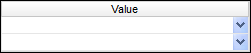
Double Values: To select two values, click the drop-list on each value.
-
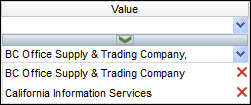
Multiple Values: To select multiple values, click the drop-list on the top field to select a Value to add to the list. To see the items on the list, click the lower drop-list. To remove an item from the list, click the red X to the right of the item.
Report Actions
The chained report runs the two linked reports: 02 Summary AR Aging Report and 03 AR Aging Report by Invoice.
The 02 Summary AR Aging Report displays AR Aging Information listed by AR Company and grouped by Branch. For each AR Company, the report lists Billing Profile, AP Contact, Outstanding Balance and Aging Days. Totals are given by AR Company Branch and then grand totals are given at the end of the report.
The 03 AR Aging Report by Invoice shows AR Aging information listed by Invoice Number. For each invoice, the report displays Invoice Date, Original Balance, Age of Invoice, Total AR Adjustments, Total Invoice Adjustments, Total AR Payments, Last Payment Date and Total Outstanding Balance. Totals are given for Billing Profile, AR Company and AR Company Branch.