Adapt Outlook Add-In
The Adapt Outlook Add-In (AOA) is designed specifically for users who manage candidate/contact relationships and vacancy activities. It allows the user to view a candidate or contact profile, notes, scheduled tasks and journal in Adapt from Outlook by selecting an email. The user can also run selective workflows such as tagging emails, logging calls and submitting candidates for vacancies.
You do not have to be logged in to Adapt to use AOA. However, certain actions taken in AOA (performing workflows, opening records) will require you to log in to complete the action.
AOA matches emails to records in Adapt via the email address or mobile phone number.
For information on installing the Outlook Add-in, click here.
Launching Adapt Outlook Add-In
-
Once installed, the AOA launches automatically the next time you start Outlook. You can tell AOA is running as there will be an Adapt ribbon added to Outlook.
To use Adapt independent of AOA, login to Adapt prior to launching Outlook.
-
If AOA does not activate when opening Outlook 2010, 2013 or 2016, you may need to manually start the add-in.
- Go to File > Options > Add-Ins.
- Select the Go button next to Manage: COM Add-ins, make sure the Adapt Outlook Add-in is checked and click OK.
- Return to the Add-ins screen and click Add-in Options. Make sure the information is correct and click OK.
- If the Adapt Add-in Panel displays but not the Adapt tab, close out of Outlook and then restart Outlook.
- If the AOA still does not launch see the Download the Adapt Outlook Add-In topic. This topic will give you setup and troubleshooting information.
Navigating the AOA
The AOA has three distinct areas where actions can be performed:
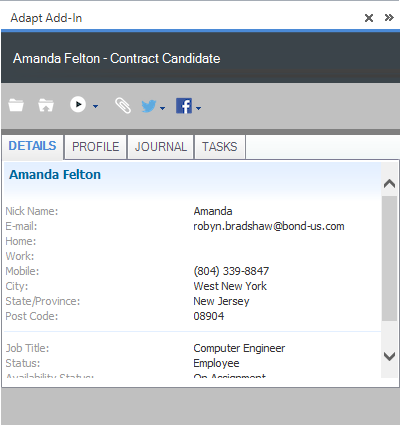
- Adapt Add-In Panel: The Adapt Add-In panel shows various information from Adapt about the record associated with the email address of the email selected on the Outlook main page. You can also open the record in Adapt, tag the email, run workflows and search social media.
- Ribbon: Clicking on the Adapt tab on the Outlook main page displays the Adapt ribbon. From here, you can tag emails, create candidates, change settings, view/email logging information and check the version number.
- Right-Click: Right-clicking on an email (or multiple emails) in the Outlook main page (Outlook Explorer) allows you to tag emails or create candidates
Each of these areas is explained below.
The Adapt Add-In Panel
Docking the Adapt Add-In Panel
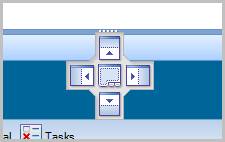
The Adapt Add-In panel can be located (docked) in several areas of Outlook. To change the location of the panel, click the title bar of the panel and drag it to the centre of the screen. The dock points that it can be moved to will highlight on the screen. Drop the cursor in one of the dock points to dock it to that part of Outlook.
Minimizing / Resizing the Adapt Add-In Panel
The Adapt Add-In panel can be minimized or resized by clicking the chevron  to collapse and reopen the pane. Grabbing the borders of the Adapt Add-In panel allows you to change the width and height of it.
Whenever an email is selected (highlighted) in the Outlook Explorer that is associated with an email address or mobile phone number that matches a Candidate or Contact record in Adapt, the Adapt Add-In panel displays the person's name in the Header and whether they are a Candidate or Contact.

If the email address or mobile phone number is associated with more than one record in Adapt, arrows will appear to the right of the heading. Clicking on the arrows cycle between the records.

Underneath the heading is the Detail area. This shows information on the Candidate's or Contact's record within Adapt.
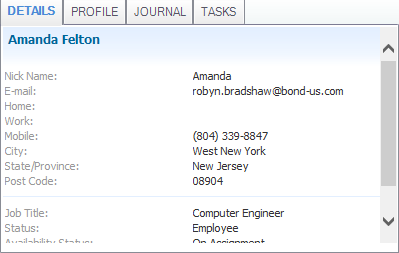
The tabs at the top of the data table select the various pages of content for that record. If you increase the width of the Adapt Add-in panel you will see more of the tabs. If you dock the Adapt Add-in panel vertically, clicking on the right arrows on the tab bar lists all available tabs. Clicking on a tab displays the information for that tab. The tabs are:
- DETAILS – displays data from the summary segment of the record.
- PROFILE – displays the person’s profile from the summary segment.
- ACTIVE JOBS – Contacts only - displays open and partially filled job orders for the contact.
- RELEASED JOBS – SupplierContacts only - displays released job orders for the contact.
- JOURNAL – displays the journal segment of the record.
- TASKS – displays the task segment of the record.
The buttons above the Details area perform selected operations:
-
 - will open the currently displayed record in Adapt. If you are not logged into Adapt it will take you through the login process and then show you the record.
To use Adapt independent of AOA, login to Adapt prior to launching Outlook.
-
 -will tag the selected email(s) in Outlook to the Journal of the record currently displayed in the Adapt Add-In panel.
You can also tag an email by using the Ribbon or a right-click (see below for more details).
-
 - displays a menu listing workflows that can be run against the record currently displayed in the Adapt Add-In panel. Clicking one of the items on the menu will activate Adapt; take you to the record currently displayed in the Adapt Add-In panel and open the associated work flow. Available workflows:
  - collates all attachments in an email and presents a window where you can attach them to the Document Library of the Adapt record. See below for more information.
 - launches the Twitter social media connector page. You can search for Twitter accounts that match the selected record in the Adapt Add-In panel. If the Adapt record is populated with a social media profile, you can link to that page. See below for more details.
 - launches the Facebook social media connector page. You can search for Facebook accounts that match the selected record in the Adapt Add-In panel. If the Adapt record is populated with a social media profile, you can link to that page. See below for more details.
The Ribbon
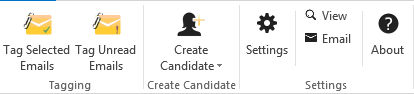
The following options are on the Ribbon:
-
Tag Selected Email: Will tag the selected email(s) in Outlook to the Journal of the record currently displayed in the Adapt Add-In panel.
You can also tag an email by using the Adapt Add-In panel or a right-click (see below for more details).
-
Tag Unread Emails: Will tag any unread email(s) in Outlook to the Journal of the record currently displayed in the Adapt Add-In panel.
You can also tag unread emails by using the right-click (see below for more details).
-
Create Candidate: Uses the resume attached to the selected email to create a new candidate record via Resume Import.
You can also Create Candidate by using the right-click.See below for more details.
- Settings: Opens the Adapt Add-in Settings window allowing you to set server settings, tagging options and social media connectors. This is the same window that can be accessed within Outlook via File > Options > Add-Ins > Add-in Options. See below for more information on the Settings.
- View/Email: Clicking on View opens a Debug window that displays each action taken by the AOA. This is useful for troubleshooting purposes. Clicking Email creates an Outlook email with the Debug information included in the form of an attachment. If Adapt Support personnel should ask for the AOA Debug file, this is the easiest way to send it.
- About: Displays the version number of AOA and the working folder. As above, this is useful for troubleshooting purposes.
Right-Clicking
Right-clicking on an email in the Outlook Explorer displays Outlook's context-sensitive menu. When AOA is installed and working, this menu has an Adapt option on it. By hovering over the Adapt option, a flyout menu displays the following options:
-
Tagging: Hovering over the Tagging option causes a second flyout menu to display the following options:
-
Tag selected email: Will tag the selected email(s) in Outlook to the Journal of the record currently displayed in the Adapt Add-In panel.
You can also tag an email by using the Adapt Add-In panel or the Ribbon (see below for more details).
-
Tag unread emails: Will tag any unread email(s) in Outlook to the Journal of the record currently displayed in the Adapt Add-In panel.
You can also tag unread emails by using the Ribbon (see below for more details).
-
-
Create Candidate: Hovering over the Create Candidate option will open a second flyout menu displaying any resume attachments on the selected email. Clicking on the resume allows you to create a new Candidate in Adapt via Resume Import.
You can also Create Candidate by using the Ribbon.See below for more details.
Tagging Emails
The AOA allows you to tag emails into Adapt either manually or automatically. Tagging options are set up in Outlook's Add-in Options page. You can set any of the three options below for received and sent email.
- Do nothing – will not tag any emails you send/receive.
- Automatically Tag – will tag emails as they are received or sent to the record(s) found in Adapt.
-
Prompt to tag – as emails are sent/received, Adapt is queried to see whether the associated record exists. If it does, the tagging dialog appears:
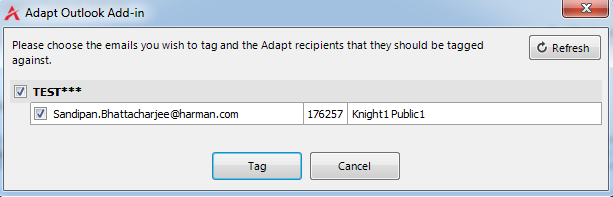
You can take the following actions on the Tag Email dialog:
- Select the checkbox against the email address you want to be tagged in Adapt with the email. If more than one email address is listed, you can hover over the email address and a small pop-up will display the full name and type (Contact or Candidate) for the record. When you are satisfied with your selections click Tag to tag the email. The Tag Email dialog will close as the tagging operation happens in the background. Once the operation is completed, you will receive a message in the bottom right corner of the screen.
- Click the X in the upper right corner to close the dialog without taking any action.
If you have selected Automatically tag, the process is the same as for Prompt to tag except that there is no user intervention. Any entity that exists in the Adapt system whose email or mobile phone number matches one of the recipients of the email will have that email tagged to their Journal.
You can also manually tag an email (or multiple emails) by selecting the emails in the Outlook Explorer and either 1) right-clicking on one of the emails and selecting Adapt > Tagging and then one of two options or 2) clicking on the Tagging option in the Ribbon. Whether you select to Tag Selected Emails or Tag Unread Emails, the tagging dialog appears (same as the prompt to tag dialog above).
You can choose which emails you want to tag and which records you want to tag it to by placing a check in the box beside the email subject or record name. A check beside the subject means that this email will be tagged. A check beside a record name means that record will receive the tagged email. When you are satisfied with your selections, click Tag.
You can quickly determine which emails have been tagged by adding the user-defined column "Tagged" to the Outlook Explorer. If the email has been tagged, the word "Yes" will appear in the column. If the AOA attempted to tag an email and could not find any associated record in Adapt, the words "No matches" will display in the column.
If you attempt to tag an email that has already been tagged, the AOA will display a warning message, but allow you to tag it again, if needed.
Tagging Documents
The document tagging workflow will take email attachments and import them into the document library of the selected Adapt record.
- Select an email to load the candidate or contact in the Adapt Add-In panel; then select the document icon ().
- The Select Attachments window displays.
-
Select the Document Category, for each document listed (by clicking in the Document Category column dropdown) and click Attach to complete the workflow.
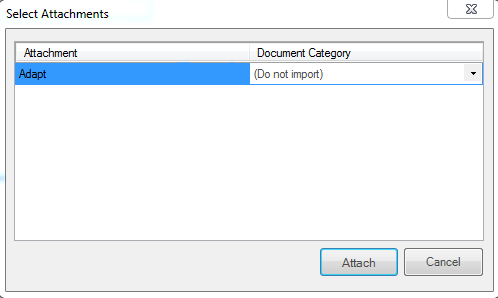
- Once the document is successfully tagged to the document segment of the record selected, a user notification displays in the lower right corner of the screen.
-
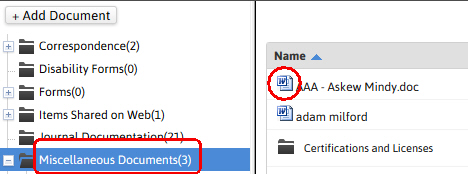
The documents are then accessible in the record’s documents segment.
Create Candidate from Email
When an email has a resume attached that resume can be downloaded and imported into Adapt via Resume Import.
- Select an email with a resume attached from the email application.
- Either right-click on the email, locate and hover over Adapt in the menu, select Create Candidate and then select the document name OR click Create Candidate from the Adapt Ribbon.
- The resume will download from the email application into the Resume Import segment and automatically parse.
- Follow the Resume Import workflow steps to complete the candidate create process.
Social Media Connector
The AOA acts as a bridge between Adapt and social media sites (Twitter, Facebook). It allows you, from within the AOA, to select social media profiles and save them in the Adapt record. It also allows you to browse data from the social media sites and select the various profiles that are correct for the current record displayed in the AOA.
- Select an email to load the candidate or contact in the Adapt Add-In panel; then select the social media icon: (Twitter) or (Facebook). At this point, two options display in a pop-up menu: Search and Link.If you want to search for the Twitter or Facebook profile, click Search. If you want to view an existing profile, click Link (only available if the Candidate or Contact already has Twitter or Facebook profile information in their Adapt record).
- The associated Social Media Connector landing page opens.
- The Candidate's or Contact's name displays. If you want to search for their profile, click Search. If the email already has a profile link, a message displays alerting you to that fact. To access the profile, click Go. The profile displays.
Adapt Add-In Settings
You can access Adapt Add-in Settings in two ways:
- From the Adapt Ribbon, select Settings.
- Within Outlook, select File > Options > Add-Ins > Add-in Options
The Settings window is divided into three areas:
- Connection
- Tagging
- Social Media
Server Settings
- Adapt server address
- External request address
- Domain: The name of the domain with which you want AOA to connect.
- User name: Your username in Adapt.
- Password: Your password in Adapt.
- Profile: The profile set up in System Administration for Adapt.
- Language: Should be set to English.
- Locale: Should be en_US.
- Time zone: Use the droplist to select your local timezone.
Tagging Options
To select tagging options, click the Taggingtab.
- Active Mailbox: Use the droplist to select the mailbox to which the settings will apply.
- When receiving emails: This tells AOA what to do with emails you receive. Use the droplist to select either Do Nothing (emails you receive are not tagged), Prompt to tag (AOA will prompt you as to whether an email you receive should be tagged) or Automatically tag (emails you receive are automatically tagged to the record(s) found in Adapt).
- When sending emails: This tells AOA what to do with emails you send. Use the droplist to select either Do Nothing (emails you send are not tagged), Prompt to tag (AOA will prompt you as to whether an email you send should be tagged) or Automatically tag (emails you send are automatically tagged to the record(s) found in Adapt).
- Tag unread items in the inbox when the AOA starts: This causes AOA to tag any unread emails when Outlook is initiated and send them to record(s) found in Adapt.
-
Tag an email every ___ seconds: This determines the speed at which unread emails are tagged. This option is only available if the Auto tag unread emails in Inbox when Outlook starts is checked. This number should be a balance between speed and resources. The higher the number, the faster the tagging, but also the greater the resources required to perform the task.
As of version 2.2.14, AOA caches email, person name and ID for a user-specified amount of time. This time can be set in the Adapt Add-in Settings. The two settings are:
- Cache matched email addresses for: AOA will remember the Adapt details returned from an email look up for the time specified. After that time expires, AOA will look up the email in Adapt again.
- Cache unmatched email addresses for: AOA will remember that the email address was not found in Adapt for the time specified. After that time, the AOA will look up the email in Adapt again.
Social media connectors
You have two options in this section. Click P to set proxy login details, if needed. Click Social media options to authorize and configure the Adapt Outlook Add-In with various social media sites.
If you select P, the Adapt Outlook Add-in prompts you for your User Name, Password and Domain. This is only needed if you are using a proxy login.
If you select Social media options, Adapt prompts for your Twitter and Facebook Account information to authorize AOA's use with those social media websites.
- Do nothing – will not tag any emails you send/receive.
- Automatically Tag – will tag emails as they are received or sent to the record(s) found in Adapt.
- Prompt to tag – as emails are sent/received, Adapt is queried to see whether the associated record exists.