Contact Import
The Contact Import feature of the Import Studio allows you to import contact information from a .csv file or from information pasted into the system. You can use the Contact Import Dashboard to view, edit, add and remove data before importing it into your system.
To access Contact Import: adapt.studio > Import Studio > Contact Import
The Contact Import Dashboard
The Contact Import Dashboard displays a list of all possible contact records that have yet to be imported into Adapt. The grid displays the following information:
- Selection Box: Place a check in the left-most box to tell Adapt that you want to take some kind of action on the row's record. For example, if you want to import the record, place a check in the selection box and then choose Import Selections using the Actions icon.
- Summary Icon: Click this icon to display a summary of the row's record. The Summary displays information that will be imported into Adapt should you choose to import the contact. You may also edit information on the contact record in the Preview area by clicking
 . Finally, you can also view informational messages about the record you want to import in theImport Messagefield. For example, the system may display a message noting that the Salutation on the import file does not match any code in the system.
 - Status
- First Name/Last Name
- Title
- Company: The Company at which the contact is employed.
- State/Postal Code
- Website
- Failure Reason: This is only populated if you had previously attempted to import the contact but were not able to do so. This gives the reason for the failure (for example, Required fields missing).
- Account Manager
- Branch
- Division
You can change the columns displayed in the grid, by clicking  . This opens the Options window. If nothing is in the Selected Options area, then all columns are displayed. If you only want to display specific columns, move the selected column(s) from the Available Options area to the Selected Options area. When you have the columns in the Selected Options area that you want to display, click the small checkmark in the upper right corner of the Options window.
Uploading Contact Information
You can add a contact by pasting copied information for a single contact or by importing a spreadsheet of several contacts.
- To add a Contact to the list, click the Contact Import icon. This opens the Contact Import window.
- In the Account Managerfield, use the lookup icon to select an Account Manager for the Contact.
- In the Branch field, use the Code Selection icon to select a Branch for the Contact.
- In the Division field, use the Code Selection icon to select a Division for the Contact.
- If you are pasting information for a single contact, copy the information from its source (email, document, etc) and paste it into the large text box. Once you paste the information, you can edit it using the text editor controls. For more information on the text editor, click here. You can also see the Help Tooltip for information on formatting the pasted data.
- If you are uploading a spreadsheet, click
 in the bottom text box and use the Upload Documents window to select the spreadsheet. The Spreadsheet (csv file) must be formatted properly for import into Adapt. See below for information on the Contact Import File Format. You can also use the Help Tooltip for file format information.
 - When you are satisfied with the information you have added, click Confirm. The Contact is added to the grid.
Pasting Information - Best Practices
In general, parsers use their own databases to validate data (such as Names, Job Titles and Company Names). This is done in conjunction with artificial intelligence that looks at content, surrounding terms, dates, companies, templates, fixed rules, etc., to determine the data that is captured and sent to the application. This may result in inconsistencies so the formatting of import data is important and can determine what is or is not captured.
- Names and Salutations: If the data contains a first name or last name only, neither may be returned. Salutation is considered part of the name, so if name does not exist, the salutation is not parsed either. There may be times when some uncommon names may not be recognized, typically because the name is not included in the parser's database.
- Company Names: Some parsers identify companies by designations after the company name so it is often best to add Incorporation (Inc.), Corporation (Corp.), LLC, Partners, etc., if it is part of the company name. Also, the location of the company name within surrounding text can play an important role in the name being parsed.
- Phone Numbers: Phone numbers should always contain some sort of formatting (e.g. (770) 555-1234 or 770-555-1234). In addition, it is often helpful to include the phone type (e.g. Home, Mobile, Work, etc.). Some parser validate area codes so illegal area codes may cause the phone number not to be parsed.
- Departments: Parsers may be dependent on keywords like "Department" or "Dept" in order to identify a department name.
- Postal Codes: 5-digit zip codes or +4 zip codes typically work.
- Special Characters: Since special characters are sometimes used by the parser, their inclusion in a document may cause unexpected results from the parser.
- Other Considerations: Some words associated with skills may cause the parser to mistake the data type. For example, a phone type of "C" may be interpreted as the computer skill.
The following is the preferred format when parsing a single block of Contact data:
Robyn Bradshaw
Product Analyst
Bond International Software, Inc.
1805 Old Alabama Road
Suite 340
Roswell, GA 30076
Main: (800) 318-4983
Direct: (804) 627-0616
Email: rbradshaw@bond-us.com
www.bond-us.com
Contact Import File Format
The imported comma-delimited file (.csv) must be formatted in a specific manner for the Contact Import functionality to accept it. There are 21 columns on the .csv file. All columns and their headers must exist on the .csv file, even if no data exists.
| Column | Header | Comment |
|---|---|---|
|
1 |
Salutation | |
|
2 |
First Name | |
|
3 |
Middle Name | |
|
4 |
Last Name | |
|
5 |
Job Title | Job Title of the Contact |
|
6 |
||
|
7 |
Company | This column is required and may not be left blank |
|
8 |
Department | |
|
9 |
Address 1 | Street Address |
|
10 |
Address 2 | Apartment, Suite, etc. |
|
11 |
City | |
|
12 |
State/Province | |
|
13 |
Postal Code | |
|
14 |
Country | |
|
15 |
Website | |
|
16 |
Phone 1 | |
|
17 |
Phone 2 | |
|
18 |
Link to Contact's Facebook page | |
|
19 |
Link to Contact's LinkedIn page | |
|
20 |
Link to Contact's Twitter account | |
|
21 |
Google+ |
Importing/Removing Contacts
- On the Contact Import Dashboard, place a check in the leftmost column on the rows of the Contacts you want to import or remove.
- Click the Import Menu icon. Two options appear in a pop-up menu: Import Selections and Remove Selections. Click Import Selections to import the selected Contacts. Click Remove Selections to delete the selected Contacts.
-
If you select Import Selections, the Import Selections window displays. The process imports both the Contact and the Contact's Company. If the Contact and/or Company does not exist, they are added to the database. If the Contact and/or Company does exist, you can use this window to determine how the system should handle the duplicate.
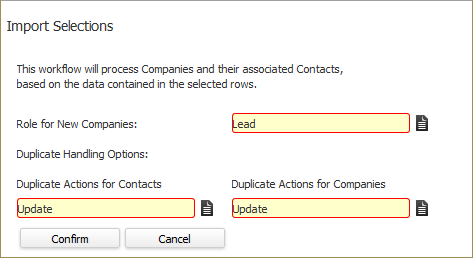
- In the Role for New Companies field, use the Code Selection icon to select whether you want the Company added as a Client, Lead or Prospect. In the Duplicate Handling Options fields, use the Code Selection icons to select how you want the system to handle a duplicate contact or company record. Options are Add (add the duplicate record as a separate record), Skip (ignore the duplicate record) or Update (Update the existing record with information from the duplicate record).
- If you select Remove Selections, the system will prompt you to make sure you want to delete the record(s). If you are sure, click OK.