FFCRA_CARES Payout Listing Report
This report is intended to provide detailed information on amounts paid out in relation to COVID-19 and may assist in the completion of IRS Forms 7200. The report should be run for a cumulative period of time in order to identify the QTD/YTD amounts. Because Form 7200 can be submitted multiple times and each pay category can have differing requirements, you may wish to retain historical versions of the report.
Executable Formats
This report can be executed in the following formats:
-
Excel
-
PDF (Portable Document Format)
-
RTF (Rich Text Format)
-
CSV (Comma Separated Values)
Accessing the Report
Access Reporting > Reporting & Analytics > System Reports > Payroll.
In the Payroll folder, single-click on FFCRA_CARES Payout Listing and click on the Run Selected Report icon to run in HTML format or the Export Report icon to export the report. Alternatively, you can right-click on FFCRA_CARES Payout Listing and select Run Report to run in PDF format or Export As > and then the format. You can also double-click on the report name to run it in HTML format.
Filters
The FFCRA_CARES Payout Listing report has 5 filters:
-
Corporation: Corporation associated with the payroll process. This defaults to the Default Corporation of the logged-in User's Default Branch. While the filtering screen allows you to change the Condition, the report only accepts one corporation at a time.
-
Check Date: Date associated with the check. The "From" date defaults to the first day of the current month. The "To" date defaults to the last day of the current month.
-
Employee Branch: Branch associated with the Employee. If none selected, all branches for which the user has access, will be returned.
-
Pay Codes: Allows you to select one or more PayBill code to review. This allows you to specify the codes for which payments were made for FFCRA or CARES purposes. Note: If no Pay code is selected, all will be returned
-
Deduction Codes: Allows you to select one or more if you wish to view information only for selected deduction types. Note: If no Deduction Code is selected, all will be returned.
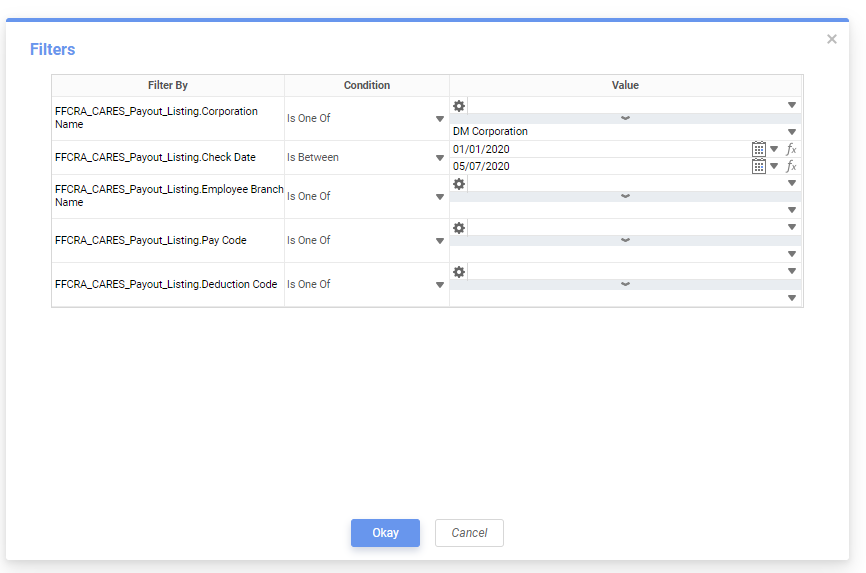
If no Pay Code is selected and at least one Deduction Code is selected, the report will return only deduction codes.
Filter Conditions
The following conditions are available:
-
Equal To (default for Corporation): Data must be equal to the Value. There is only 1 Value option.
-
Not Equal To: Data must not be equal to the Value. There is only 1 Value option.
-
Less Than: Data must be before the Value alphabetically. There is only 1 Value option.
-
Less Than or Equal To: Data must be before or equal to the Value alphabetically. There is only 1 Value option.
-
Greater Than: Data must be later than the Value alphabetically. There is only 1 Value option.
-
Greater Than or Equal To: Data must be later or equal to the Value alphabetically. There is only 1 Value option.
-
Starts With (does not apply to Sales Posting Date): Data must start with the Value. There is only 1 Value option.
-
Not Starts With (does not apply to Sales Posting Date): Data must not start with the Value. There is only 1 Value option.
-
Ends With (does not apply to Sales Posting Date): Data must end with the Value. There is only 1 Value option.
-
Does Not End With (does not apply to Sales Posting Date): Data must not end with the Value. There is only 1 Value option.
-
Contains (does not apply to Sales Posting Date): Data must contain the Value. There is only 1 Value option.
-
Does not Contain (does not apply to Sales Posting Date): Data must not contain the Value. There is only 1 Value option.
-
Is Between (Default for Sales Posting Date): Data/Date must be between the two selected Values alphabetically, numerically or date-wise (inclusive). There are two Value options.
-
Is Not Between: Data/Date must not be between the two selected Values alphabetically, numerically or date-wise (inclusive). There are two Value options.
-
Is One Of (Default for PayBill Type and Transaction Type): Data must match one of the selected Values. There are multiple Value options.
-
Is Not One of: Data must not match any of the selected Values. There are multiple Value options.
You have the following Value options:
-
Single Value: To select a single value, you can use the drop-list.
-
Double Values: To select two values, click the drop-list on each value.
-
Multiple Values: To select multiple values, click the drop-list on the top field to select a Value to add to the list. To see the items on the list, click the lower drop-list. To remove an item from the list, click the red X to the right of the item.
IMPORTANT! For performance purposes, the following should be noted when using the Values droplist:
-
In order to enhance performance, once a value is selected, the droplist only displays those items alphabetically/numerically AFTER the selected item. To see all items again, delete the value (select it and press Delete on your keyboard) and then use the droplist. All items will display.
-
In order to enhance performance, the droplist only displays a set number of records. If the list of possible values is longer than the displayed list, select the name at the bottom of the list as the value. When you next click the droplist, the rest of the items display.
Once filters have been chosen, select Okay to run.
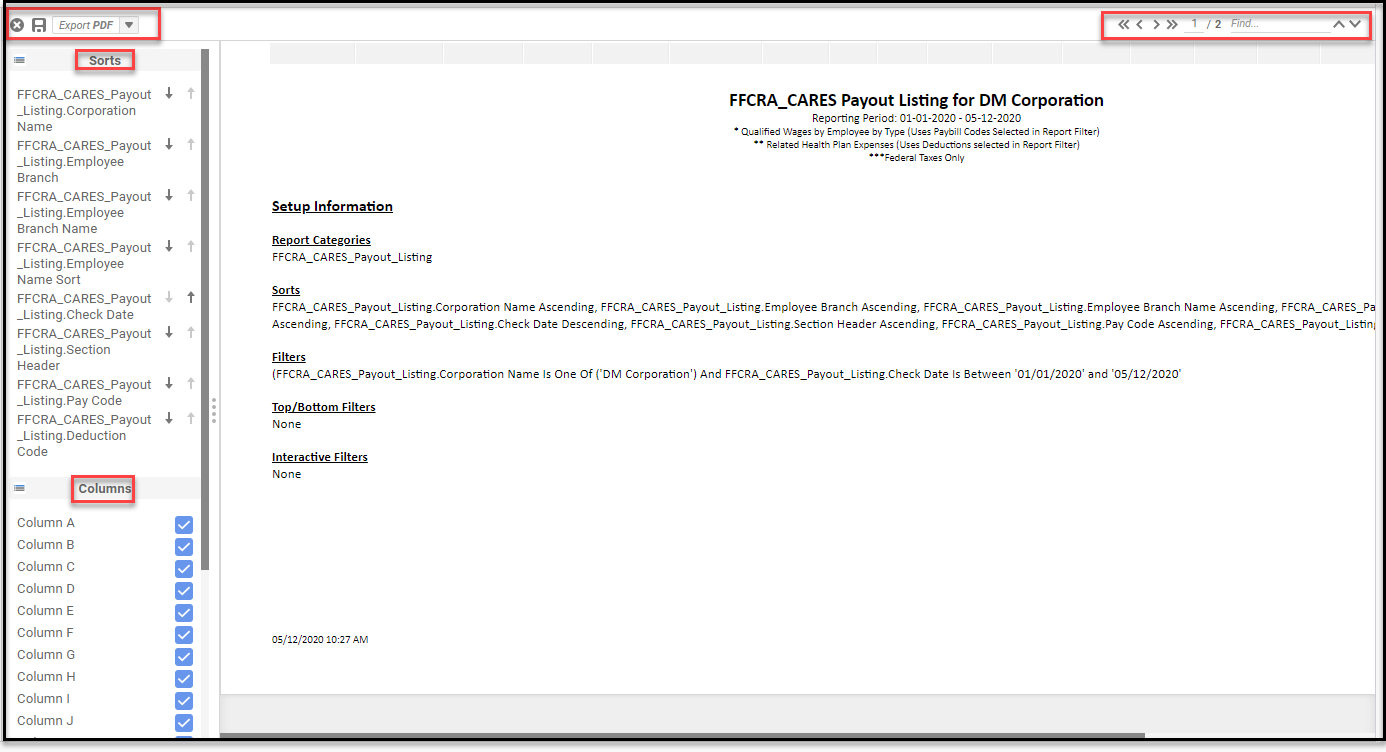
The FFCRA_CARES Payout Listing Report
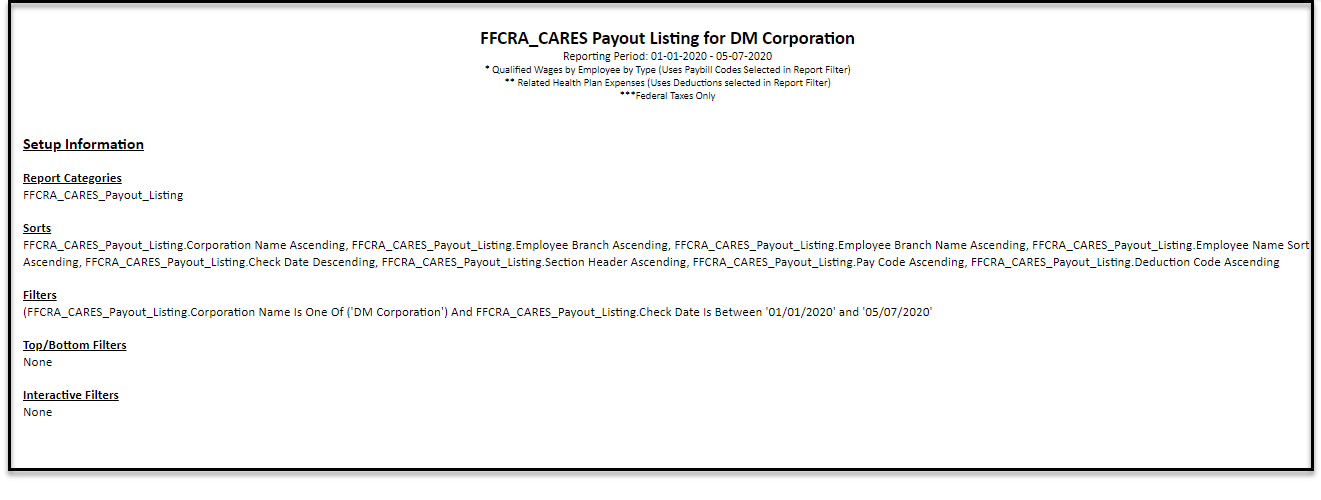
The header displays the report name and criteria used to generate the report:
-
The data is sorted by Corporation, then Branch, then Employee (Last, First), then Check Date and PayBill Sort Number
-
The data is grouped only by Corporation for easy export to Excel to further analyze the data.
The report shows a breakdown for each Employee for the reporting period of:
-
Employee Name
-
Hire Date
-
Check Date
-
Pay Hours
-
Pay Rate
-
Pay Amount
-
Ded Amount EE
-
Ded Amount ER
-
FWT
-
FICA EE
-
MEDI
The Employer Costing process should be run for the desired period prior to running the report.
Calculations in the report:
-
Total Pay Hours by Corporation
-
Total Pay Amount by Corporation
-
Total Ded Amount EE by Corporation
-
Total Ded Amount ER by Corporation
-
Total FWT by Corporation
-
Total FICA EE by Corporation
-
Total MEDI EE by Corporation
-
Total FICA ER by Corporation
-
Total MEDI ER by Corporation
Full Report
