Maximus - Client Locations List
WARNING: This report was written per Maximus specs and neither the headers, column order nor format type should be modified.
This report provides a list of Branch Locations with specific attributes needed by Maximus to aid in the I-9 and/or WOTC integration.
Executable Formats
This report can be executed in the following format:
- CSV (Comma Separated Values)
Accessing the Report
To access Maximus - Client Locations List:
- From the Navigator, select Reporting.
- From the fly-out menu, select Reporting & Analytics.
- From Reporting & Analytics page, select System Reports in the Folder/Report navigator.
- In the System Reports folder, select the General Administrative folder.
- In the General Administrative folder, single-click on Maximus - Client Locations List and click on the Export Report icon and select CSV.. Alternatively, you can right-click on Maximus - Client Locations List and select Export As > and then CSV.
Filters
This report has two filters. Neither filter is required.:
- Corporation: Corporation associated with the Client (Branch).
- Branch Name: The name of the Branch.
The following conditions are available on each filter:
- Equal To (Default for Send Assign to Peoplenet and Status): Data must be equal to the Value. There is only 1 Value option.
- Not Equal To: Data must not be equal to the Value. There is only 1 Value option.
- Less Than (Default for second Actual End Date filter): Data must be before the Value alphabetically. There is only 1 Value option.
- Less Than or Equal To: Data must be before or equal to the Value alphabetically. There is only 1 Value option.
- Greater Than: Data must be later than the Value alphabetically. There is only 1 Value option.
- Greater Than or Equal To: Data must be later or equal to the Value alphabetically. There is only 1 Value option.
- Starts With: Data must start with the Value. There is only 1 Value option.
- Not Starts With: Data must not start with the Value. There is only 1 Value option.
- Ends With: Data must end with the Value. There is only 1 Value option.
- Does Not End With: Data must not end with the Value. There is only 1 Value option.
- Contains: Data must contain the Value. There is only 1 Value option.
- Does not Contain: Data must not contain the Value. There is only 1 Value option.
- Is Between: Data/Date must be between the two selected Values alphabetically, numerically or date-wise (inclusive). There are two Value options.
- Is Not Between: Data/Date must not be between the two selected Values alphabetically, numerically or date-wise (inclusive). There are two Value options.
- Is One Of (Default for Corporation Name and Branch Name): Data must match one of the selected Values. There are multiple Value options.
- Is Not One of: Data must not match any of the selected Values. There are multiple Value options.
You have the following Value options:
For performance purposes the following two items should be noted when using the Values droplist. First, in order to enhance performance, once a value is selected, the droplist only displays those items alphabetically/numerically AFTER the selected item. To see all items again, delete the value (select it and press Delete on your keyboard) and then use the droplist. All items will display. Second, in order to enhance performance, the droplist only displays a set number of records. If the list of possible values is longer than the displayed list, select the name at the bottom of the list as the value. When you next click the droplist, the rest of the items display.
-
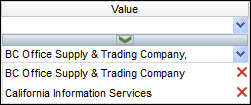
Multiple Values: To select multiple values, click the drop-list on the top field to select a Value to add to the list. To see the items on the list, click the lower drop-list. To remove an item from the list, click the red X to the right of the item.
Report Actions
The report is a file designed for export purposes and therefore, creates an .xls file that can be viewed in Excel.