Administration Code Listing
This report is intended to print the contents of the list of codes within the selected list. This report is available to user with an administration security profile.
For more information on adding codes via the Manage List functionality, see Manage Lists.
- Access Reporting > Reporting & Analytics > System Reports > General Administrative.
- Double-click Administration Code Listing to enter report criteria.
-
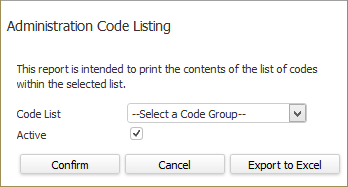
The Administration Code Listing workflow opens for selection criteria input. Use the droplist on the Code List field to select a Code Group. Check the Active checkbox if you only want to see active codes on the report. Click Confirm to run the report. Click Export to Excel to send the report to Excel.
-
The report opens in a new window.
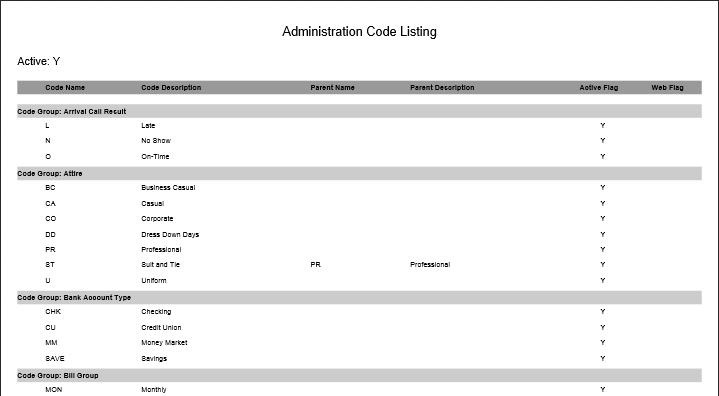
- The Header displays the report title and whether the report is showing only active codes (Y) or all codes (N).
- The report is sorted by Code Group and then by Code.
-
The columns display the following information:
-
- Code Name: Short Code Name.
- Code Description: Longer description of the Code.
- Parent Name: Short Code name of the Parent (note: not all code groups allow parent codes)
- Parent Description: Longer description of the Parent Code.
- Active Flag: Indicates whether the code is active (Y) or not (N)
- Web Flag: Indicates whether the code is also displayed as an option when adding data on the Web Portal.
Full Report
Was this helpful?