Navigating Saved Results
Use these instructions for locating, viewing and modifying the saved searches segment.
By default, the maximum number of saved results you can keep are 250. Any saved result beyond this amount automatically deletes the oldest saved search results.
- Mouse over Searching on the navigator and select Saved Results from the fly-out menu.
-
After clicking Saved Results, results from previously run searches are listed in the main screen. Click on a search name to view the records listed in the results.
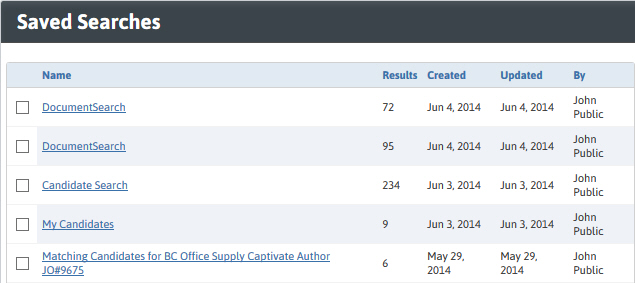
- Search Name - the default name given by Adapt for the type of search run. This can be changed when the search is run or through the Edit Name workflow. Click on the search name to view the results.
- Results - displays the number of records in the saved search.
- Created - date the search was run.
- Updated - date the search was last modified.
- By - the user who ran the search.
-
The Search Index Task Bar is located to the right of the saved search listing; use the task bar to execute workflows against selected saved searches.
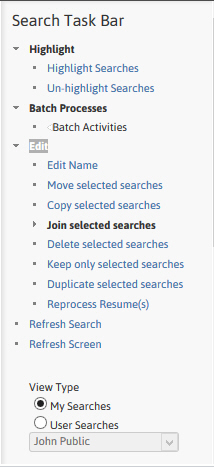
- Highlight - allows you to highlight and un-highlight selected searches.
- Batch Processes - allows you to run various workflows on the search results. You can also view search criteria, refine the search or rerun the search from here.
- Edit - allows you to take various actions on your saved searches.
- Refresh Options - allows you tor refresh the search or screen to give you updated results.
- View Type - allows you to view your searches or saved searches of another user.
View Search Results
-
Click on the Search Name to view records in the results.
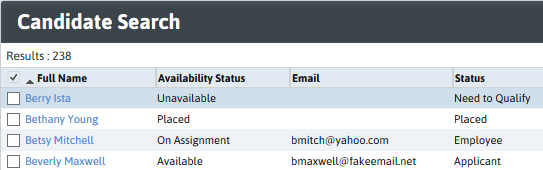
- Search Name - name of search displayed in the title bar.
- Total Records - count of the number of records in the search results. This is located under the records listing.
- Workflow Links – Off/On, Batch or Options to change look of results or run batch activity workflows.
Search Results Settings Link
Click on link to view available options:
- Highlight / Un-highlight Records – marks/un-marks a record a specified color.
- Lose Records - deletes selected records from the results.
- Keep Records - deletes all records in the results except for those selected.
- Add Records to Results - allows you to look up a record and add to the results.
- Show Availability - switches from result listing to the Availability Calendar for the records in the results.
- Print me – generates a view only file of selected results.
- Export as CSV – exports selected results into a csv formatted file.
- Formatter Tool - used to change what information is displayed in the results.
- Reset Formatter – resets the columns to the system defaults.
- Save Selected As - creates an export of selected records.
- Records per page – changes the number of records visible on each page.
- Show Comments - determines if comments are shown.
Results Listing
- Column Names - list information from each record; these fields are changed via the Formatter Tool. Click on the column names to sort the list of results by that field.
- Selection Box - select a record to include in a workflow by clicking the box to the left of the Full Name.
-
Listing - records located in the search. Click on the Full Name to go to the record; the first link of any search result is the link into the actual record.
The records are sorted by the sorting parameters the user defines in the formatter tool; if the user has not defined parameters the default sort method is by record id in ascending order.
- Comments- use this free text box to make short notes regarding this search result.
- Records per Page - change the number of records viewable on each page of the listing via Settings link; can view up to 30 per page.
- Navigation Arrows and Page # - the arrows and page number allow you to navigate through the results by page.
Entity Preview
-
Entity Preview - displays a quick view of the record. Click on a record in the listing to view basic information in the preview tab.
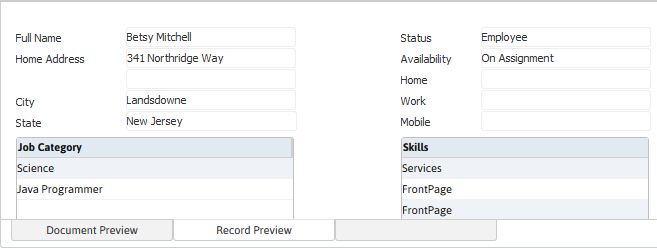
-
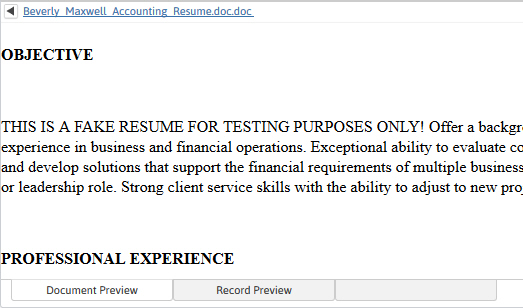
Document- displays the original resume of the selected record. After choosing a record from the result list, click on the Document Preview tab to view the resume.
The document preview tab only displays the Original Resume. If the candidate does not have an original resume you can add this to the record by acquiring the document on the Resume segment in the Original Resume list box.