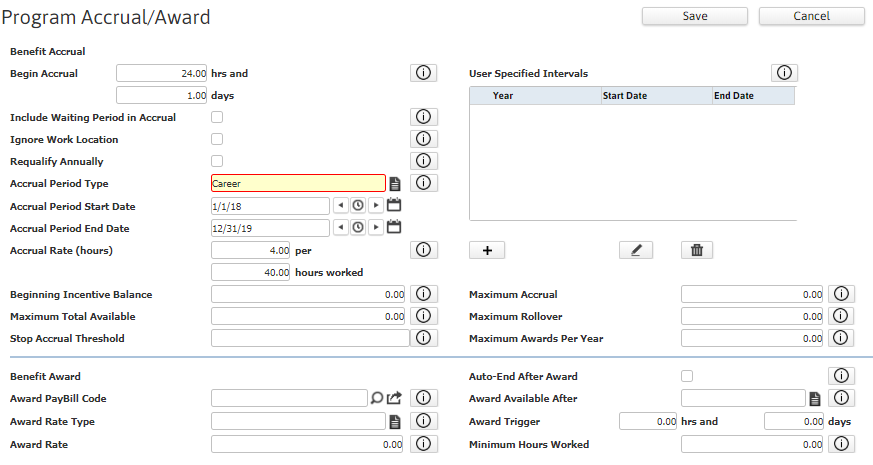
| Begin Accrual ___ hrs and ___ days
|
Enter the number of hours that must be worked and/or the number of days that must pass for the incentive program to trigger. If you enter both hours and days then BOTH must be true for the program to begin accruing hours. If you leave both fields blank, the program begins accruing hours immediately.
This applies only to the Accrued Incentive program type.
|
| Include Waiting Period in Accrual
|
If you want the Begin Accrual amount (Waiting Period) rolled into the Accrual hours worked, place a check in the checkbox. If you do not want the Begin Accrual amount rolled into the Accrual hours worked, do not place a check in the checkbox.
For example, you may have a program that begins accruing hours toward vacation pay once the employee has worked 200 hours (Waiting Period). Checking this box would cause the waiting period hours (200) to be calculated when determining vacation hours. In this case, if the box is checked and the accrual rate is 1 hour per 40 hours worked, the employee would immediately get 5 awards as soon as the program begins accruing (200/40). If the box is unchecked, the employee would still begin accruing hours toward vacation once the waiting period has passed, but the accrued hours worked toward the award would start at 0 (zero) rather than 200.
This applies only to the Accrued Incentive program type.
|
| Requalify Annually
|
If checked, the employee will be required to re-qualify for
the program annually. In other words, in each new year, the employee
must reach the Begin Accrual hrsto qualify for the award (Days is ignored during re-qualification).
If this is not checked, the employee is automatically qualified after reaching theBegin Accrual hrs and/or daysonce. Thus, if the employee reaches theBegin Accrualamounts in 2015, they are automatically qualified in 2016, 2017 and so forth.
This applies only to the Accrued Incentive program type.
|
| Accrual Period Type
|
Use the Code Selection icon to select the timeframe during which hours for the selected program are accumulated. This field is REQUIRED. Options are:
- Anniversary/Hire: This period is based on the employee’s hire date. It goes from the employee’s hire date (or first assignment date if no hire date exists) to the day before the anniversary date of the next year. For example, if an employee was hired on August 25, 2014, the period would go from August 25, 2014 to August 24, 2015.
- Calendar: The period goes from January 1 to December 31. This type would typically be used for ‘Sick Time’ eligibility programs that are based on incentive earned and used within a calendar year.
- Career: This period covers the employee’s career and therefore, all hours earned (subject to Maximum Total Available and Maximum Accrual) are applied to the incentive program. Once Maximums are reached, no hours are earned until some are paid out.
- Specified Date: This option allows you to select any month/date combination. If you select this option, the specified period is entered using the Accrual Period Start Date and Accrual Period End Date.
- Specified Interval: This option also allows you to select any month/date combination, but allows you to change the date range from year to year. This is useful if you have a benefit program with an accrual period that changes year-to-year. For example, you might have a summer benefit program that accrues from Memorial Day to Labor Day. Since those specific dates change every year, you can set up specified intervals each year.
This field applies only to the Accrued Incentive program type.
|
| Accrual Period Start DateAccrual Period End Date
|
If the Accrual Period Type is Specified Date, these fields allow you to specify the month/date combination.
The year is ignored in these fields. For example, if you have a benefit program that only accrues between April 1 and September 30 of each year, you would enter April 1 at the Accrual Period Start Date and September 30 as the Accrual Period End Date.
Start and End Dates are REQUIRED if Specified Dateis selected.
These fields apply only to the Accrued Incentive program type.
|
| User Specified Intervals
|
If the Accrual Period Type is Specified Interval, the intervals are added here.
To add a user specified interval, click. Enter a Year and then the Start and End date to accrue for that year. For example, if you wanted to add a program that accrues from Memorial Day to Labor Day each year, you would enter a Year of 2015, a Start Date of 5/25/2015 (Memorial Day) and an End Date of 9/7/2015 (Labor Day). After that, you would enter another interval with a Year of 2016, a Start Date of 5/30/2016 (Memorial Day in 2016) and an End Date of 9/5/2016 (Labor Day in 2016).
You may only add one interval per year, but you may add as many years to the list as needed.
To remove a user specified interval, select the interval by clicking the radio button to the left of its row and then click .
This area applies only to the Accrued Incentive program type.
|
| Accrual Rate (hours) ___ per ___ hours worked
|
Indicate how award hours are to be calculated. For example, if 1 award hour is earned for every 30 hours worked, enter “Accrual Rate (hours) 1.00 per 30.00 hours worked.”
This applies only to the Accrued Incentive program type.
|
| Beginning Incentive Balance
|
Enter the reward hours an employee receives “up front” for the incentive program. For example, if the incentive program awards 40 vacation hours in “advance”, enter 40.00.
This is REQUIRED (and applies only) if the Program Type is Advanced Incentive.
|
| Maximum Total Available
|
Enter the maximum number of hours of unused incentive that can be available for this incentive program (Maximum Accrual + Maximum Rollover). Once this amount is reached, nothing more is accrued for this incentive program until there is a payout. Once a payout has occurred, the incentive begins to accrue again. If the value is 0.00 or <blank>, the maximum total is unlimited.
This applies only to the Accrued Incentive program type.
|
| Stop Accrual Threshold
|
Enter the Maximum Accrual (Including any rollover) value, which once reached, will stop Accruals for the remainder of the participation period.
|
| Maximum Accrual
|
Enter the maximum number of incentive award hours an employee can earn toward this eligibility program per accrual period. If the value is 0.00 or <blank>, the maximum accrual amount is unlimited.
This applies only to the Accrued Incentive program type.
|
| Maximum Rollover
|
Enter the maximum number of incentive award hours that can be rolled over from one year’s program participation to the next. If the value is 0.00 or <blank>, no rollover is allowed.
This applies only to the Accrued Incentive program type.
|
| Maximum Awards Per Year
|
Enter the maximum number of award hours that may be used per year. This typically applies to Sick Leave programs that allow an employee to earn a certain amount of hours, but only use a subset of those hours per year. If the value is <blank>, then no limit is placed on the amount of award hours that can be used each year.
|
| Award PayBill Code
|
Use the droplist to select the default PayBill Code used to pay out the incentive earned by the employee. Bullhorn suggests having a unique PayBill Code for each incentive program as this makes it easier to track pay outs. However, you can use the same PayBill Code across multiple incentive programs.
Make sure the “Include in Eligibility” box on the PayBill Code Basic screen is NOT checked for the PayBill Code entered here when creating the timecard.
|
| Award Rate Type
|
Use the Code Selection icon to indicate the rate at which the incentive is awarded.
- Fixed: Indicates that the system should suggest an amount on the timecard when the program is scheduled to be paid.
- None: Payout may be different depending on circumstances and thus, no specific amount should be suggested.
|
| Award Rate
|
This indicates the dollar amount that should be suggested on the timecard when paying out an award from this incentive program.
It defaults no matter the Award Rate Type.
If the Award Rate Type is Fixed, this field is REQUIRED.
|
| Auto-End After Award
|
If checked, then once the award has been given (whether full or in part), the system deactivates the employee participation in the program when the timecard is posted.
If not checked, once the award has been given, the program remains activated and can be awarded in future timecards.
|
| Award Available After
|
Indicates the data upon which the days field of the Award Trigger ___ hrs and ___ days is calculated. There are two options:
-
Hire Date: The amount in the days field is added to the employee’s hire date (or adjusted hire date) to determine whether the award can be paid out.
-
Program Trigger: The amount in the days field is added to the program trigger date (the date that all requirements in the Begin Accrual field were met) to determine whether the award can be paid out.
This is only needed if you enter something in the “days” field of the Award Trigger ___ hrs and ___ days option.
|
| Award Trigger ___ hrs and ___ days
|
Enter the minimum amount of hours that must be earned and/or the number of days after the Hire (or Program Trigger) date that must have passed before Awards can be paid out from this eligibility program.
You can enter information in either or both the hrs and days field. If you enter data in both fields, then BOTH must be true in order for the award to trigger.
The amount entered in the hrs field is compared to the amount of unused incentive to determine whether the incentive award can be paid out on a timecard. If the amount of unused incentive is greater than or equal to the amount in the hrs field, the award can be paid out. If the amount of unused incentive is less than the amount in the hrs field, the system will not allow the payout.
The amount in the days field is calculated from the date selected in the Award Available After field. If you select “Hire Date” then the week ending date on the timecard must be equal to or later than the date calculated by adding the employee’s Hire Date (or adjusted Hire Date) to the amount in the days field. If you select “Program Trigger” then the week ending date on the timecard must be equal to or later than the date calculated by adding the date the program was triggered (after all requirements in the Begin Accrual field were met) to the amount in the days field. If, in either case, the week ending date is earlier than the calculated date, the system will not allow the payout on the timecard.
These fields are useful if there are requirements for the paying out of an award on top of triggering and accruing requirements. For example, there might be a requirements that the earned award can only be paid out in increments of 4. In this case, the Award Trigger is 4 hours.
These fields are optional. If there is no additional award trigger, leave these fields blank. However, if you do add an amount in the days field, you must also select something in the Award Available After field.
|
| Minimum Hours Worked
|
Enter the minimum number of hours that should be worked during a week for the incentive to be awarded on a paycheck. For example, you might determine that 20 hours must be worked on any week that Holiday pay is awarded.
This field is informational only and does not impact the Timecard process.
|