Program Details
The Program Details segment provides general information about the Eligibility Program.
Accessing Program Details
- From the Navigator, select Administration.
- From the fly-out menu, select Administration.
- From the Financial Administration area, select Manage Eligibility Programs.
- From the Manage Eligibility Programs page, click on the program's name (in the Program Name column).
- You are taken to the Program Details segment.
The Program Details Segment
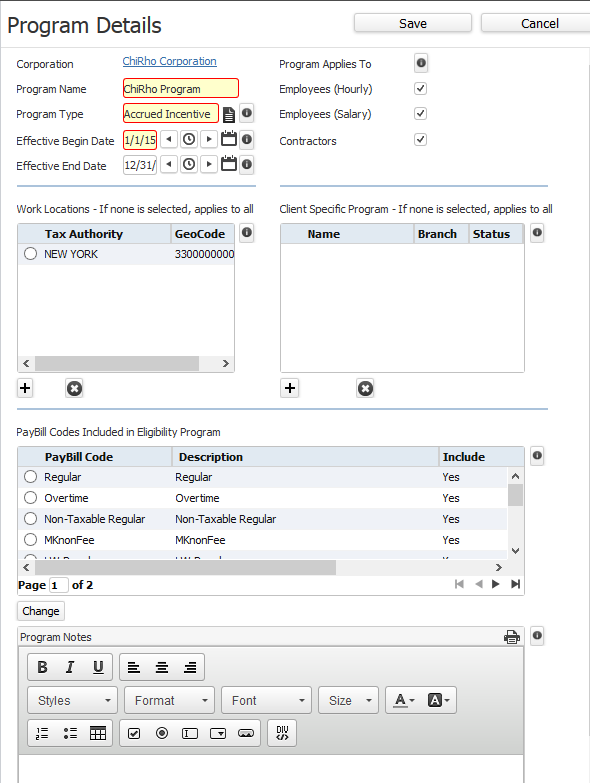
| Field | Description |
|---|---|
| Corporation |
Corporation with which the program is associated. You can click on the Corporation name to be taken to the Corporation record. You may not edit the corporation. |
| Program Name |
The Program Name by which the program is known in other areas of Adapt. The Program Name must be unique within the Corporation, but may have the same name as a program in a different Corporation. You may edit this field. |
| Program Type |
Indicates whether this program is Accrued Incentive or Advanced Incentive. An Advanced Incentive program awards a benefit amount "up front". The employee does not have to earn it. For example, if you award employees with 24 hours of vacation at the beginning of the year that they can spend throughout the year...this would be an Advanced Incentive program. Accrued Incentive programs are more complex but also more customizable. Accrued Incentive awards are earned by the employee working a number of hours and/or being employed a certain number of days. You can assign a certain number of hours and/or days that must be worked in order for the program to trigger (being accruing). Once the program being accruing, you can assign a rate of accrual (for example, 1 hour awarded per 30 hours worked). Finally, you can also set an award trigger that determines how much award must be earned before it can be paid out. In general, if the employee is given an incentive award "up front", use Advanced Incentive. If the employee earns the incentive award by working a certain number of hours or being employed a certain number of days, use Accrued Incentive. |
| Effective Begin DateEffective End Date |
Indicates when the program is effective. Dates are inclusive. While Effective Begin Date is required, you may leave Effective End Date blank to indicate that this is an ongoing program. |
| Program Applies To |
Indicates whether the Group Add function can be used with the selected program. Options are:
You must select at least one of the checkboxes. |
| Work Locations |
If the program is tied to a specific location (or locations), enter the location (or locations) in the Tax Authority grid. You can enter a state, county or city location. If a location is selected, then only assignments in those locations accrue towards the benefit's award. If nothing is selected, then the program applies to all locations. To add a location, click To remove a location, select the location (by clicking on the radio button to the far left on the row containing the location) and click |
| Client Specific Program |
If the program is specific to a client (or clients), enter the client (or clients) in the Client Specific Program grid. If a client is selected, then only assignments associated with the client accrue towards the benefit's award. If nothing is selected, the program applies to all clients. To add a client, click To remove a client, select the client (by clicking on the radio button to the far left on the row containing the client) and click |
| PayBill Codes Included in Eligibility Program |
The grid displays the paybill codes that have the "Include in Eligibility" flag set in Manage PayBill Codes. The Include column indicates that this PayBill Code, when added to a timecard, will cause hours to accrue toward this benefit program. If you would rather a code not accrue hours toward this specific benefit program, select the PayBill Code (by clicking on the radio button to the far left on the row containing the client) and click Change. This toggles the Include field between Yes and No. If the Include column showed Yes, clickingChangecauses it to change to No. If the Include column showed No, clicking Change causes it to change to Yes. |
| Program Notes |
A free form field that allows you to include additional relevant information about the program. You can use the text editor controls to add formatting to your notes. |

