Reformatting Advanced Lookups
Use these instructions to change the attributes displayed in the Advanced Look Ups and the data displayed in the Lookup Results.
Reformat Lookup Attributes
- From any tab, click on the General link to open the Advanced Lookup segment.
-
Select the entity, or type of record, you are looking for in the Role Selection Tree to display attribute fields below it.
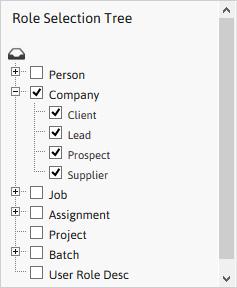
-
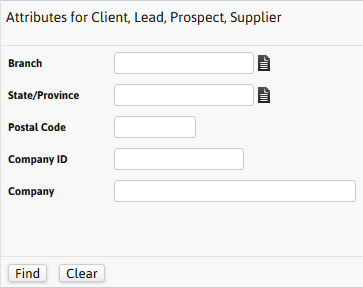
Attribute Fieldsthat can be used to look up a specific record are displayed to the right of the role selection tree.
These fields will change based on the entity and roles selected in the Role Selection Tree.
-
Options available on the Attribute section:
- Find – will display all records that match the search criteria entered within the entity and role selected.
- Clear – will remove any criteria entered into the attribute fields.
Reformat Lookup Results
-
After entering criteria and clicking Find the Lookup Results will display across the bottom of the segment.
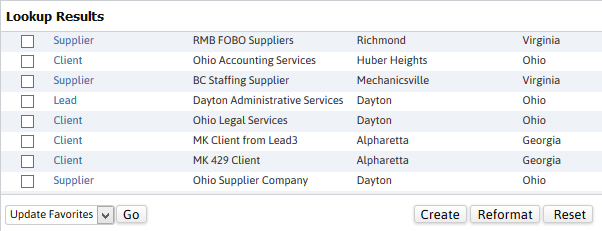
-
To change the data displayed in the results click on the Reformat button at the bottom of the segment.
Set as Default is an option only available to users with an Administration profile. If you have this access, use this option after reformatting the columns to change the system wide default display.
- The Formatter Tool will open in a new window.
- The top of the tool displays the current attributes visible in the Lookup Results. To change the column position of those attributes click on the attribute to move and use the arrows on the right of the Attribute box.
-
To remove an attribute from the lookup results, click on the attribute and use the X icon on the right of the Attribute box.
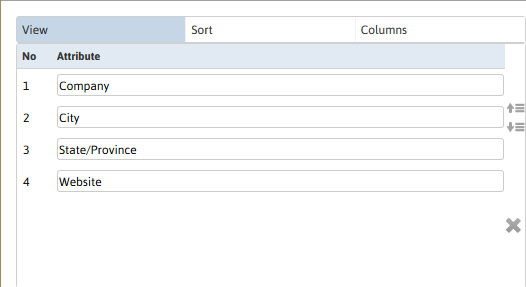
- The Attribute Picker, located at the bottom of the window is used to add to or change the attributes displayed in the Lookup Results.
-
Scroll through the list and find the attribute to display; double click on the attribute name to add it to the Attribute box.
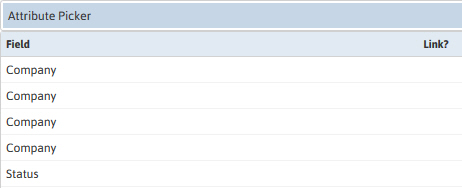
- The new attribute will appear at the bottom of the list in the Attribute box; use the arrows to the right of the box to move the attribute up or down in the list. Note that the position of the attribute in the list will correspond with the column in the Lookup Results segment.
-
Some entities have many attributes that can be displayed on the segment and some of those attributes are cross-references to another entity, i.e. the contact’s email address in an assignment record. If you do not see the attribute you are looking for in the list, use the search box located between the Attribute and the Attribute Picker boxes.
If you have drilled down in the Attribute Picker to linked fields you can use the arrows and the breadcrumbs to drill back up to the original attribute selections.

- After entering the attribute name and clicking the search; the Attribute Picker box will display only the fields that relate to the search term.
- If the attribute you are looking for is displayed, double click on that field to add to the Attribute Box.
-
After choosing all of the required fields and positioning them appropriately, click on the Apply button between the boxes to save the settings. The Search Listing segment will then display the new arrangement.
These are personal settings for only this saved search. The changed settings will display each time this search result is opened. If the setting should be changed globally, all search results for the entity for all users, the system administrator can change the defaults ion the sysadmin tool.
