Manage and Approve Commissions
Overview
This article contains information on how to review and approve commission reports for your representatives.
Before You Begin
The Payout dashboard relies heavily on approved payouts from prior periods. If a prior period is not approved, adjustments will flow forward to future periods and may not represent accurate data.

If the Payout dashboard looks incorrect or if you do not have the ability to approve a commission payout, check prior commission periods to ensure that they have all been approved up to your current date.
Steps
Review Commission Reports
- Navigate to the Commissions tab.
- Select the Payout sub-tab.
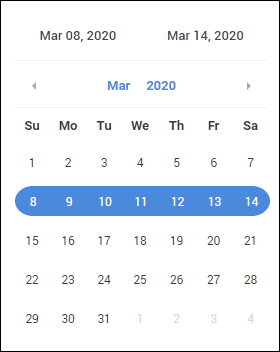
- Choose a commission period using the calendar on the left.
- The Payout list will provide an overview of each of your reps.
For more detail on an individual rep, locate their Payout line and select Actions > View to open their report.- Alternatively, you can choose Edit Commission Report to review and adjust the data as needed.
- See Understanding Adjustments on Commission Reports for more information.
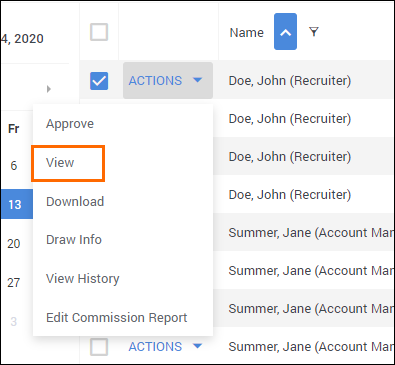
- Alternatively, you can choose Edit Commission Report to review and adjust the data as needed.
The commission report will open in a new browser tab.
- The first page shows the production graph with total commissions paid.
- Subsequent pages will show individual placements and the credit allotted to the rep.
Approve Commission Reports
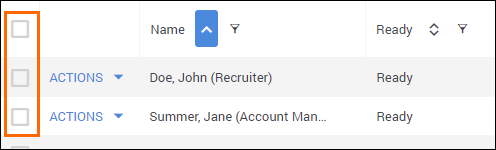
- On the Payout sub-tab, check the box next to each Payout line you wish to approve.
- Alternatively, select the box at the top of the column to select all lines.
- From the Actions / # Selected menu, choose Approve.
- You can also approve individual lines by selecting Actions > Approve on the line itself.
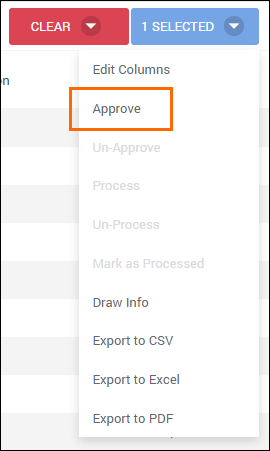
Your commissions are now approved. The status level will change from In Progress to Approved.