November 2026 Release: Amplify Contextual Data Viewer New Features & Enhancements
Screening Results Component for the Contextual Data Viewer
-
Feature: Amplify Contextual Data Viewer
-
Level of Configuration: Medium
-
Required Package(s): BHRC Amplify Actions 2026.11.2, Recruitment Cloud package 2026.08 or later
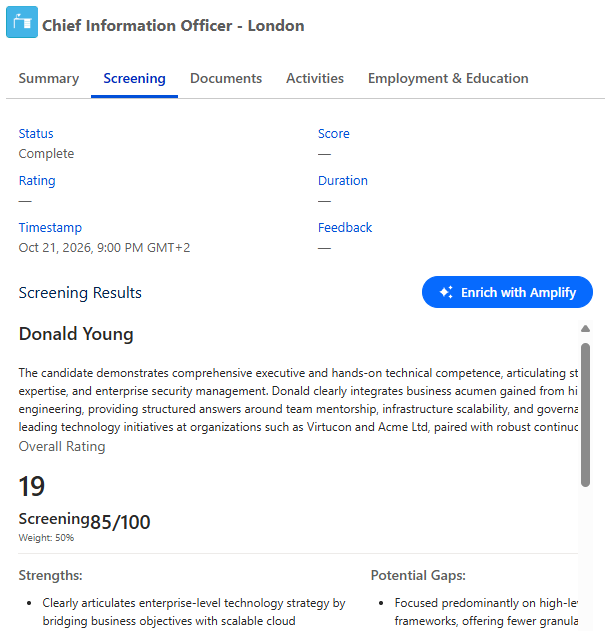
Recruiters can now see a candidate’s Amplify screening results directly in the Contextual Data Viewer (CDV), without navigating away from their list view. The new Screening Results component shows the most recent screening for the selected candidate and job, including:
-
Screening score and status
-
Completion timestamp (in the user’s date format) and screening duration
-
Candidate rating and candidate feedback
-
The full screening transcript, shown as readable formatted text
The component shows one screening result for each candidate and job. If a candidate is screened again, the new result replaces the previous one.
Recruiters can now also turn a candidate’s screening transcript into record updates without leaving the CDV. When a transcript is present, an Enrich with Amplify button appears in the Screening Results component.
Clicking the button opens a modal where record field update suggestions are shown. Each suggestion shows the field label, the current value, and the suggested value, with individual accept and reject controls.
Configuration
To add the component to a CDV screen flow:
-
Go to and open the CDV screen flow in Flow Builder.
-
Add the Screening Results component to the screen for the CDV tab where it should appear.
-
Map the Candidate (Contact) ID and Job Order ID from the CDV screen flow context to the component’s inputs.
-
Save and activate the flow.
Candidate Summary Component for the Contextual Data Viewer
-
Feature: Amplify Contextual Data Viewer
-
Level of Configuration: Medium
-
Required Package(s): BHRC Amplify Actions 2026.11.2, Recruitment Cloud package 2026.08 or later
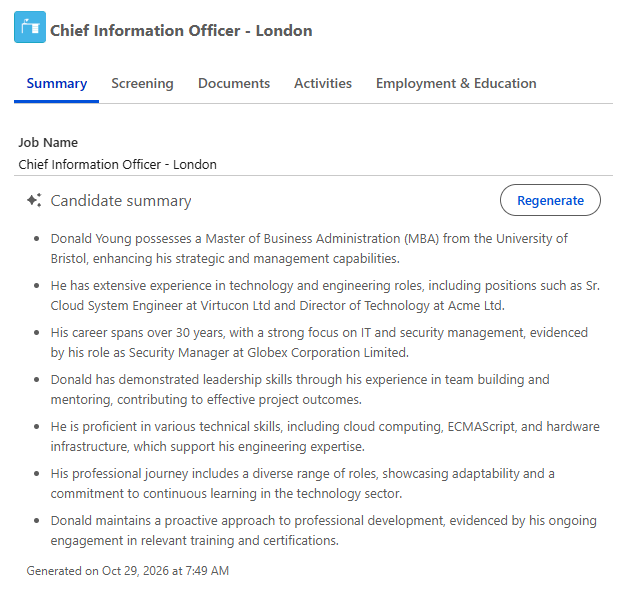
Recruiters can now view an AI-generated summary of a candidate that is specific to the job they are reviewing, helping them quickly understand fit and relevance without reading the full profile.
The summary is generated the first time the user opens the component, not on every view. A “Generated on [date at time]” label is shown beneath the summary.
A Regenerate option lets users refresh the summary and its timestamp on demand.
By default, the component uses the “Summarize Candidate Profile” prompt to generate the summary. Any other prompt template can be configured inside the flow.
Configuration
To add the component to a CDV screen flow:
-
Go to and open the CDV screen flow in Flow Builder.
-
Add the Candidate Summary component to the screen for the CDV tab where it should appear.
-
Map the Candidate (Contact) ID and Job Order ID from the flow context to the component’s inputs.
-
(Optional) Set a different prompt template if you don’t want to use the default “Summarize Candidate Profile” prompt.
-
Save and activate the flow.