November 2026 Release: Omnitable New Features & Enhancements
Filter Operator List No Longer Hidden by the Salesforce Utility Bar
-
Feature: Omnitable
-
Level of Configuration: None
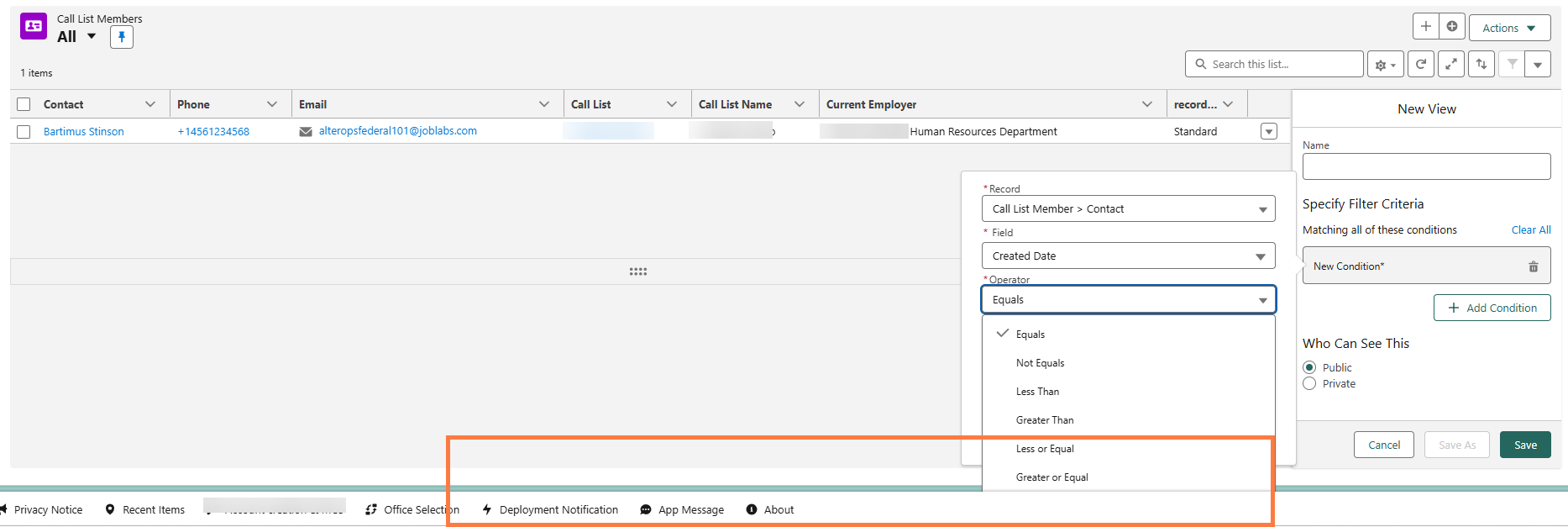
Users with the Salesforce Utility Bar enabled can now scroll to the last operator (for example, Is Not Blank) when building a view filter condition. Previously, the utility bar covered it.
Save Omnitable Column Filters as a Named View
-
Feature: Omnitable
-
Level of Configuration: None
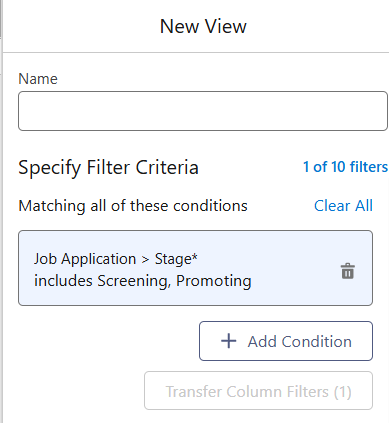
You can now turn the column filters you have applied in an Omnitable into Named View filter conditions, without rebuilding each filter by hand. Select Transfer Column Filters from the filter menu, and the Named View save screen opens with one condition for each filtered column. The button shows how many column filters are waiting to transfer.
-
If you aren’t viewing an existing Named View, you save the filters as a new view and choose a name and Private or Public visibility.
-
If you are viewing an existing Named View, you can add the transferred conditions to that view instead. The conditions already in the view stay in place.
-
Saving into a Public view you don’t own follows the same rules as other Named View changes: administrators can override, and other users save a copy with Save As.
-
Saving also captures the columns you are using at that moment.
-
Transferred conditions appear in blue until you save the view, then turn white like any other saved condition.
Use Inline Editing in Omnitables With a Contextual Data Viewer
-
Feature: Omnitable Inline Editing
-
Level of Configuration: None
Inline editing now works in Omnitables that use a Contextual Data Viewer (CDV). Previously, inline editing wasn’t supported in these Omnitables.
When you click the pencil icon, the row stays unselected, and the CDV doesn’t open, close, or change the record it shows. After you save an inline edit, the CDV stays open on the same tab, and its header and details show the saved data.
Search Long Picklist Lists in Omnitable Filter Conditions
-
Feature: Omnitable
-
Level of Configuration: None
You can now type in the value picker to narrow a long list of picklist values in an Omnitable filter condition. The search matches your text anywhere in the value label, ignores upper and lower case, and starts from the first character you type. It works for multi-select picklist fields and for single-select picklist fields. Typing only filters the list, and pressing Enter no longer jumps to the first option.
Previously, typing in the value picker for multi-select picklist fields did nothing, and pressing Enter jumped to the first option, which made long lists hard to use.
Edit Long Text Area Fields Inline in Omnitable
-
Feature: Omnitable
-
Level of Configuration: None
You can now edit Long Text Area fields directly in an Omnitable row. When you click the pencil icon, an expandable text input opens, sized for longer content. You can resize the input vertically.
Long Text Area fields follow the same rules as other inline-editable fields. Only fields in the configured Field Set are editable, and fields you don’t have permission to edit show no pencil icon.
Multiple Values for a Single-Select Picklist in Filter Conditions
-
Feature: Omnitable
-
Level of Configuration: None
Filter conditions on single-select picklist fields, such as Stage, now offer the Includes and Excludes operators. You can pick several values in one condition, for example “Stage Includes Application, Interview, Offer”, instead of building a separate condition for each value.
Previously, this action was only available in the Account List Members Omnitable.
-
A condition field is limited to 255 characters. If you select too many values, Omnitable blocks the save and shows “You have selected too many values - remove some and try again” on the value field.
Edit Rich Text Area Fields Inline in Omnitable
-
Feature: Omnitable Inline Editing
-
Level of Configuration: Low
You can now edit Rich Text Area fields directly in an Omnitable row. When you click the pencil icon, a rich text editor opens in a panel below the cell and shows the formatted content without HTML tags. By default, the toolbar shows a font color picker and the Bold, Italic, Underline, and Strikethrough buttons.
-
Press Enter to save the edit, Shift+Enter to start a new paragraph or list item, and Esc to cancel.
-
Drag the handle to resize the editor vertically. A scrollbar appears when the content is taller than the editor. The width is fixed.
-
When you press Enter, the editor checks the value against the field’s length limit. If the value is too long, the editor stays open and shows the current length and the allowed length.
-
In the table, the cell shows the value as plain text, and line breaks appear as spaces. The text is clipped to one line by default. You can switch the column to wrapped text (up to 3 lines) from the column header menu.
-
You can’t sort or filter Rich Text Area columns, and quick search doesn’t include them.
Configuration
-
Add the Rich Text Area field to the Field Set that the Omnitable editableFields setting references.
Copy"editableFields": "omnitable_InLine_Edit", -
(Optional) To change the toolbar, add a richTextEditor node to the Omnitable configuration. Both properties are optional, and any property you leave out keeps its default.
Copy"richTextEditor": {
"disabledCategories": ["FORMAT_FONT", "FORMAT_BODY", "ALIGN_TEXT", "INSERT_CONTENT", "REMOVE_FORMATTING"],
"formats": ["bold", "italic", "underline", "strike", "list", "link", "image", "color"]
} -
disabledCategories only hides toolbar buttons. It doesn’t remove content that uses a hidden format.
If you set formats, the editor removes any format missing from that list from the stored value when a user edits that record. Include every format your existing data uses. If you don’t set formats, nothing is removed.
Debounce Stage Chevron Clicks in ATS Shared Controls (ATSv2 and Omnitable Plus)
-
Feature: Omnitable
-
Level of Configuration: None
Rapid double-clicks on a stage chevron no longer trigger the stage action twice, which could create duplicate stage records. Clicks on the same chevron within one second are now ignored.
This applies to the ATS list view (chevron view) on the Job and Candidate sides and to the Omnitable Plus ATS stage chevrons column.
This change doesn’t cover:
-
A second click made more than one second after the first.
-
Two browser tabs open or other ways of starting the same action.
-
This UI-level fix prevents duplicate requests that originate from these shared Bullhorn Recruitment Cloud components. Backend duplication remains possible if triggered through other entry points. Address duplicate prevention in your custom or backend logic.