Amplify Audit
Amplify Audit is an Early Access feature. Contact your Bullhorn representative to learn more.
For Middle Office customers, Amplify Audit replaces the manual, reactive process of catching billing and payroll errors with automated, AI-powered checks that run across Middle Office records at scale. Instead of discovering a Rate Card mistake or compliance gap when an invoice gets rejected, teams can surface issues immediately with simple pass-or-fail results, freeing Middle Office staff from report-running and putting their focus back on resolution. Learn more about the power of Amplify Audit below.
Before You Begin
An Amplify Admin must enable Amplify Audit via Menu > Admin > Amplify Admin and create at least one audit before it can be used. See Amplify Audit: Creating Audit Prompts for more information.
To view audit results, you need Amplify Chat access. Contact your administrator if you do not have access.
Supported Record Types & Use Cases
Audits can be configured for the following record types.
- Placement: Validate Rate Cards, Time & Labor Rules, CRFs, Sync Status, and State-Specific Compliance.
- Billable Charge: Check hour totals, duplicate transactions, Payable Charge alignment, and Billing accuracy.
- Payable Charge: Validate Pay Rates, hours, Payroll Export Status, and comparison to Billable Charge.
- Candidate: Check Onboarding fields, Credentials, and Compliance items.
- Job: Check Job location, Employee Type, etc.
- Timesheet: Check ended Placements, Work from Home statuses, and audit for certain Earn Codes used.
- Invoice: Check Invoice statuses, Billing Contacts, Accounting Periods, etc.
Audit results are read-only. The audit surfaces issues for your team to act on, but does not modify any records.
Running an Audit
Audits must be built by an Amplify Admin before they are accessible to run. See Amplify Audit: Creating Audit Prompts for more information. Learn how to run audit from the List View or from an Individual Record below.
From a List View
Use this method to audit multiple records at once.
- Navigate to the relevant list view. For example, Placements or Billable Charges.
- Filter the list to the records you want to audit.
- Select the records by checking their checkboxes.
- Click Action Menu > Run Audit and select the audit you want to run. For example, "Run Audit: Billable Charge Audit."
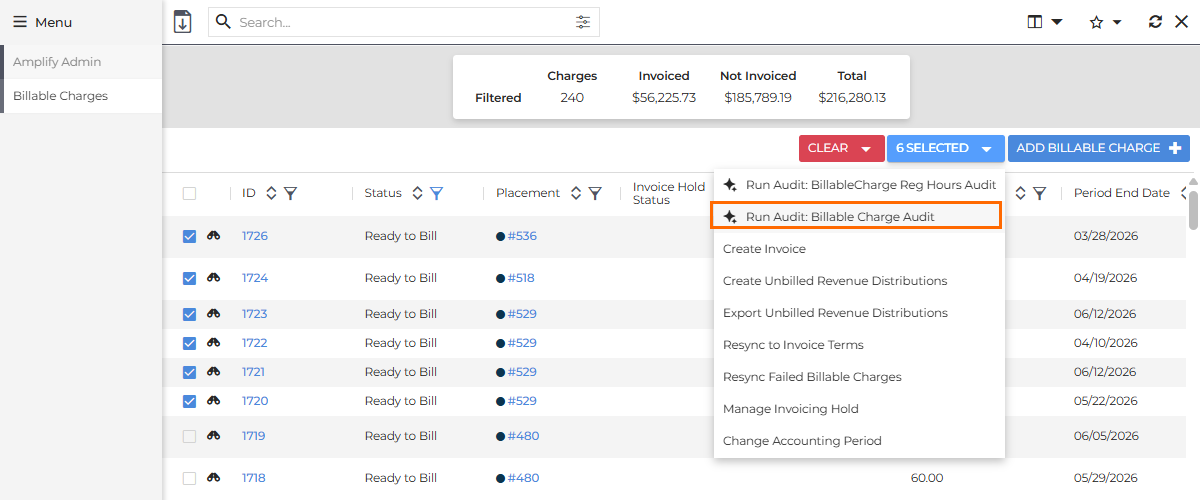
The audit begins processing. You can continue working in Bullhorn while the audit runs in the background.
From an Individual Record
Use this method to audit a single record you are already viewing.
- Open the record in Bullhorn.
- Click the Actions dropdown button in the top-right.
- Select the Run Audit action you want to run from the dropdown. For example, "Run Audit: Billable Charge Audit."
The audit starts immediately. Monitor progress in Amplify.
Reviewing Audit Run Results
Run results are available per audit. Each user sees all runs for all audits they have access to.
Audit run results are available in Amplify under Menu > Amplify > Audits. This dashboard includes a summary of your audits and a filterable list of the full run history of all audits you have access to. 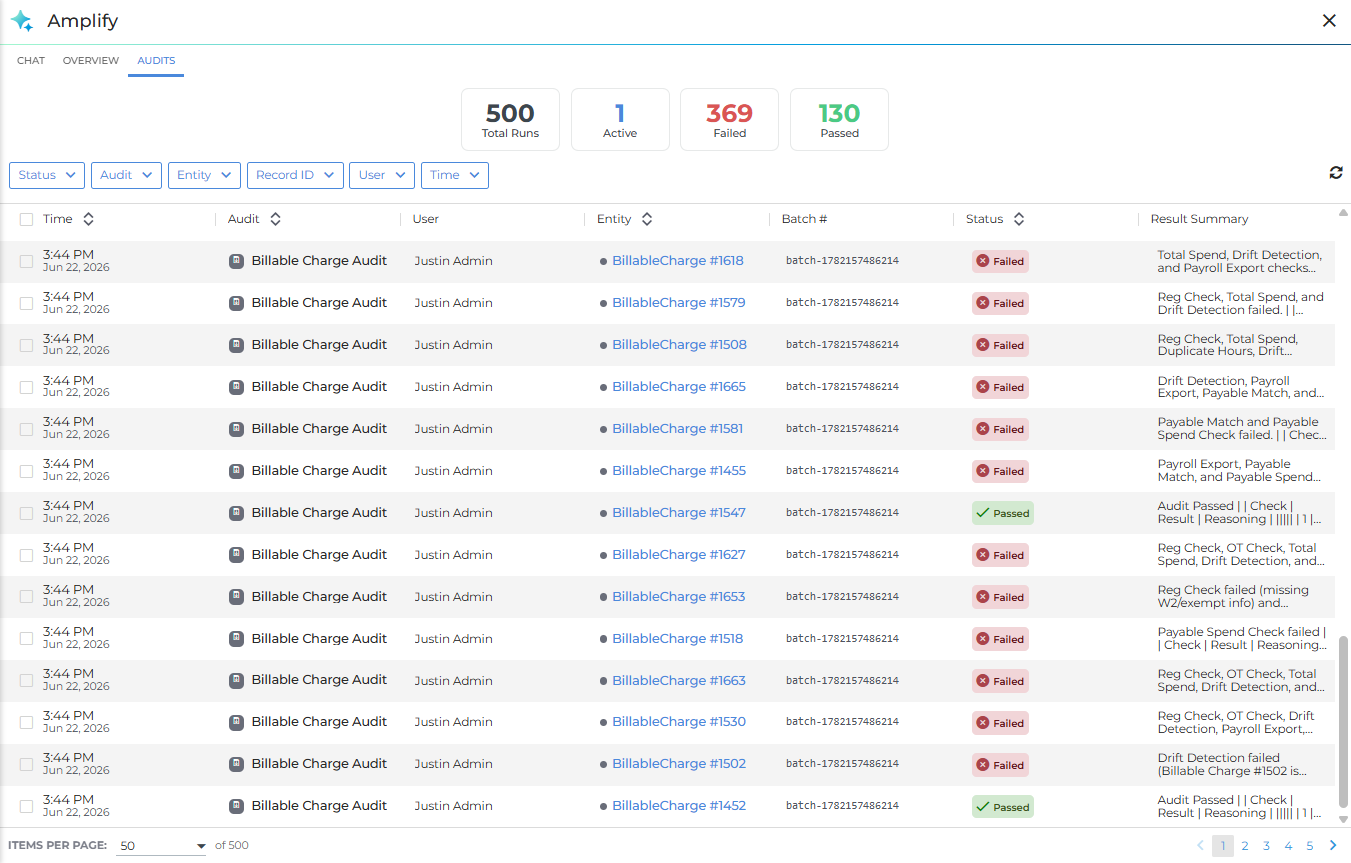
To view audit details, click the Audit Name (ex: "Billable Charge Audit") on any run to open the detailed results panel. Detailed results display a check-by-check breakdown with pass/fail status and the audit's reasoning for each result.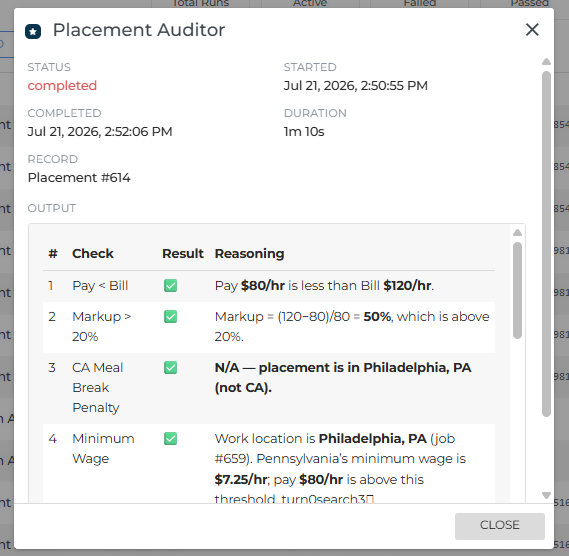
Each check returns one of the following statuses.
- Pass: The check passed. No action required.
- Fail: The check failed. Review the reasoning and correct the record manually, then re-run the audit if needed.
- N/A: The check did not apply to this record (for example, a California-specific check for a non-California placement). This is treated as a pass.
Filtering Run Results
Results on the audit run list are filterable by the following categories:
-
Status
-
Audit
-
Entity
-
Record ID
-
User
-
Time
Archiving Run Results
You may want to archive failed run results to keep your audit run list clean. Follow the steps below to archive a run.
-
From the Audits tab in Amplify, select the runs you want to archive using the check boxes on each line.
-
Click the Selected drop down.
-
Select Archive.
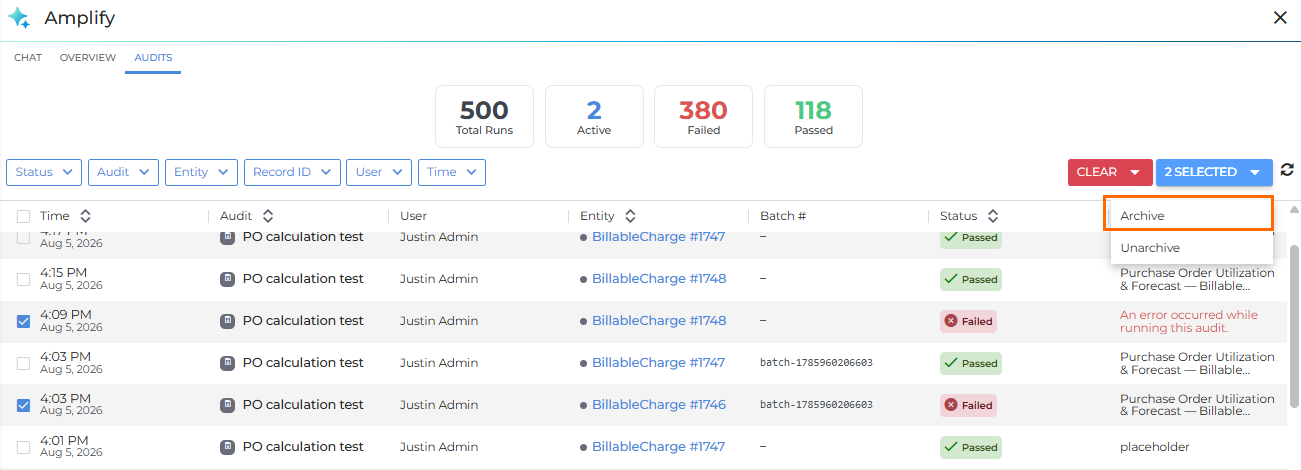
After archiving, you can filter by Status for "Passed (Archived)" or "Fail (Archived)".