Amplify Audit: Creating Audit Prompts
Amplify Audit is an Early Access feature. Contact your Bullhorn representative to learn more.
For Middle Office customers, Amplify Audit replaces the manual, reactive process of catching billing and payroll errors with automated, AI-powered checks that run across Middle Office records at scale. Instead of discovering a Rate Card mistake or compliance gap when an invoice gets rejected, teams can surface issues immediately with simple pass-or-fail results, freeing Middle Office staff from report-running and putting their focus back on resolution. Learn more about the power of Amplify Audit below.
Learn how to create your own Amplify Audit prompts below. See Amplify Audit: Default Prompts to learn more about default prompts.
Because the Amplify Audit runs through Amplify Chat, anything Amplify Chat can do is available in a prompt.
- Look up any data accessible via the Bullhorn API, across any entity type.
- Perform web searches to check current minimum wage, state regulations, or compliance requirements without manual table maintenance.
- Compare a record against other records (for example, other active placements for the same client).
- Evaluate conditional logic (for example, "if in California, check for X").
- Reference related entities (for example, look up the payable charge from within a billable charge audit).
Creating Your Own Audit Prompts
The prompt is the heart of every audit. It outlines exactly what to check, what data to look at, and how to format the results. Because this is plain-language AI, you have a lot of flexibility.
Steps for Creating a New Audit Prompt
Follow the steps below to create a new audit and enter your prompt.
-
In Amplify Admin settings, go to the Amplify Audit tab.
-
Click New Audit.
-
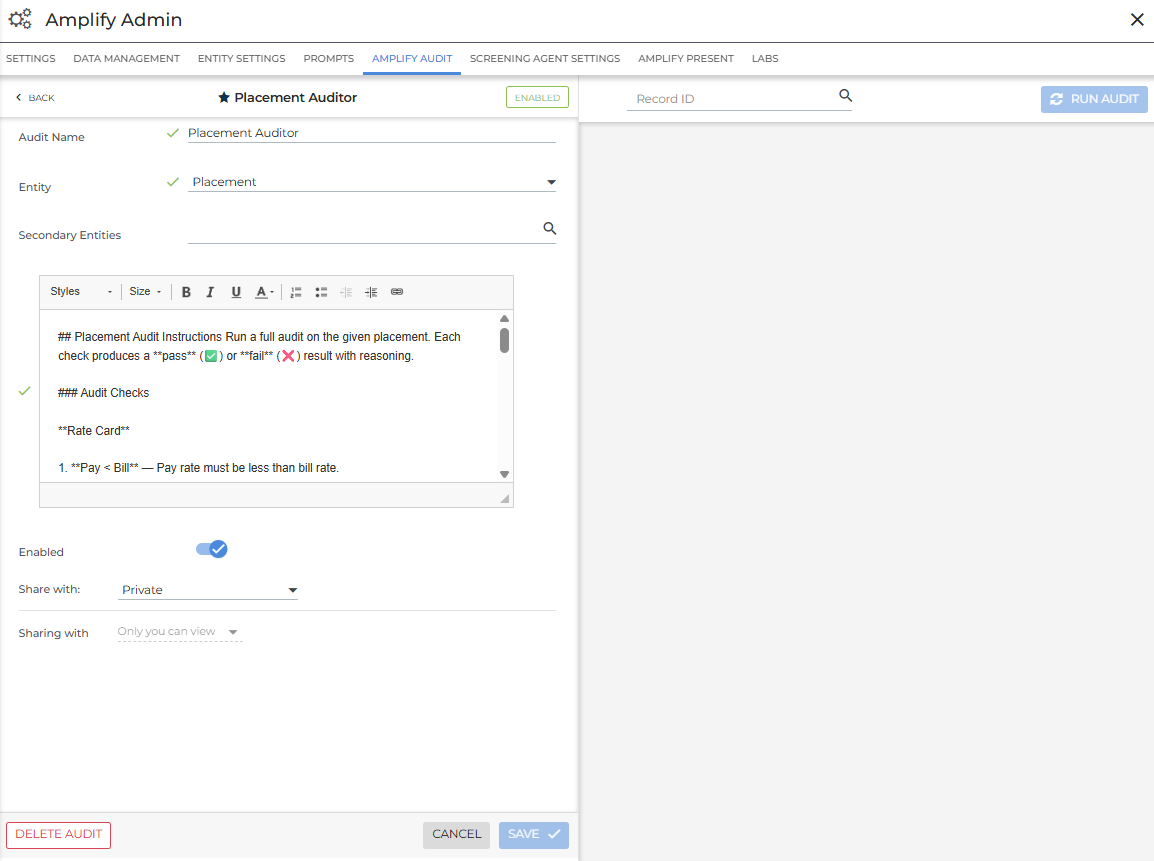
Fill out the following fields:
-
Audit Name: Give the audit a clear, descriptive name (e.g. “Placement Auditor”, “Billable Charge Audit”). This name appears in Action menus.
-
Entity: Select the entity this audit will be run from. This controls which list view and record actions the audit appears on; not which entities can be accessed from the prompt.
-
Secondary Entities: Add any other applicable entities you want the audit to focus on. Choosing secondary entities is optional.
-
Instructions Text Box: The audit instructions / prompt. This is where you define every check the audit will run, and how results should be formatted. See the General Prompt Principles below to learn how to format your prompt for the best results.
-
Enabled: This will automatically be toggled on.
-
Share with: Choose to keep your audit private to you or share publicly for other people on your team to run. If you select "Public", you must fill out the Sharing with field.
-
Sharing with: Only selectable when Share with is "Public". From here you must choose individual users or groups within your agency to share your audit with.
-
-
-
Click Save.
General Prompt Principles
- Be specific. Vague instructions produce inconsistent results. Instead of "check the rate card looks right", write "pay rate must be less than bill rate".
- Use Bullhorn field names. Refer to fields by the names used in Bullhorn (for example, "placement status" not "rec status", "Job" not "requisition"). The audit uses the same names that appear in Bullhorn.
- Test incrementally. Start with two or three checks in global Amplify Chat (for example, "For placement 12345, check the following...") before adding them to an audit prompt. This lets you validate results quickly without running a full audit job.
- Define context explicitly. If a check depends on a relationship (for example, "corresponding payable charge"), define that relationship at the top of the prompt before referencing it in checks.
- Control output in the prompt. Specify whether you want a table, whether to show passes and fails or only fails, how verbose the reasoning should be, and so on.
- Add more context: Define what the check means explicitly rather than leaving it ambiguous. Describe exactly what a correctly configured rule looks like rather than asking the audit to infer it.
- Specify the field: If the audit is pulling data from the wrong place (for example, bill rate on the job rather than the rate card), name the exact field or object you want it to reference.
- Test in chat first: Run the check against a specific record in Amplify Chat to see how the audit interprets it, then refine the wording.
- Break it down: If a complex check is unreliable, split it into two simpler checks.
If a check is returning incorrect or inconsistent results, try these approaches.
Prompt Structure
A well-structured prompt typically contains three parts.
- Definitions: Any relationships or terms the audit needs to understand before running checks. For example: "The corresponding payable charge is defined as the payable charge with the same placement ID and week ending date."
- Checks: A numbered or bulleted list of everything to validate. Each check should be a single, clear condition that can return pass or fail.
- Output instructions: How to format the results. Specify the output format (for example, a markdown table with columns #, Check, Result, Reasoning), whether to include passes, and what to include in the structured output. This part also helps define what a failure looks like.
Copy an output format block from a prompt in Amplify Audit: Default Prompts (exactly as written, and do not modify it). The specific wording is what tells the agent how to evaluate the overall result. If you change this section, test the prompt to confirm the agent is correctly returning success: false on failures, not just on errors.
Example Checks You Can Build
The following table illustrates the types of checks you can configure. Any check you can describe in plain language can be added to a prompt.
| Example Check | Entity | What It Does |
|---|---|---|
| Pay rate < bill rate | Placement | Flags any placement where the pay rate equals or exceeds the bill rate. |
| Markup > 20% | Placement | Validates that margin is above a defined threshold. The threshold is configurable in the prompt. |
| State-specific earn codes present | Placement | Checks for required earn codes (for example, state specific meal breaks ) using the placement location. Because the skill can do a web search, minimum wage tables do not need to be manually maintained. |
| Earn codes consistent with client | Placement | Compares earn codes against other active placements for the same client to flag outliers. |
| Time & Labor rules consistent | Placement | Checks T&L configuration against other placements in the same company or state. |
| CRFs present | Placement | If the client typically uses Customer Required Fields, verifies they are set on this placement. |
| Time capture method set | Placement | Confirms a time capture method has been configured. |
| Synced to BTE | Placement | Checks the placement sync status. |
| Reg hours ≤ 40 | Billable Charge | Flags charges where regular hours exceed 40 for W-2 employees. |
| Total dollars within range | Billable Charge | Catches unusually large charges that may indicate data entry errors. |
| No duplicate daily transactions | Billable Charge | Detects identical hour entries repeated on the same day. |
| Payable charge exported to payroll | Billable Charge | Checks that the corresponding payable charge has been exported before the billable charge is billed. |
| Payable hours match billable hours | Billable Charge | Compares hours on the payable and billable charge for the same placement and week ending date. |
| Payable total < billable total | Billable Charge | Ensures margin has not been eroded by checking the dollar totals. |
| State-specific fees on rate card | Billable Charge / Placement | Verifies state-mandated surcharges are present (for example, SNSA fees for Minnesota placements). |
| Per diem validation | Billable Charge | Confirms per diem amounts and any healthcare-specific stipends are within expected ranges. |
| Custom field cross-checks | Any entity |
If a custom field on the client indicates POs are required, checks that a PO is present on associated placements or charges. |