Field Mappings: Redesigned Interface with Multi-Entity Editing
Field Mappings
What's new:
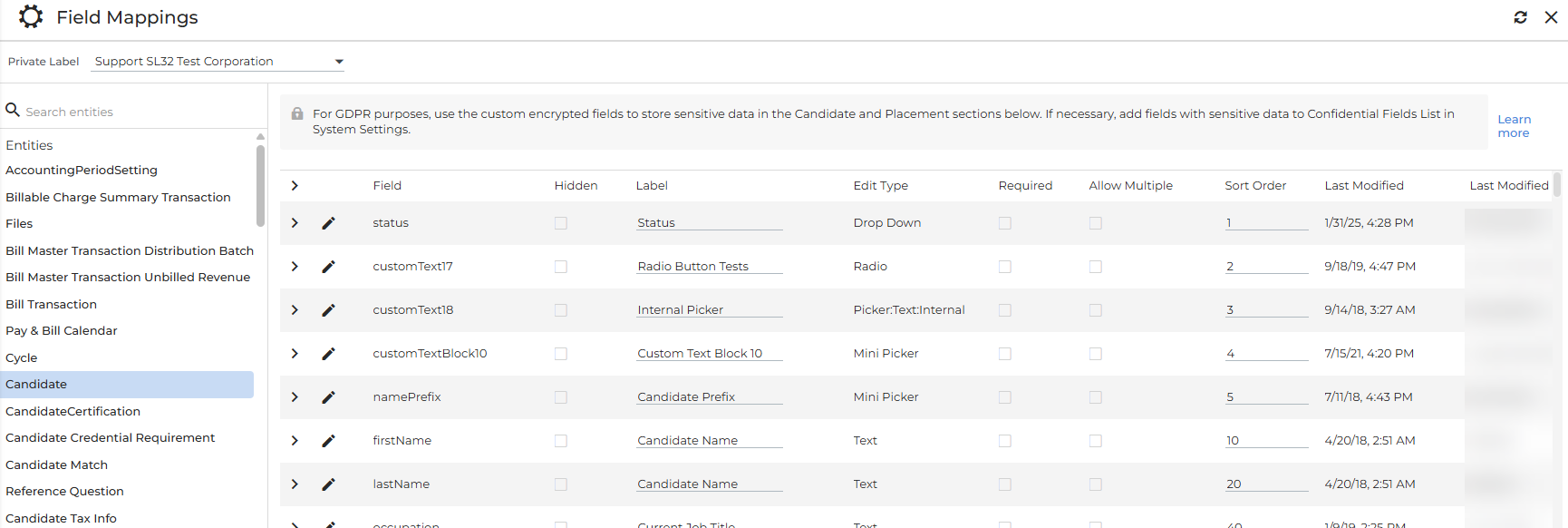
Field Mappings has a faster, user-friendly, and modern design. Use it to control field labels, visibility, “required” settings, and options for fields on each record. Go to Menu > Admin > Field Mappings as usual.
-
Entity panel with search bar. Entities are grouped into sections (Entities, Tracks, Lists, Change Requests, Custom Objects) for easy browsing. Type in the search box to find an entity by name, then select it to view its fields.
-
Move between entities without losing work. Unsaved edits stay in place when you switch entities. Entities with unsaved changes show an edit pencil icon.
-
See what you’ve changed. Changed cells are highlighted, and a counter shows your total unsaved changes.
Edit with more confidence
-
One Save button for everything. Save changes across multiple entities, including custom objects, in one click.
-
Protection for unsaved work. If you have unsaved changes, you’ll be asked to confirm before refreshing, switching private labels, or closing the page.
-
Clear error messages. If a change can’t be saved, nothing saves, your edits remain on the page, and a message explains what to fix.
-
Understand locked settings. Hover over a locked setting to see why it can’t be changed. For example, the field may not support multiple values.
You can only select the Allow Multiple Values checkbox if the field supports multiple values. Previously, the system would allow you to select this option even if the field didn’t support it and no changes were made in the system.
-
Refresh button to reload the latest settings.
Full edit page for each field
-
Click the pencil icon on a field to open its edit page in a new tab.
-
The top of the page displays the entity, private label, column name, field limits, and when the field was last changed and by whom.
-
Sort Order validates before you save. You’ll see “Enter a whole number” if the value isn’t valid.
What works the same:
-
Only Admin users with the proper entitlements can use Field Mappings.
-
The Private Label picker is available for companies with multiple private labels.
-
The same grid columns: Field, Hidden, Label, Edit Type, Required, Allow Multiple Values, Sort Order, Last Modified and Last Modified By. Fields sort by sort order.
-
Edit Hidden, Label, Required, Allow Multiple Values and Sort Order inline in the grid. Expand a row to edit Description, Value List, Display List, Default Value and Hint.
-
Field edit pages show the same settings as before for each field type.
-
The same rules apply when you save. For example:
-
Hiding a field removes it from View Layout (except system fields).
-
Label and Hidden changes on Candidate and Client Contact fields carry over to their respective list.
-
The Opportunity status list can't include Converted, Closed Won or Closed Lost.
-
The Client Contact and Company fields can't both be hidden on an Opportunity.
-
-
The GDPR notice and Learn More link display for users with GDPR Admin entitlements.
Known limitations:
-
You can’t sort or filter the field grid yet. Scroll or press Ctrl + F to find a field.
-
Keep labels to 100 characters or fewer. Longer labels show an error when you save.
-
Blank values save as blank. Clearing a Label saves as empty; clearing Sort Order saves as 0.
-
Select Refresh on the main Field Mappings screen to see changes you’ve made.
-
Changes can take about a minute to appear for other users.