Initiating an Amplify Outreach Campaign
You need Bullhorn Amplify Edition to use this feature.
Amplify Outreach allows you to launch personalized, Amplify-driven outreach campaigns directly from Bullhorn ATS. This guide shows you how to enroll candidates or contacts individually or in bulk and follow their progress through the campaign.
How it Works
Amplify Outreach Campaigns are created and configured
Once the
-
Select a specific candidate or contact
-
Review and edit the personalized messages generated by Amplify
-
Start the campaign to send those messages
Message Ownership
Messages sent through an Amplify Outreach automation always come from the user who initiates the campaign for a candidate or contact — that is, the person who enrolls them.
This ensures each message reflects the correct sender and helps maintain a consistent, personalized candidate experience.
Prerequisites
For an Amplify Outreach campaign to appear in Bullhorn ATS:
-
The automation must be active (not paused in Bullhorn Automation).
-
The Allow in Amplify automation setting must be selected.
For a setup guide, see Setting Up an Amplify Outreach Automation.
Steps to Initiate an Amplify Outreach Campaign
Enroll a Single Candidate or Contact into an Outreach Campaign
When you enroll a single candidate or contact into an Amplify Outreach campaign, Amplify generates highly personalized messaging tailored specifically to that individual’s record. Follow these steps to launch one-to-one outreach.
Before launching, it’s important to review all campaign messages carefully, especially any that include Amplify-generated content, to make sure each message reads accurately and appropriately.
-
Open the candidate or contact record in Bullhorn ATS.
-
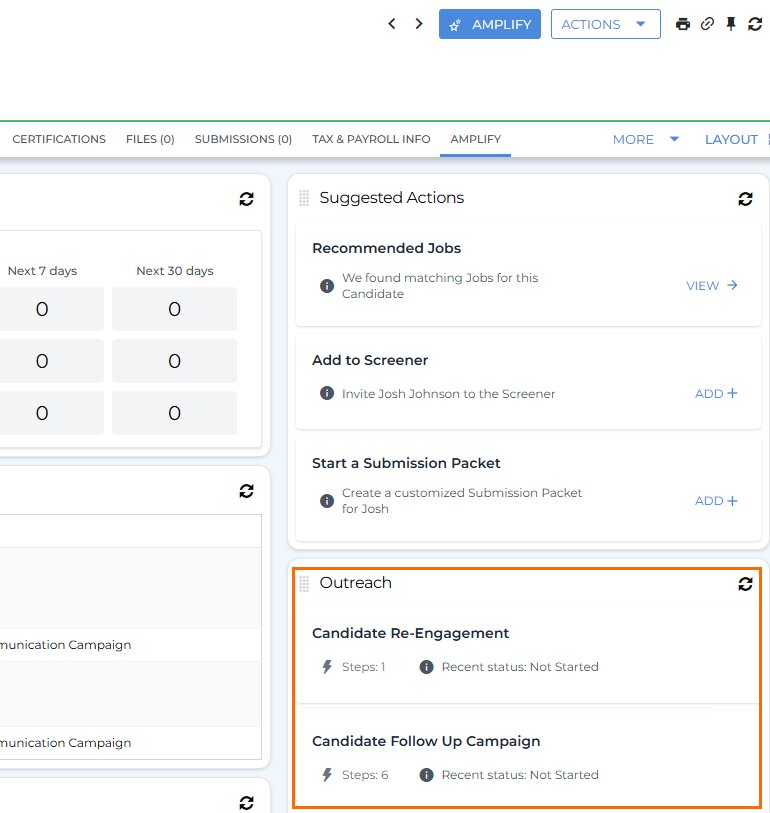
Click the Amplify tab.
-
In the Outreach section, find the campaign you want to start and click its name.
-
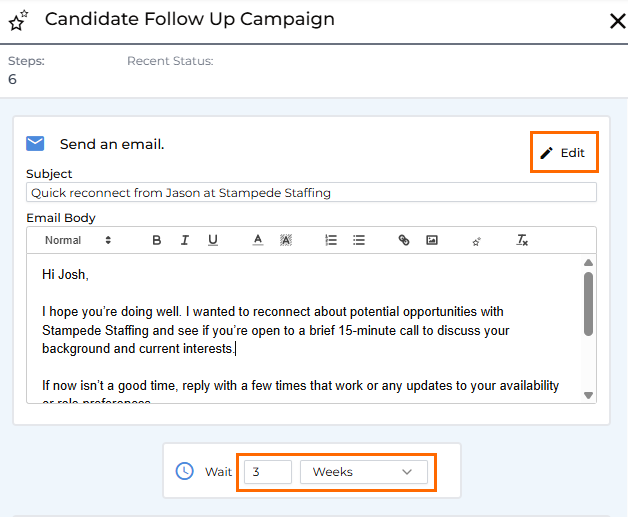
In the slideout, click the Edit icon to review all messages and wait steps.
-
Ensure you preview each message for tone and accuracy, paying special attention to any Amplify-generated sections.
-
-
When ready, click Start Automation, or choose Save Automation and Start Later to save your changes and return later.

Mass Add Candidates or Contacts to an Outreach Campaign
You can enroll multiple people into an Amplify Outreach campaign at once. When you launch a campaign for several recipients, Amplify generates broader, audience-appropriate messaging instead of the highly tailored content it produces for a single recipient. Merge tags still personalize key details, but the overall message is written to apply to everyone in the group.
You can enroll multiple records from two places: the Amplify Overview or the Candidate or Contact lists.
The maximum number of candidate or contact records that can be enrolled at once is 200.
Via the Amplify Overview (Candidates or Contacts)
-
Click the Amplify button at the top of Bullhorn ATS and select the Overview tab.
-
If you don’t see the Amplify button, click Menu > Amplify, then select the Overview tab.
-
-
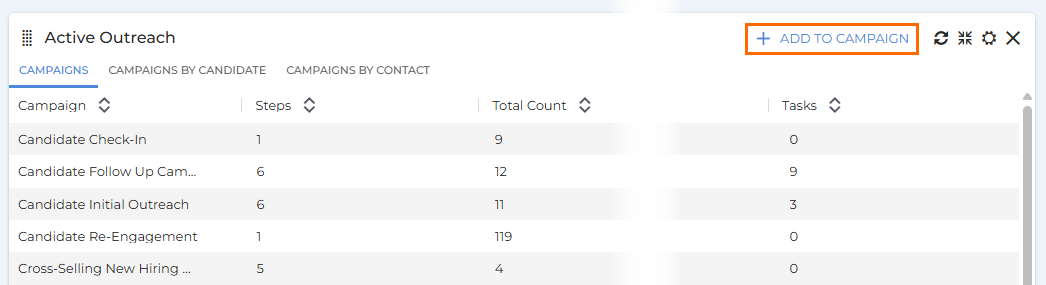
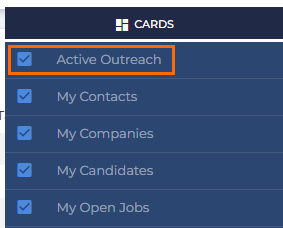
Locate the Active Outreach card.
-
If it’s not visible, click Layout and make sure it’s included in your view.
-
-
Click Add to Campaign at the top-right of the card.
-
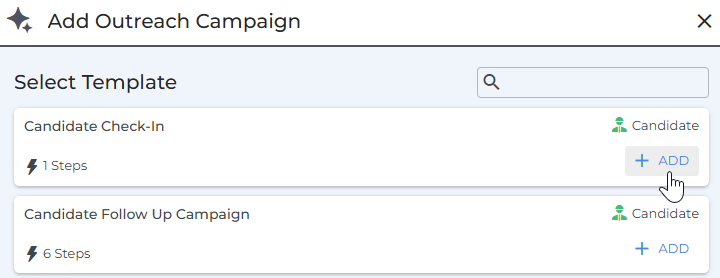
In the slideout, find the campaign you want to use and click Add.
-
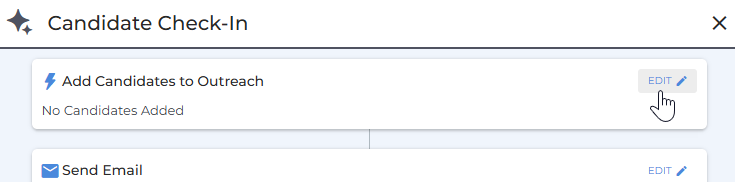
Click Edit against the Add Candidates/Contacts to Outreach step.
-
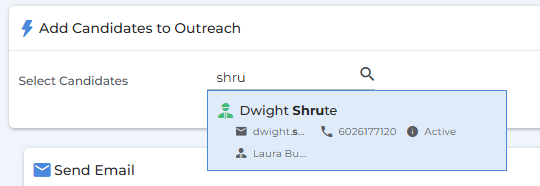
In the Select Candidates/Contacts field, search by name or ID and add the records you want to include.
-
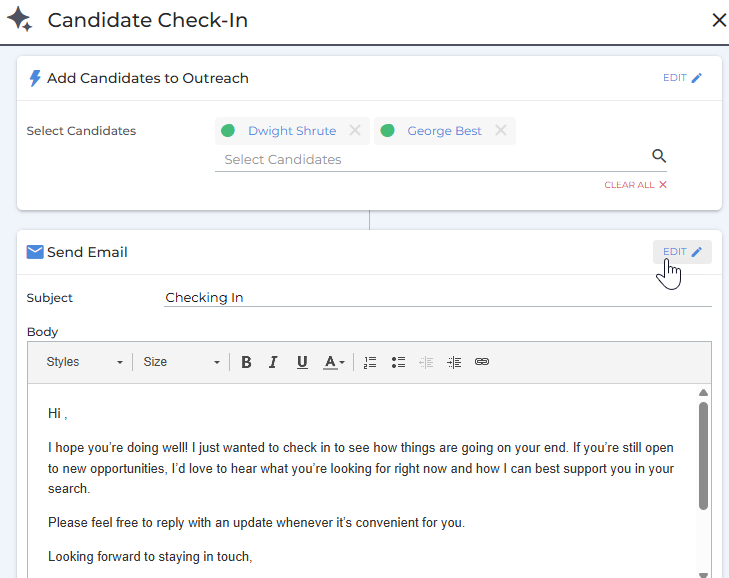
For each customizable step, click Edit to review or modify the content. The messages you see will be sent to everyone in the group, so ensure they’re broadly applicable.
-
When ready, click Start Campaign.

Via the New Candidate List or the Contact List
You must be using the new Candidate List to enroll candidates via this method.
-
After searching or filtering on the
-
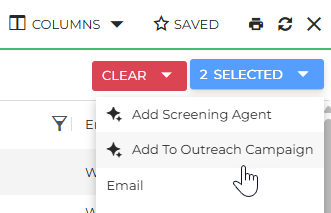
Click Selected in the top right corner and then click Add to Outreach Campaign.
-
In the slideout, select the campaign you want to use.
-
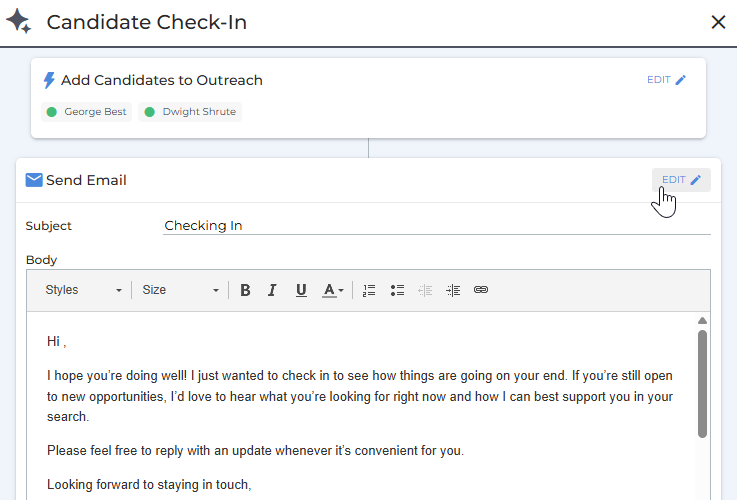
For each customizable step, click Edit to review or modify the content. The messages you see will be sent to everyone in the group, so ensure they’re broadly applicable.
-
When ready, click Start Campaign.
Viewing Active Outreach Campaigns
You can view active campaigns in two places: on a specific record via the Amplify Tab, or across all records via the Amplify Overview.
From the Amplify Tab
For any candidate or contact currently enrolled in a campaign:
-
Open the record and go to the Amplify tab.
-
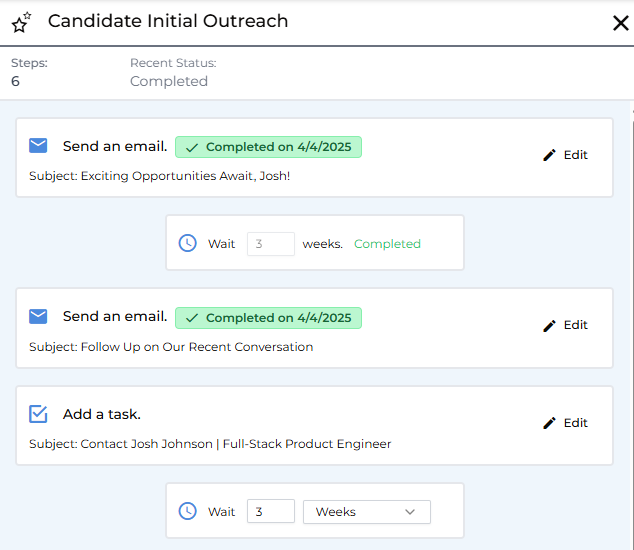
In the Active Outreach Campaigns section, click the campaign name to view details.

-
You’ll see completed steps with dates and upcoming steps in progress.
From the Amplify Overview
To see all active campaigns in one place:
-
Go to your Amplify Overview from the top navigation or main menu.
-
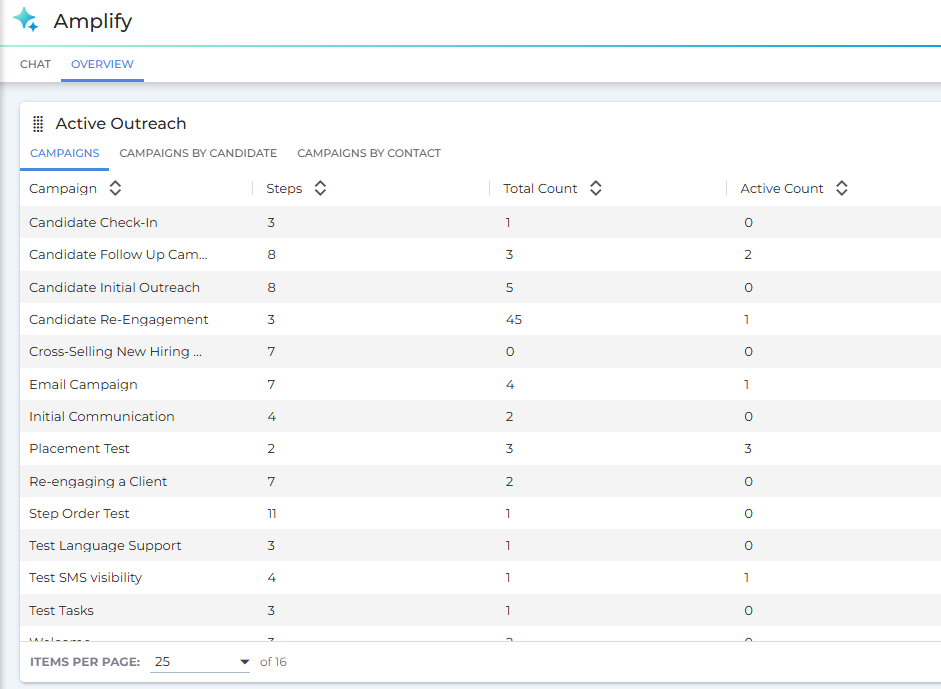
Locate the Active Outreach card.
-
If it’s not visible, click Layout in the top right corner and ensure Active Outreach is selected.
-
-
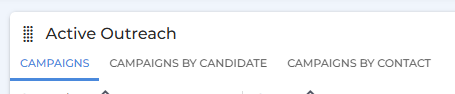
Use the tabs at the top of the card to switch between all Campaigns, Campaigns By Candidate, or Campaigns by Contact.