Manage Lists
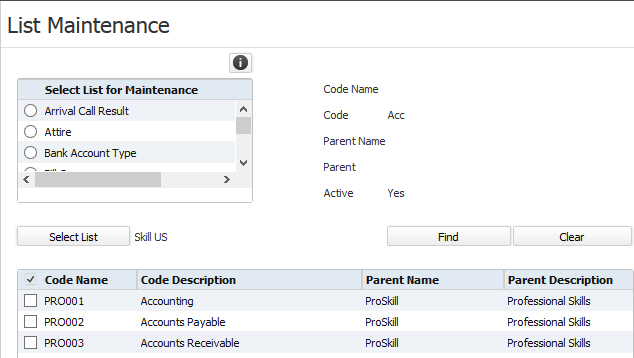
Manage Lists is the location to modify entries in coded list groups. Permission for this component is granted via the manage code list permission under the general administration category; default with general and financial administration security profiles.
- Mouse over Administration on the main navigator and then select Administration.
- Select Manage Lists from the General Administration section of the segment to access the component.
Filtering the List
On most of the lists available for selection, the Filtering criteria is optional. For example, you may want to only see Job Categories with a specific Parent Name or Description. In these cases, do the following:
- Click the Find button.
- On the Set Filter for List window, enter your filtering criteria. If you are unsure of the full name, you can enter part of the name. For example, you can enter "Account" to find all codes or descriptions that begin with "Account" (e.g. Accounts Payable, Accounting, Account Receivable, etc.). Each filter added acts as an AND search. In other words, if you enter both a Code Name and a Parent Name, then the list only shows codes that match the Code Name AND the Parent Name.
- When you are satisfied with your filtering criteria, click Run.
- The grid displays your filtered results and the filtering fields retain the data you added.
- If you want to change the filtering criteria. click Find. If you want to remove all filtering criteria, click Clear.
The exception to the above rule is the Skills list. Due to the number of skills that might exist in the database, Adapt requires at least three characters in at least one of the filtering categories. The system default filter is "AAA" in the Code Name field. Clicking Clear replaces any other filter selections on the Skills list with the default filter.
Filters for lists are kept separate for each list. For example, you can enter "Account" as the Parent Name filter for Job Category and "Tech" as the Code Description for Skill. Changing the filter for one list does not change the filter for another list.
Filters are remembered even after you log off. For example, if you enter "Account" as the Parent Name filter for Job Category, that same filter will be there the next time you view the Job Category list.