Candidates
This is a sub-report used by the Candidates Summary dashboard. This table displays the number of new candidates added (manually, Web Portal, Resume Import, etc.) over the current/last week, current/last month and current year that are associated to the selected branch. The User's Home Branch is selected by default, but can be changed by using the filtering options. The first column displays weekly totals, the second column displays monthly totals and the third column displays yearly totals. The upper part of the Weekly and Monthly columns displays current totals and the bottom part display the previous period's totals.
The data in the table is defined as:
- Current Week (WTD): Sunday through Saturday of the current week.
- Last Week: Sunday through Saturday of the previous week.
- Current Month (MTD): Standard current calendar month.
- Last Month: Standard previous calendar month
- Current Year (YTD): Standard current calendar year (January 1 thru December 31st).
Example: July 14, 2015 falls on a Tuesday.
| Date Type | Range |
|---|---|
| Current Week (WTD) | July 12, 2015 - July 18, 2015 |
| Last Week | July 5, 2015 - July 11, 2015 |
| Current Month (MTD) | July 1, 2015 - July 31, 2015 |
| Last Month | June 1, 2105 - June 30, 2015 |
| Current Year (YTD) | January 1, 2015 - December 31, 2015 |
Executable Formats
This report can be executed in the following formats:
- HTML
- Excel
- PDF (Portable Document Format)
- RTF (Rich Text Format)
- CSV (Comma Separated Values)
Accessing the Report
To access the Candidates Tabular:
- From the Navigator, select Reporting.
- From the fly-out menu, select Reporting & Analytics.
- From Reporting & Analytics page, select System Dashboards in the Folder/Report navigator.
- In the System Dashboards folder, select the Candidates Summary folder.
- In the Candidates Summary folder, single-click on Candidates and click on the Run Selected Report icon to run in HTML format or the Export Report icon to export the report. Alternatively, you can right-click on Candidates and select Run Report to run in HTML or Export As > and then the format.
Filters
The Candidates report has 2 filters:
-
Branch Name (Optional): This defaults to the logged-in user's default branch, but can be changed by using the drop-list. You can also remove the Branch Name and the report will search on all branches to which the logged-in user has access.
For performance purposes the following two items should be noted when using the Values droplist. First, in order to enhance performance, once a value is selected, the droplist only displays those items alphabetically/numerically AFTER the selected item. To see all items again, delete the value (select it and press Delete on your keyboard) and then use the droplist. All items will display. Second, in order to enhance performance, the droplist only displays a set number of records. If the list of possible values is longer than the displayed list, select the name at the bottom of the list as the value. When you next click the droplist, the rest of the items display.
-
Activity Name (at least 1 required): This filter allows you to select the activity name. The Condition is "Is One Of" meaning that you can select multiple activities. By default, Direct Placed, Employees Assigned, Web Candidates, Referrals and New Candidates are selected. You can use the top drop-list to add activities to the list. By clicking on the bottom drop-list, you can remove activities by clicking the red "x".
Report Actions

Right-clicking on header text (e.g. WTD, Last Week, MTD, etc.) displays rich-text format controls allowing you to change the font, size, color and style of the selected text. You can also select to wrap text if it goes beyond the width of the cell borders.
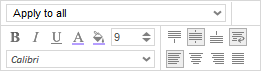
Right clicking on data (numbers presented) selects it. You can use the pop-up controls to change the font, size, color and style of the selected text (including word wrapping). Since the data selected only selects that cell and not the entire column, the Apply to alldrop-list is not applicable to this report.