Candidates Summary
The Candidates Summary dashboard provides an overview of new candidates added and new candidates put to work in the current/last week, current/last month and current year.
Accessing the Dashboard:
To access the Candidates Summary dashboard:
- From the Navigator, select Reporting.
- From the fly-out menu, select Reporting & Analytics.
- From Reporting & Analytics page, select System Dashboards in the Folder/Report navigator.
- In the System Dashboards folder, select the Candidates Summary folder.
- In the Candidates Summary folder, single-click on All Candidates Summary and click on the Run Selected Report icon. Alternatively, you can right-click on All Candidates Summary and select Run Report.
Information on the Dashboard
The Candidates Summary dashboard is divided into 3 areas:
New Candidates table
To learn how to run this sub-report on its own, click here.
This table displays the number of new candidates added (manually, Web Portal, Resume Import, etc.) over the current/last week, current/last month and current year that are associated to the selected branch. The User's Home Branch is selected by default, but can be changed by using the filtering options (see Changing the Dashboard filters below). The first column displays weekly totals, the second column displays monthly totals and the third column displays yearly totals. The upper part of the Weekly and Monthly columns displays current totals and the bottom part display the previous period's totals.
The data in the table is defined as:
- Current Week (WTD): Sunday through Saturday of the current week.
- Last Week: Sunday through Saturday of the previous week.
- Current Month (MTD): Standard current calendar month.
- Last Month: Standard previous calendar month
- Current Year (YTD): Standard current calendar year (January 1 thru December 31st).
Example: July 14, 2015 falls on a Tuesday.
| Date Type | Range |
|---|---|
| Current Week (WTD) | July 12, 2015 - July 18, 2015 |
| Last Week | July 5, 2015 - July 11, 2015 |
| Current Month (MTD) | July 1, 2015 - July 31, 2015 |
| Last Month | June 1, 2105 - June 30, 2015 |
| Current Year (YTD) | January 1, 2015 - December 31, 2015 |
New Candidates Put to Work table
To learn how to run this sub-report on its own, click here.
This table specifies the total number of New Candidates added this/last week, this/last month and this year that have been put to work (either via Assignment or Placement) for the selected branch(es). The User's Home Branch is selected by default, but can be changed by using the filtering options (see Changing the Dashboard filters below). The columns display the time periods (Week, Month, Year) and the rows reflect the Employee current Status and the percentage working using the formula below:
| Row | Data |
|---|---|
| Employees Assigned | The number of new Candidates created in the current week/month/year that have a Status of Employee. |
| Employees Assigned (last) | The number of new Candidates created in the previous week/month that have a Status of Employee. |
| Direct Placed | The number of new Candidates created in the current week/month/year that have a Status of Placed. |
| Direct Placed (last) | The number of new Candidates created in the previous week/month that have a Status of Placed. |
| % Working | The sum of the two numbers above (Employees Assigned and Direct Placed) for the current week/month/year divided by the total number of new Candidates created for the same time period. For example, if 50 Candidates were created in the current month and 15 have a Status of Employee and 10 have a Status of Placed, the % Working is 50% ((15+10)/50*100). |
| % Working (last) | The sum of the two numbers above (Employees Assigned and Direct Placed) for the previous week/month divided by the total number of new Candidates created for the same time period. For example, if 50 Candidates were created in the previous month and 15 have a Status of Employee and 10 have a Status of Placed, the % Working is 50% ((15+10)/50*100). |
Summary by User chart
To learn how to run this sub-report on its own, click here.
This chart displays new Candidates created by User during the selected time period for the selected Branch(es). The User's Home Branch is selected by default, but can be changed by using the filtering options (see Changing the Dashboard filters below). In addition, the chart defaults to the current month (MTD) but can be changed by using the filter icon (see Chart Specific Actions sub-section below). The X-axis displays User names and the Y axis displays the number of new Candidates added.
Refreshing the Dashboard
In the upper left corner of the dashboard (beneath the "Candidates Summary" tab), the  icon refreshes the dashboard. The newly displayed dashboard will reflect any changes since the last time the dashboard was refreshed (new activities, User changes, etc.).
Changing the Dashboard Filters
The  icon (located in the upper left of the dashboard) allows you to change the filters on the dashboard. When you initially display the dashboard, it uses the default filters. For example, it might always display a specific branch. Clicking allows you to change those filter parameters.
For the Candidates Summary dashboard, you can edit the following filters:
-
Branch Name (Default: Current User's Default Branch)
You can change the Condition and Value of the filter. The specific options you can choose from depend on a variety of factors including the type of data (date, currency, text, etc.), branch security access and other factors.
Changes made to the filtering criteria do NOT persist. In other words, when you leave the dashboard and return to it, all default filters are re-applied.
Condition
For the Branch Name, you can use the following Conditions:
- Equal To: Name must be equal to the Value. There is only 1 Value option.
- Not Equal To: Name must NOT equal the Value. Therefore, all branches are displayed EXCEPT the name in the Value column. There is only 1 Value option.
- Less Than: Name must be alphabetically before the Value. Therefore, all branches that come prior to the Value alphabetically are displayed. There is only 1 Value option.
- Less Than or Equal To: Name must be equal to the Value or alphabetically before it. Therefore, all branches that are the same as or come prior to the Value alphabetically are displayed. There is only 1 Value option.
- Greater Than: Name must be alphabetically after the Value. Therefore, all branches that come after the Value alphabetically are displayed. There is only 1 Value option.
- Greater Than or Equal To: Name must be equal to the Value or alphabetically after it. Therefore, all branches that are the same as or come after the Value alphabetically are displayed. There is only 1 Value option.
- Starts With: Name must start with the Value. Therefore, all branches with names starting with whatever is in the Value column display. There is only 1 Value option and the data entered can be as little as a single character. For example, if you wanted to see all branches that begin with a 'C', enter a 'C' (without apostrophes) in the Value column.
- Not Starts With: Name must not start with the Value. Therefore, all branches with names that do not start with whatever is in the Value column display. There is only 1 Value option and the data entered can be as little as a single character. For example, if you wanted to see all branches that do not begin with a 'C', enter a 'C' (without apostrophes) in the Value column.
- Ends With: Name must end with the Value. Therefore, all branches with names ending with whatever is in the Value column display. There is only 1 Value option and the data entered can be as little as a single character. For example, if you wanted to see all branches that end with a 'C', enter a 'C' (without apostrophes) in the Value column.
- Does Not End With: Name must not end with the Value. Therefore, all branches with names that do not end with whatever is in the Value column display. There is only 1 Value option and the data entered can be as little as a single character. For example, if you wanted to see all branches that do not end with a 'C', enter a 'C' (without apostrophes) in the Value column.
- Contains: Name must contain the Value. Therefore, all branches with names containing whatever is in the Value column display. There is only 1 Value option and the data entered can be as little as a single character. For example, if you wanted to see all branches that contain the letters 'syl', enter '
- Does Not Contain: Name must not contain the Value. Therefore, all branches with names not containing whatever is in the Value column display. There is only 1 Value option and the data entered can be as little as a single character. For example, if you wanted to see all branches that do not contain the letters 'syl', enter '
- Is Between: Name must be alphabetically between the two listed Values (inclusive). Therefore, all branches with names that are alphabetically between the two Values display. There are two Value options. The first (upper) value is the first alphabetically. The second (lower) value is the last alphabetically.
- Is Not Between: Name must not be alphabetically between the two listed Values (inclusive). Therefore, all branches with names that are not alphabetically between the two Values display. There are two Value options. The first (upper) value is the first alphabetically. The second (lower) value is the last alphabetically.
- Is One Of: Name must be one of the names listed in the Values column. Therefore, all branches with names that are the same as one of those listed in the Value column display. You may select multiple Values. See the section on Values below for adding multiple values to the Values column.
- Is Not One Of: Name must not be one of the names listed in the Values column. Therefore, all branches with names that are not the same as one of those listed in the Value column display. You may select multiple Values. See the section on Values below for adding multiple values to the Values column.
Value
For performance purposes the following two items should be noted when using the Values droplist. First, in order to enhance performance, once a value is selected, the droplist only displays those items alphabetically/numerically AFTER the selected item. To see all items again, delete the value (select it and press Delete on your keyboard) and then use the droplist. All items will display. Second, in order to enhance performance, the droplist only displays a set number of records. If the list of possible values is longer than the displayed list, select the name at the bottom of the list as the value. When you next click the droplist, the rest of the items display.
The Branch droplist only displays those branches to which you have branch access.
-
<Blank>: By selecting the text in the Value column and deleting it, the Dashboard returns all possible Values. For example, if you leave the Branch value blank, all branches for which you have access display Dashboard.
-
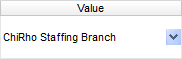
Single Value: To select a single value, click the droplist and select the item from the list.
-
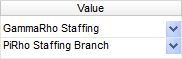
Double Values: To select two values, click the droplist on each value and select the item from the list.
-
Multiple Values: To select multiple values, click the top droplist to select a value to add to the list. You can also type in the name of the branch and then click the middle arrow to add it to the list. To see the items on the list, click the lower droplist. To remove an item from the list, click the red X to the right of the item.
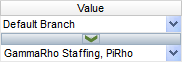
Chart Specific Actions
The following actions are specific to the Summary by User chart and are accessed by either right-clicking or left-clicking anywhere within the chart area.
Changes made to the chart do NOT persist. In other words, when you leave the dashboard and return to it, all default chart settings are re-applied.
Right-Click Actions
-
Type: This option allows you to change the type of chart displayed. Options are Line Types, Bar Types and Column Types. Once you click on one of the Types, you are given additional options. For example, if you select Line Types, additional options are Line, Spline, Area and Spline Area. Click on the option you want and the type of chart changes instantly. The default is Column.
- You can also select to use 3D Style or not by clicking the Use 3D Style checkbox. 3D style gives the chart depth. Otherwise, the chart displays in flat 2D.
-
Theme: This option allows you to select from several pre-set themes. A theme changes the overall look of the chart (mainly by changing the colors on the chart). The default is BondChart.
- One option is Linear Range. This allows you to select a starting and ending color. The chart then displays lines, bars and columns using a range of colors between the starting and ending color.
- Legend Location: This option allows you to determine where you want the chart's legend located. Options are None (no legend), Right and Bottom. The default is Right. Selecting Bottom places the legend on the bottom of the chart.
- Sort By: This option allows you to select how items in the chart are sorted. Select Report Order to follow the order of information on the report (in either ascending or descending order). Select Data Labels to sort the chart by the data labels (in either ascending or descending order).
- Invert Data: Selecting invert data changes the position of Users and Candidates. By default, users are displayed along the X-axis and all columns display the total number of new candidates. By inverting data, the X-axis now displays the type of record added (Candidate) and the columns display users. Clicking Invert Data again places the chart back to its normal data presentation
Left-Click Actions
By left-clicking on the chart, three icons display on the right-side of the chart.
: Use this icon to refresh the data on the chart. The newly displayed chart will reflect any changes since the last time the chart was refreshed (new users, new counts, etc.).
This only impacts the specific chart. To refresh the entire dashboard select the icon in the upper-left corner of the dashboard.
: Use this icon to change the date range filter used by the chart. This only impacts this specific chart and does not change the overall Dashboard filter.
Even though the filter allows you to select any date, the chart only displays Candidates added during the current year. Thus, if the current year is 2015 and you select a date range of 9/14/2014 to 3/15/2015, only those candidates added between 1/1/2015 and 3/15/2015 will be used for totals on the chart.
You have the following Condition options:
- Equal To: Date of Candidate Add must be equal to the Value. There is only 1 Value option.
- Not Equal To: Date of Candidate Add must not be equal to the Value. There is only 1 Value option.
- Less Than: Date of Candidate Add must be earlier than the Value. There is only 1 Value option.
- Less Than or Equal To: Date of Candidate Add must be earlier than or equal to the Value. There is only 1 Value option.
- Greater Than: Date of Candidate Add must be later than the Value. There is only 1 Value option.
- Greater Than or Equal To: Date of Candidate Add must be later than or equal to the Value. There is only 1 Value option.
- Is Between: Date of Candidate Add must be between the two selected dates (inclusive). There are two Value options.
- Is Not Between: Date of Candidate Add must not be between the two selected dates (inclusive). There are two Value options.
- Is One Of: Date of Candidate Add must match one of the selected dates. There are multiple Value options.
- Is Not One of: Date of Candidate Add must not match any of the selected dates. There are multiple Value options.
You have the following Value options:
-
<Blank>: By selecting the date in the Value column and deleting it, the Dashboard returns all possible Values. For example, if you leave the Date value blank when the Condition is Equal To, all Candidate Adds (for the specified branch) display in the table.
-
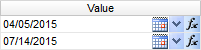
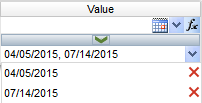
Single Value: To select a single value, you can click the Calendar icon to display a Calendar control allowing you to select a date. click the droplist and select the item from the list. You can click the down-arrow to select from a list of dates. You can also click the function icon (fx) to select from a list of relative dates (see below).

-
Double Values: To select two values, click the desired icon (see above) on each value and select the date.
-
Multiple Values: To select multiple values, click the desired icon on the top field to select a date to add to the list. You can also type the date and click the middle arrow to add it to the list. To see the items on the list, click the lower droplist. To remove an item from the list, click the red X to the right of the item.
-
Functions (fx): The function icon allows you to select from the following (all examples are based on Tuesday, July 14th, 2015 date):
- Today: Inserts today's date (July 14, 2015).
- Tomorrow: Inserts tomorrow's date (July 15, 2015).
- Yesterday: Inserts yesterday's date (July 13, 2015).
- Today Plus 7/30/60/90 Days: Inserts the day 7, 30, 60 or 90 days in the future (60 days = September 12, 2105).
- Today Minus 7/30/60/90 Days: Inserts the day 7, 30, 60 or 90 days in the past (60 days = May 15, 2015).
- First Day of Current/Last/Next Month: Inserts first day of selected month (Current = July 1, 2015).
- Last Day of Current/Last/Next Month: Inserts last day of selected month (Current = July 31, 2015).
- First Day of Current/Last/Next Year: Inserts first day of selected year (Current = January 1, 2015).
- Last Day of Current/Last/Next Year: Inserts last day of selected year (Current = December 31, 2015).
- First Day of Current/Last/Next Quarter: Inserts first day of selected quarter (Current = July 1,2015).
- Last Day of Current/Last/Next Quarter: Inserts last day of selected quarter (Current = September 30, 2015).
- Monday of Current/Last/Next Week: Inserts Monday of selected week (Current = July 13, 2015).
- Friday of Current/Last/Next Week: Inserts Friday of selected week (Current = July 17, 2015).
Table Specific Actions
There are two actions that allow access to the Table actions. The first is performed by right-clicking on a table. The second is performed by left-clicking on a table.
Right-Click Actions

Right-clicking on a column header displays rich-text format controls allowing you to change the font, size, color and style of the selected text. You can also select to wrap text if it goes beyond the width of the cell borders.
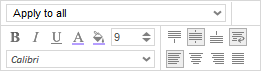
Right-clicking on a cell in the table selects that cell. You can use the pop-up controls to change the font, size, color and style of the selected text (including word wrapping). For this dashboard, the top drop-list does not apply since you cannot multi-select cells.
Left-Click Actions
Left clicking on any row of the table causes two icons to display next to the table.
: Use thisicon to refresh the data on the table (report). The newly displayed table will reflect any changes since the last time the table was refreshed (new activities, Recruiter changes, etc.).
This only impacts the specific table. To refresh the entire dashboard select the icon in the upper-left corner of the dashboard.
 : Use the droplist next to this icon to export the information in the table to a variety of formats.
 : Excel
 : PDF (Portable Document Format)
 : RTF (Rich Text Format)
 : CSV (Comma Separated Values)
Once you select one of the above options, you will have the option to open or save the newly formatted table. In the Dashboard itself, click Close on the small dialog that displays. You will also notice that a new tab has been added to the Dashboard. You can close this tab.