Job Order Inactivity Report
The job order inactivity report is used to track jobs that are created in a specified date range but have not had submittal activity.
- Access Reporting > Reporting & Analytics > System Reports > Sales.
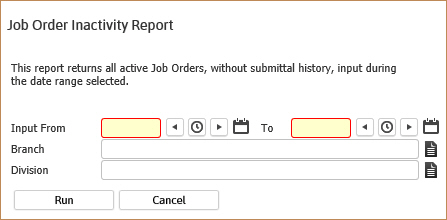
- Double-click on Job Order Inactivity to open the workflow view in a new window.
- While updating the form, fields marked in red are required to complete the workflow. Click on the buttons to the right of certain fields to open a new window which will allow you to search and select options related to that specific field or choose a date.
- The From and To date is the range in which the job orders are created in Adapt.
- The Branch and Division are additional criteria options to further filter the report results. These options will match the job order records.
-
Click Run to generate the report.
-
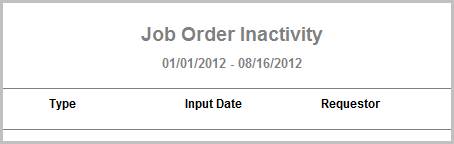
The header displays the report name, dates specified in the workflow and labels for the data to be displayed.
-
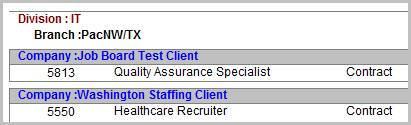
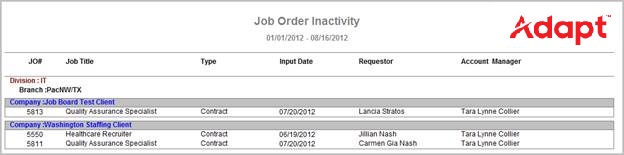
The data is then sorted by Division, Branch,Client and Job Order #.
Full Report
Workflows that Update Report
The following workflows will update the Job Order Inactivity report:
-
Create a New Opportunity (Contract or Direct) from:
-
Copy Opportunity (Contract or Direct) from:
- Activate an Opportunity (Contract or Direct)
-
Create a New Job (Contract or Direct) from:
- Company
- Contact
- Dashboards
- Log a Contact Call workflow
-
Copy Job (Contract or Direct) from:
- Company
- Contact
- Dashboards
- Job Order
- Project