Key Performance Indicator/Goals by User Report
The KPI/Goals report is used to collect and report information on the performance of individual recruiters/ account managers. The metrics used in this report are derived from people contacts and submittal activities and reported on a daily, weekly, monthly and YTD basis. The outputs for these reports are graphical representations of the individual’s actuals versus established goals.
-
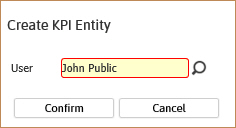
Access adapt.studio >Activities Dashboard > KPI/Goals. The Create KPI Entity window displays.
-
The workflow window allows you to enter a user name or search and lookup a user from the Advanced Users Lookup segment. Once entered, click Confirm. The Adapt screen will refresh to display the Recruiter Goals segment of the KPI entity.
KPI metrics are saved in records that are associated with specific users in Adapt. If it is only the first time a KPI report is run for a user, the record will need to be created and goals set.
User records are created via the Manage Users segment under General Administration and can only be created with the Administration Security Profile. The workflow discussed here creates a record for the user in the KPI entity and only one KPI record can exist per user.
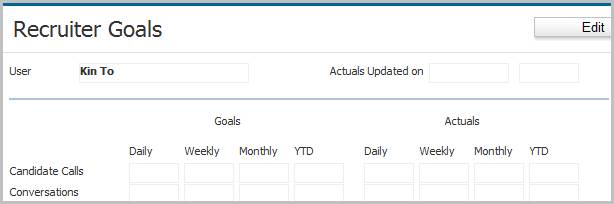
- The top of the segment will list the user name whose metrics are saved to the record and the last time the recruiter actuals for the user were updated.
-
Below that are the metrics included in the report.
-
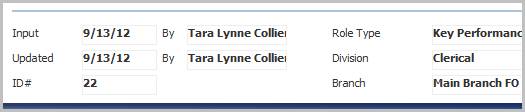
The bottom of the Recruiter Goals segment lists the vital statistics information for the whole record.
- Select Account Manager Goals in the segments control panel, on the left side of the record, to view the AM metrics.
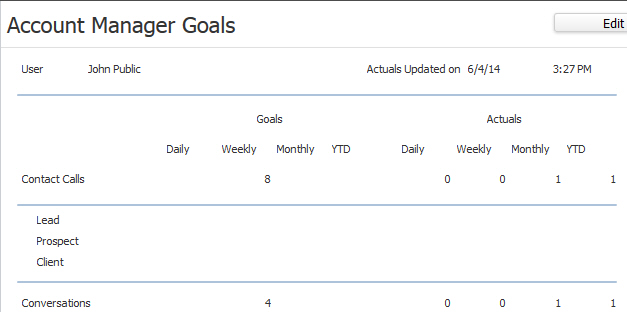
- The top of the segment will list the user name whose metrics are saved to the record and the last time the account manager actuals for the user were updated.
-
Below that are the metrics included in the report.
-
The workflow buttons that update, create the individual reports, and lookup KPI for another user are located at the bottom of both the Recruiter Goals and the Account Manager Goals segments.

-
After creating the new record the Goals need to be populated on both Recruiter and Account Manager Segments.
If the user performs a single role then only the goals for that specific role are necessary. To record the user’s efforts in both the recruiting and sales KPI reports goals must be populated for both roles.
-
To populate or update the goals click the edit button at the top of the segment.
-
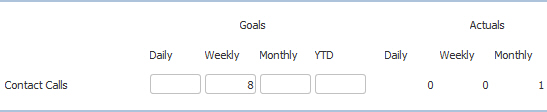
The goal fields can be modified only when the segment is in edit mode; note that the actuals are non-landable and non-modifiable.
-
Populate the goals and then click the save button to confirm changes or cancel to discard.

-
Once the goals are saved click on the Update workflow button to populate the actuals section of the segment.
To update the Actuals for both Recruiter and Account Manager you must click Update from each segment.

- A confirmation box will open to validate the actuals updated.
-
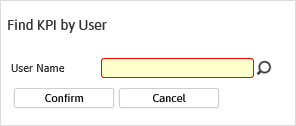
Click the Lookup User KPI button to lookup KPI for another user.
-
Click the Report button to generate the KPI report.
To generate a report for both Recruiter Goals and Account Manager Goals the reports must be run separately from each segment.

Recruiter Goals Report
-
The following activities are reported on the Recruiter Goals report:
- Candidate Calls – from the log a call and left message workflows
- Conversations – from the log a call workflows; where the call result is conversation
- Emails – from the send an email workflows
- New Candidates – from the create candidate and referral workflows
- Internal Interviews – from the internal interview workflow
- Meetings – from the schedule meeting workflow.
- Submittals – from the submit internally workflows
- Presentations – from the present to client workflow
- Interviews – from the interview candidates workflow (job order)
- Offers Made – from the make offer workflow
- Placements – from the assign and place candidate workflows
-
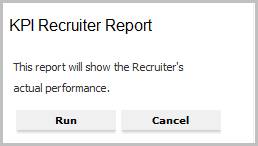
Click Run to generate the report.
-
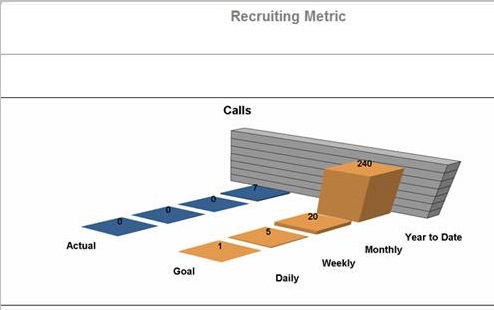
Each activity is displayed in a bar graph in an actual vs. goal comparison. Activity counts come from journal postings with the exception of Interviews which are counted from the input by field in the interview entity.
Because the count is from the journal and input by fields, the credit goes to the user who performed the action in Adapt; which can be different from the Account Manager or Recruiter of record.
-
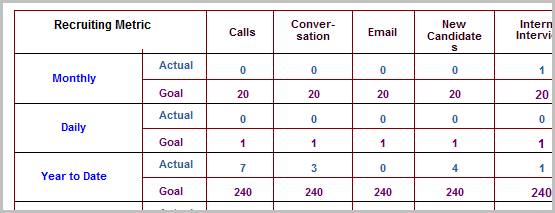
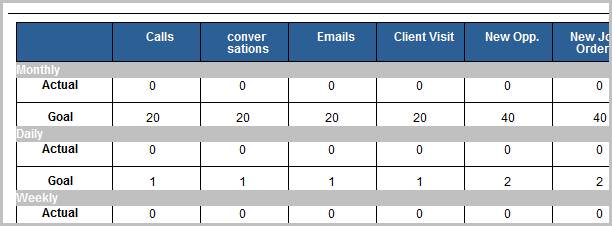
The final page of the report displays all metrics in a grid.
Account Manager Goals Report
- The following activities are reported on the Account Manager Goals report:
- Contact Calls – from the log a call and left message workflows
- Conversations – from the log a call workflows; where the call result is conversation
- Emails – from the send an email workflows
- Client Visits – from the schedule meeting workflow.
- New Opportunities/Jobs – from the create opportunities and jobs workflows
- Submittals – from the submit internally workflows
- Presentations – from the present to client workflow
- Interviews – from the interview candidates workflow (job order)
- Offers Made – from the make offer workflow
- Placements – from the assign and place candidate workflows
-
Click Run to generate the report.
-
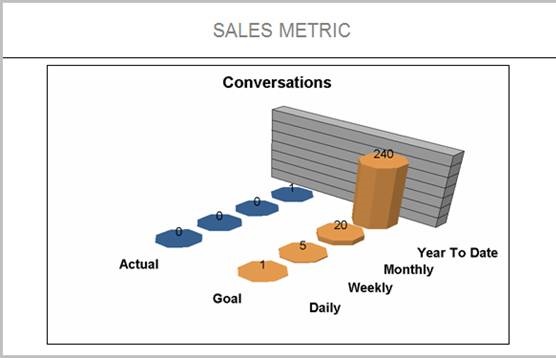
Each activity is displayed in a bar graph in an actual vs. goal comparison. Activity counts come from journal postings with the exception of Interviews which are counted from the input by field in the interview entity.
Because the count is from the journal and input by fields, the credit goes to the user who performed the action in Adapt; which can be different from the Account Manager or Recruiter of record.
-
The final page of the report displays all metrics in a grid.
Workflows that Update Reports
The following workflows will update the KPI by User reports:
-
Log a Call from (conversation, left message, no answer):
- Left Message workflow from Candidate
-
Send an Email workflow from:
- Assignments/Placements
- Batch
- Candidate / Contact
- Dashboards
- Job Orders
-
Create a Candidate from:
-
Internal Interview from:
- Candidate’s Interview Segment
- Log a Candidate Call workflow / Schedule Internal Interview option
-
Meeting from:
-
Create a New Opportunity / Job (Contract or Direct) from:
-
Copy Opportunity / Job (Contract or Direct) from:
- Activate an Opportunity (Contract or Direct)
-
Submit Internally (Contract or Direct) from:
- Batch
- Candidate
- Dashboards
- Job Order
-
Present to Client (Contract or Direct) from:
- Dashboards
- Job Order
- Submit Internally (Contract or Direct) / Email Present to Client option
-
Interview Candidates from:
- Dashboards
- Job Order
-
Make Offer from:
- Dashboards
- Job Order
-
Assign Candidate from:
- Assignment > Re-assign and Replace workflow
- Batch
- Dashboards
- Job Order
-
Place Candidate from:
- Dashboards
- Job Order
- Placement > Replace workflow