Linked Report - Benefit Program Payout
This report provides details on Benefit Program Payout by branch. It is a linked report called by the 01 Benefit Program Payout report.
While this report can be run separately, it is not intended for use outside of the 01 Benefit Program Payout report and Bullhorn advises not running the report independently for the following reasons:
-
First, there are no filters on the report and therefore, it displays all Benefit Program Payout information across your entire staffing service for all time, which is data-intensive and can cause a performance hit on your system.
If you accidentally run the report, you can close the tab to stop the report from processing all data.
- Second, the totals on the report may be incorrect when run independently since the report relies on the Branch filter from the 01 Benefit Program Payout report.
Report Actions
The main report displays Report Totals for the Branch selected on the 01 Benefit Program Payout report. Totals show Pay Hours, Pay Amount, Bill Hours and Bill Amount. The remainder of the report displays each payout for each employee based on the original filtering criteria. Details include Employee Name, Job Title, Assignment ID, Company Name, Sales Posting Date, Work Period Ending Date, PayBill Code, Pay Rate/Hours/Amount, Bill Rate/Hours/Amount and Work Location Name. Totals for Pay Hours/Amount and Bill Hours/Amount are given for each employee.
You can click the Employee Name column, Job Title column, Assignment ID column or Company Name column link to jump to the Employee, Job Order, Assignment and Company record respectively.
Jumping to a record exits the Reporting & Analytics page and all unsaved changes on open tabs are lost. Therefore, Bullhorn recommends first saving all unsaved data and THEN jumping to a record.
Report Actions

Right-clicking on a column header displays rich-text format controls allowing you to change the font, size, color and style of the selected text. You can also select to wrap text if it goes beyond the width of the cell borders.
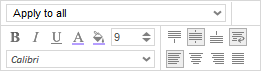
Right-clicking on a cell in the table selects the data column as a whole. You can use the pop-up controls to change the font, size, color and style of the selected text (including word wrapping). You can also use the top drop-list to select the cells to which you would like to apply the new format. For example, you might want to highlight values above 50. In this case, right-click on a cell that displays "50", select how you want to present numbers in the list that are greater than 50 (e.g., bold, larger font, green color) and select "Apply to greater values" from the droplist. This causes all numbers in the column that are greater than 50 to use the new format (e.g., bold, larger font, green color).
The following options are available from the top droplist:
- Apply to all: This applies any formatting changes to all rows in the selected table column.
- Apply to equal values: This applies any formatting changes to only those rows in the selected table column that match the data in the selected cell.
- Apply to unequal values: This applies any formatting changes to only those rows in the selected table column that do not match the data in the selected cell.
- Apply to greater values: This applies any formatting changes to only those rows in the selected table column that are greater than the amount in the selected cell.
- Apply to greater than or equal values: This applies any formatting changes to only those rows in the selected table column that are greater than or equal to the amount in the select cell.
- Apply to lesser values: This applies any formatting changes to only those rows in the selected table column that are less than the amount in the selected cell.
- Apply to less than or equal values: This applies any formatting changes to only those rows in the selected table column that are less than or equal to the amount in the select cell.
Toolbar Actions
The toolbar allows you to perform the following action:
 Execute Selected Report: This executes the report, with all changes included, in the format displayed. For example, if you click the Excel icon, the report will execute in Excel format. If you want to select a different format, use the droplist to select from:
 : Excel
 : PDF (Portable Document Format)
 : RTF (Rich Text Format)
 : CSV (Comma Separated Values)
The Find field allows you to quickly find information in the table. Type in all or a portion of a word or number in either the Column headers or the rows and all instances of it are highlighted in the table with the first instance selected. The up and down arrows allow you to move to the previous (up arrow) or next (down arrow) instance of the data you are trying to Find. This is helpful if the table contains a lot of data and you want to quickly move to a specific name or number in the table.