Merge Contact
In order to improve efficiency and sales process, duplicate records can be removed by merging Contact records. This merging process allows the removal of the duplicate record without losing critical data.
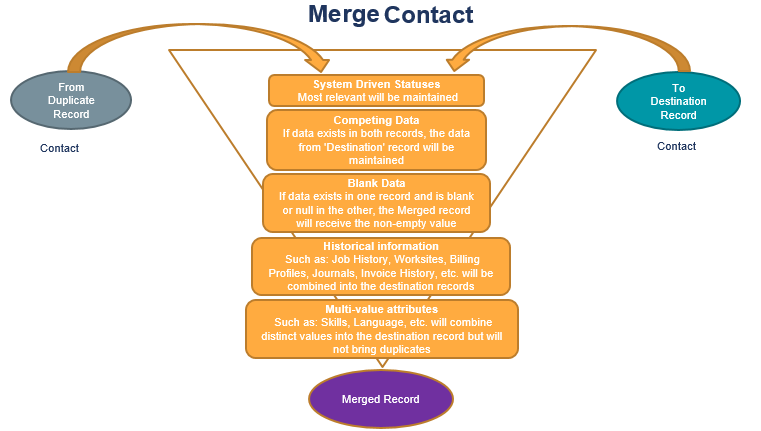
Use the Merge Contact option to merge duplicate contact records existing in the system. The 'duplicate' record is merged with the 'destination' record.
You must have 'Merge Company/Contact Records' permission to merge contact records.
- Mouse over Administration on the main navigator and then select Administration.
- Select Merge Contact from the General Administration section of the segment to access the component.
- The ContactMerge screen displays.
- Enter the duplicate record's Contact name in the Contact field on the Duplicate Record section. While you type in the Contact name, auto-suggest lists the records existing in the system matching the typed in name.
- Select the Contact to be merged from the listed names. The basic information of the duplicate Contact is presented to make sure you have selected the correct record.
- Enter the destination record's Contact name in the Contact field on the Destination Record section. While you type in the Contact name, auto-suggest lists the records existing in the system matching the typed in name.
-
Select the Contact to be merged into from the listed names. The basic information of the destination Contact is presented to make sure you have selected the correct record.
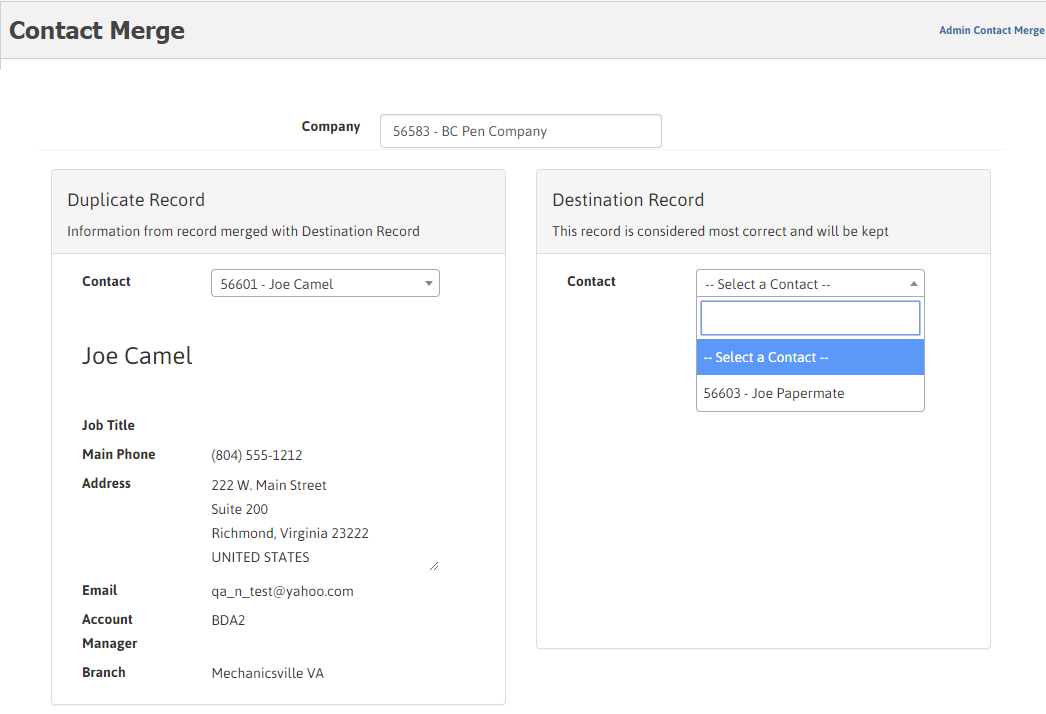
- Once you have verified that the duplicate and destination records selected are correct, click Merge Records. A popup seeking your confirmation to go ahead with the merging displays.
-
Select Yes. A message displays indicating that duplicate record is merged with the destination record.
While the merge process is in progress and may take time, an 'in process' message is displayed.
The following rules apply while merging the Contact records:
- The Duplicate record is removed and the Destination Record remains.
- If data exists in both records, the data from 'Destination' record is maintained.
- If data exists in one record and is blank or null in the other, the Merged record receives the existing data.
- Historical information such as Job History, Journal, Attn to on Billing Profile, etc, is combined into the destination record.
- Multi-value attributes combines distinct values into the destination record but does not keep duplicates.
- The Merge Contact feature applies for Client, Lead, Prospect or Supplier Role. However, the duplicate and destination records must be of the same role.
Upon completion of a Contact merge, a 'Record Merged' notification is sent and a journal entry is created on the destination record indicating that the record was merged.
The Journal entry contains the following:
- Date / Time / User
- Duplicate Contact from which the record was merged {although the record will no longer be available, the Company Name (ID), Contact Full Name, Job Title, Main Phone, E-mail, Branch, is noted, if they were changed from the duplicate record}.