Using AI Assistant
AI Assistant helps you generate professional, personalized correspondence directly from your Bullhorn ATS records.
It automatically references relevant information from your candidates, contacts, and jobs to create messages, pitches, screening questions, and more.
Default Prompts
By default, each record type includes a set of standard prompts you can use to get started quickly.
| Candidate | Contact | Job |
|---|---|---|
|
|
|
Depending on your Bullhorn edition, an admin user may customize or limit these options. For more details about customizing or adding prompts, see Prompt Studio.
Accessing AI Assistant
-
Open the record you want to create correspondence for (Candidate, Contact, or Job).
-
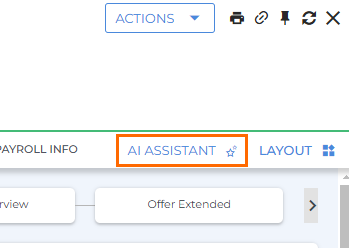
Click the AI Assistant button in the record header.
-
AI Assistant will open in a slideout on the right side of your screen.
Sending a Prompt
You can choose a standard prompt from the list or write your own custom prompt.
Selecting a Standard Prompt
-
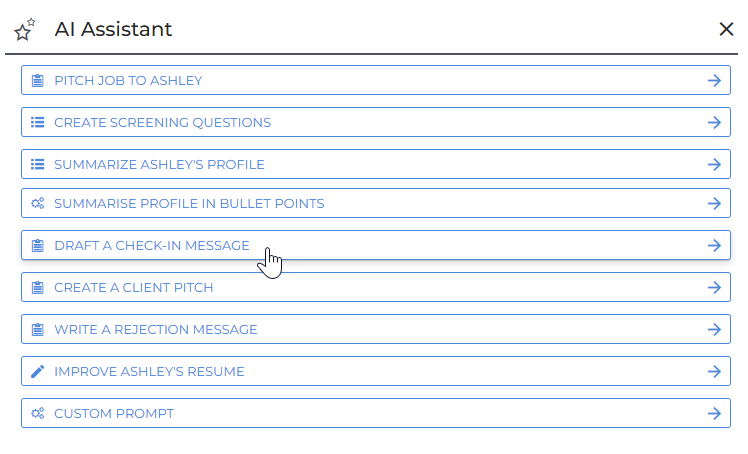
Click on a prompt in the AI Assistant slideout to select it.
-
Available prompts vary by record type and configuration.
-
-
(Optional) Select related records or data points to tailor your prompt:
-
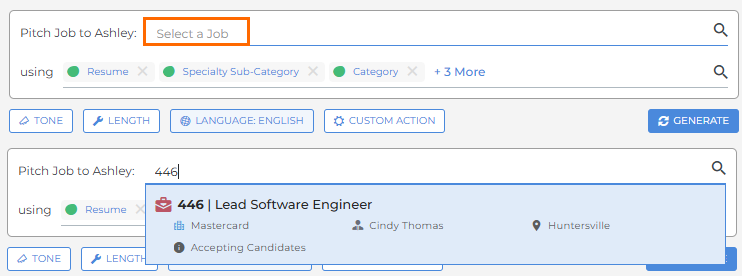
Select a Job: For candidate or contact prompts referencing a specific role.
-
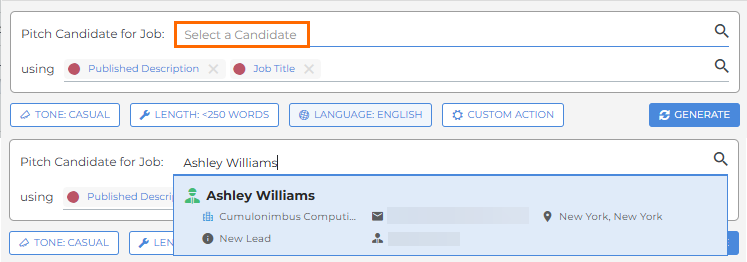
Select a Candidate: For job or contact prompts referencing a candidate.
-
Using: Choose additional data points from the record to include. Remove unwanted data by clicking the X icon.

-
-
Adjust the output using the available options:

-
Tone: Choose your preferred writing style.
-
Length: Select a word count or summary level.
-
Language: Translate your message into a supported language. The default is based on your Private Label locale setting.
-
Custom Action: Add extra instructions, such as format preferences. Enter your details, then click Submit.
-
-
Click Generate to send your prompt and create the response.

Writing a Custom Prompt
-
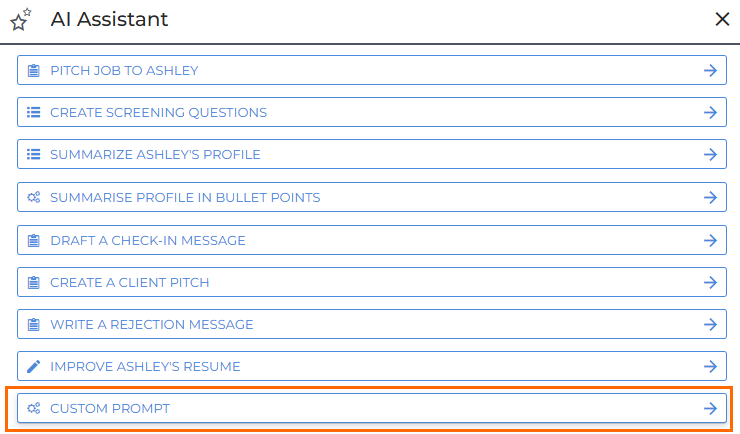
At the bottom of the prompt list, click Custom Prompt.
-
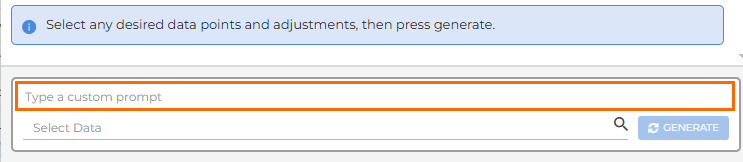
Enter your instructions in the Type a custom prompt field.
-
See AI Assistant – Prompting Best Practices for tips.
-
-
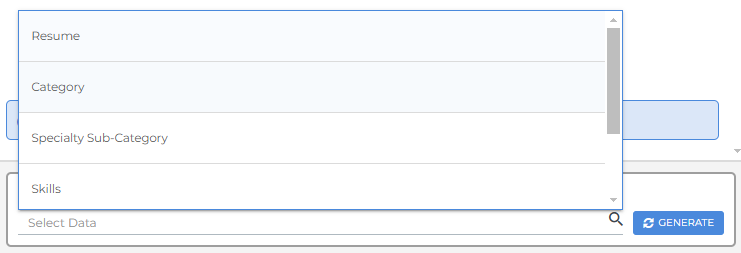
Use the Select Data field to choose record data points to include.
-
Click Generate to create your response.
Viewing and Refining Prompt Responses
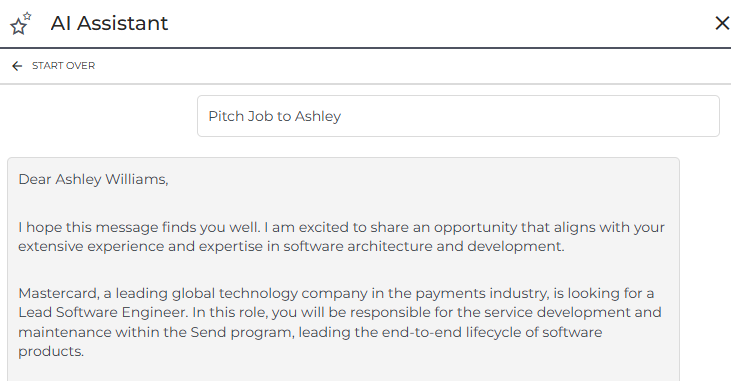
After you click Generate, your response appears in the conversation window.
-
To refine the output, type additional instructions in the text box and click Generate.

-
To retry the same prompt without changes, click Regenerate.
-
AI Assistant keeps the context of your conversation, allowing iterative edits until you’re satisfied.
Once complete, click Copy to Clipboard to copy your final response.
Resetting or Exiting AI Assistant
-
To start over with a new prompt, click Start Over at the top of the slideout.
-
To exit, click the X in the upper-right corner.
Resetting or exiting AI Assistant clears your current conversation. A warning will appear before closing. You can suppress this warning in the future by checking Do not show this warning again.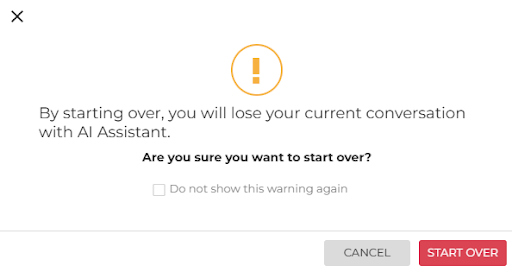
FAQ
What is Generative AI?
Generative AI is a type of AI system that is powered by Large Language Models (LLMs) and can be used to create new content in response to your questions or instructions, which are referred to as "prompts". The most well-known generative AI system is ChatGPT.
What is an LLM?
An LLM, or Large Language Model, is a deep learning model that has been pre-trained on vast amounts of data and is used to power generative AI.
What is a token? What's an average token length?
A token is a unit of data, such as a word or a punctuation mark, that an AI system processes. For example, when you ask AI "What is a token?" AI looks at each word, space, and piece of punctuation to understand and respond to your question. Each token is roughly four characters for typical English text. For more information, please see this article: What are tokens and how to count them?
How do I get started with AI Assistant?
You'll need to choose your LLM and model, speak with your Account Manager to review and sign the legal addendum, and respond to Bullhorn Support when they reach out to enable AI Assistant in your ATS.
If you're ready to get started, speak with your Bullhorn Account Manager. Stay tuned to our website, social media, and blogs to stay informed on Bullhorn's AI developments.
How does the AI Assistant Work?
- From the AI Assistant slideout on a job, contact, or candidate record, you can select a prebuilt prompt or enter your own custom prompt.
- In the background, Bullhorn engineers a prompt to return the desired outcome and pushes that prompt to your connected Large Language Model (LLM).
- In a matter of seconds, the LLM returns the output directly to the AI Assistant slideout.
- Once your output is returned, you can send additional instructions and refine the prompt until you are happy with the results.
What information is available to push to the AI provider/AI model?
The data points you choose in the Using field are sent along with the prompt. The available data points depend on the specific prompt being used and can be customized by an Admin in the AI Assistant Prompt Studio.
Can I customize the available default prompts?
Admins can customize the available default prompts and create new prompts in the AI Assistant Prompt Studio.
I've changed the tone/length of my prompt but I prefer the version I had before. How do I retrieve a previous version of a prompt?
You can scroll up to view previous requests and responses in your current conversation. However, conversations are lost when you exit or reset AI Assistant, so be sure to copy any responses you want to keep beforehand.
Can AI Assistant be limited at a user level?
Yes, access to AI Assistant is controlled through usertype entitlements. To enable or disable access to AI Assistant for specific usertypes, please contact Bullhorn Support.
Why am I receiving an error for too much data?
This error means too much data was selected in the prompt. Reduce the amount of data selected and try again.
What can I do if I am seeing unexpected results?
If you're seeing unexpected results, we recommend checking the content of all fields and data points included in your prompt to ensure that these contain the correct information.
Does AI Assistant support formatted text?
AI Assistant supports formatted text generated by the LLM, including bold, italics, underline, and bulleted/numbered lists.
Can the AI Assistant reply to me with HTML?
Yes, the AI Assistant can generate responses in HTML format if you prompt it correctly. However, please note that Bullhorn automatically strips HTML from prompts to optimize performance and reduce confusion. If you need HTML output, we recommend copying the response and converting it into HTML manually or by using a separate tool. This approach ensures better accuracy and avoids token-related issues.