Margin Calculator v2
This application supports both and users.
The Margin Calculator application allows you to perform calculations to determine the margin for a candidate submitted to a job. The calculations are performed on the Margin Calculator tab on the Job record. Data is pulled from both the Job record, the submitted Candidate record, GSA per diem rates and travel standards, and certain fields are editable to show how different rates and values affect the margin.
This is part of a suite of applications designed to enhance Bullhorn functionality and deliver efficiency savings through reducing clicks. The Margin Calculator application is configurable within Bullhorn ATS and enables you to calculate margins easily and effectively.
The following information is applicable to the Margin Calculator v2 application. See Margin Calculator for information on v1.
Enabling the Margin Calculator
You must be live on a or system and have paid for the configuration of the application. This will include the enablement of the feature and access to the Margin Calculator Admin UI for a limited number of Users for further Margin Calculator configuration.
Margin Calculator v2 is currently in beta phase. Contact your Bullhorn Representative for more information on enablement.
The Margin Calculator is not integrated with Middle Office.
Configuring the Margin Calculator: Admin UI
Margin Calculator is a configurable application that has its own Admin UI within . Navigate to the Margin Calculator Configuration application by selecting Admin > Margin Calculator from your Bullhorn ATS Menu. Here you are able to edit Field Maps, Additional Costs, and Application Settings.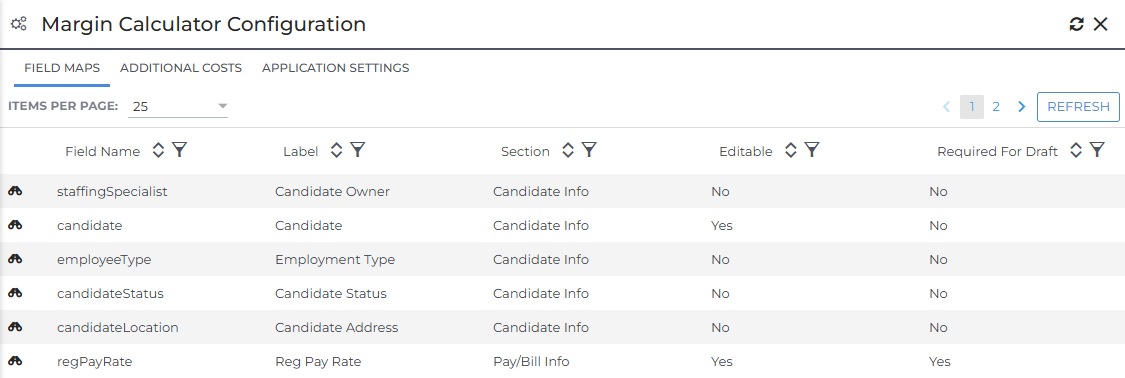
Field Maps Tab
The Margin Calculator configuration has its own Field Maps tab, allowing you to edit and hide predefined fields associated with the Margin Calculator tab on the Job record. Expand the section below to learn about the options under each field map setting.
Basic field properties can be managed here, while more complex changes like moving fields between sections require direct manipulation of the JSON configuration in Aquarium.
Certain calculated fields (such as Working Days, Calendar Days, and Total Hours) may be locked from editing in the Admin UI. This is controlled via a disableIsEditableInAdmin setting in the configuration and prevents modification of formula-driven fields that should always remain read-only.
 Field Map Settings
- Field Name: The name of the field. This is not editable.
- Label: How the field name appears on the record.
- Section: The section the field appears on in the Margin Calculator.
- Editable: Indicates if the field is editable or not.
- Required for Draft: Choosing Yes make this makes the field required. Users will not be able to save without filling out this field.
- Required For Placement: If Yes is selected, this indicates that the field must be filled out before a placement can be submitted.
- Hidden: If Yes is selected, the field will not be visible on the record.
- Default: The default value populated into the field.
- Section Sort Order: Impacts the field order in reference to other fields around it.
- Hint: Text displayed within the field until data is entered.
- Date Last Modified: This field auto-populates upon saving.
- Last Modified By: This field auto-populates upon saving.
Configurable Formula Functions
The following functions can be used within field default formulas in the configuration:
-
trueDays(startDate, endDate, scheduleCode): Returns the number of actual working days between two dates based on the selected schedule or rotation pattern.
-
effectiveHoursPerDay(scheduleCode, rateUnit): Returns 1 for daily-rate records (so day-based math works cleanly) and returns the actual hours per day for hourly-rate records.
-
IIF(condition, trueValue, falseValue): Conditional logic in formulas (e.g., apply different logic based on rate unit or employee type).
-
min(...) / max(...): Returns the minimum or maximum of a set of values (useful for applying wage caps).
Additional Costs Tab
The Additional Costs tab allows you to set up additional costs associated with a placement that would impact the margin calculations (e.g., background screening fees). These costs can be applied based on various criteria such as company-wide, job code, category, specialty, state, job track, company, or agreement. Costs are additive, meaning multiple matching cost factors will all apply. Each cost record can be set as editable or read-only for end-users, unless the user has admin privileges. Expand the section below to learn about the Additional Costs settings.
Additional Costs Settings
- Cost Name: Pick a unique title for the Additional Cost.
- Status: Indicates if the Additional Cost is Active or Inactive.
- Frequency: The frequency at which the cost is applied. Choose from One-Time, Hourly, Weekly, or Monthly.
- Calculation Method: The method used in the calculations. Choose between Dollar or Percent.
- Calculation Based On: Only applicable if the Calculation Method is Percent. Choose from Bill Rate or Pay Rate.
- Apply To: The entities the Additional Cost is applied to. Choose from All Assignments, Category, Specialty, Job Code, State, Job Track or Company. Depending on the value chosen, an additional field will populate to define application specifics.
- Default: Set the default amount you want to apply.
- Editable: Yes or No. If you set it to No, then only user types detailed in the Elevated User Role section will have the ability to edit this Additional Cost. If it is set to Yes, anyone can edit it.
- Date Last Modified: This field auto-populates upon saving.
- Last Modified By: This field auto-populates upon saving.
Application Settings Tab
The Application Settings tab stores the following additional system-wide options:
-
Global Settings: Apply minimum and maximum targets for your gross margin percentage. If the gross margin is outside of the range after being calculated, a warning message will display and you can take action from there.
-
Benefit Election Options: Specify different thresholds of benefits. Once these are set up, they'll populate automatically on the Gross Margin Calculator as drop down options.
-
Elevated User Role: Set up user types with special permissions. For example you could set up a specific user type to be able to edit or delete Additional Costs.
-
Employee Type: Set a default burden rate by employee type (W2, 1099, etc). The default can either be a fixed value or a variable formula that draws from other Bullhorn records. When a user selects a Candidate record in the Margin Calculator UI, the employment type will be used to apply the fixed value or formula to the burden rate field. An “undefined” default option is used when a candidate has not been selected.
User Interface Overview
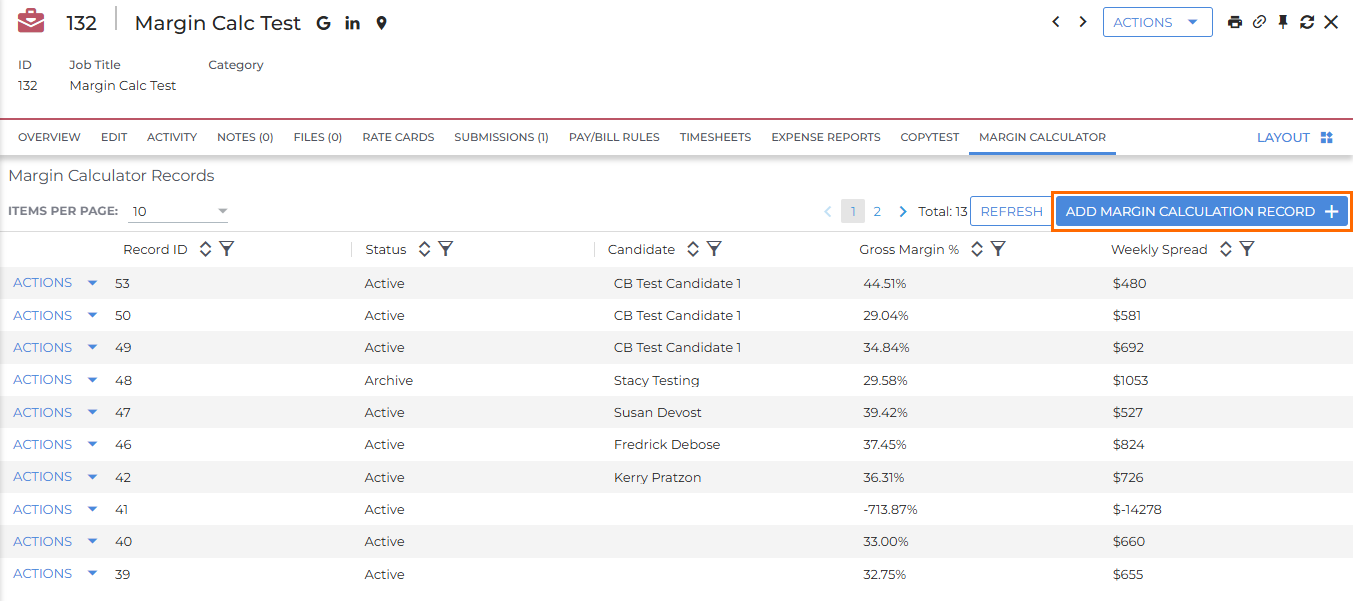
The user-facing Margin Calculator UI is accessed via a custom tab on the Job record. This landing page for this tab is a list view displaying all existing margin calculations for a specific job, with options to add new records or edit existing ones.
Each Margin Calculator record page is composed of the following primary sections:
-
KPI Cards
KPI cards are anchored at the top of the page and display calculated metrics such as Gross Margin % and Weekly Gross Margin $. The specific cards shown (including their labels, formulas, and the number displayed) are defined in the customer's configuration file and can vary. Calculations are performed in real-time as input values change. The display of a second row of KPI cards can be toggled on or off via a system configuration setting.
Per Diem Billing Behavior influences KPI calculations, specifically from the "How is Per Diem Billed?" field. If set to "Billed Separately", the weekly housing and meals and incidentals values are treated as zeros in the background for calculation purposes, even though they remain displayed to the user.
-
Input Fields
These sections are where users provide data for calculations, broken down by Pay/Bill Info, Candidate Info, and Assignment Info. The sections visible on a Margin Calculator record — such as Pay/Bill Info, Assignment Info, Employee Info, Benefits, and Hours and Scheduling — are defined in the customer configuration and may vary between implementations. Fields can be "derived" from other Bullhorn records, automatically populating values based on predefined syntax. For instance, the durationWeeks field is calculated from "Start Date" and "End Date".
-
Pay/Bill Info: Configured with data fields directly affecting margin values like REG, OT, and DT rates, size of work cycle, and common fees.
-
Candidate Info: If a Candidate is selected from the picker, it pulls information from the Candidate record that can be part of the calculation formulas, such as burden rates specific to employment type and distance from the Candidate's home address to the worksite.
-
Assignment Info: Includes fields related to the Job Order, like the job engagement duration and worksite's address.
-
Work Schedule Field: When Daily rate mode is enabled, a Work Schedule dropdown allows selection of a rotation or fixed schedule pattern. The available options are defined in the customer configuration and include patterns like "7/7 Rotation" (7 days on / 7 days off, 12 hours/day) and "5/40 Schedule" (5 days/week, 8 hours/day). The selected schedule drives the calculation of Working Days and Hours per Day, which in turn feed into total hours and billing calculations. A default schedule can be pre-configured for each customer.
-
-
Rates for Additional Earn Codes
This section allows you to set up rates for Earn Codes beyond REG, OT and DT that can be incorporated on your Margin Calculator formulas through the Add New Rate button. This is particularly useful for travel nursing and healthcare clients. Rates are pulled directly from the Rate Card, and Margin Calculator supports both daily and hourly rates. From this section you can add, edit, or delete Earn Codes on the table.
-
Additional Costs Table
This table displays any additional costs applied to the calculation record. Both pre-configured costs (retrieved from the additional cost custom entity based on job criteria) and user-generated one-off costs can appear here.
-
GSA Rates Integration
The calculator can connect to the GSA per diem API to automatically pull meal and housing rates based on the Job Location's zip code. If the "Include GSA Rates?" field is set to "Yes," the weekly housing and meals/incidentals fields are updated with these calculated values and become read-only. If set to "No," these fields are set to zero and become editable (if configuration allows).
The GSA rates displayed are a yearly average, and are not explicitly linked to the start and end dates. If rates vary widely over the year, we recommend manually calculating the amounts.
-
List View Columns
The columns displayed in the list view are configurable via the displayColumns setting in the system configuration. An Actions column (with Edit, Archive, and Reactivate options) is always present. Additional columns — such as Record ID, Status, Rate Unit (Hourly/Daily), Candidate, and Gross Margin % — are configured per customer.
Adding a Margin Calculation Record
Follow the steps below to add a new Margin Calculation Record.
- Navigate to the Job.
- Click the Margin Calculator tab.
- Click the Add Margin Calculation Record button to open a new Margin Calculator screen.
- Some fields pre-populate from the Job record. Review the fields before continuing.
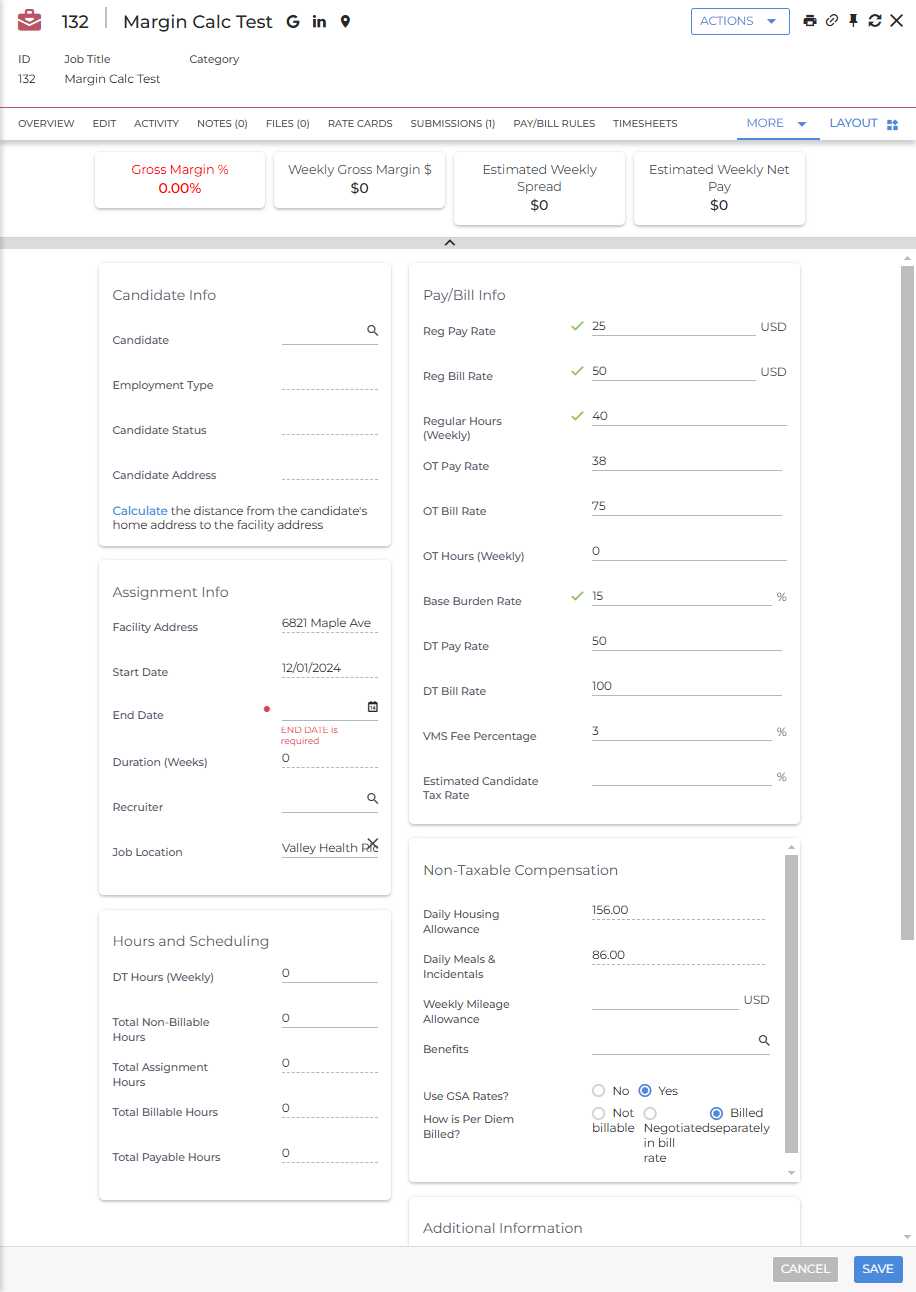
- On the Candidate Info card, add a candidate into the Candidate field. Additional fields will pull over from the Candidate record.
- Fill out any other applicable blank fields. As you enter information, the KPI Cards at the top of the screen will calculate the following information in real time: Gross Margin %, Weekly Gross Margin $, Estimated Weekly Spread, Estimated Weekly Net Pay.
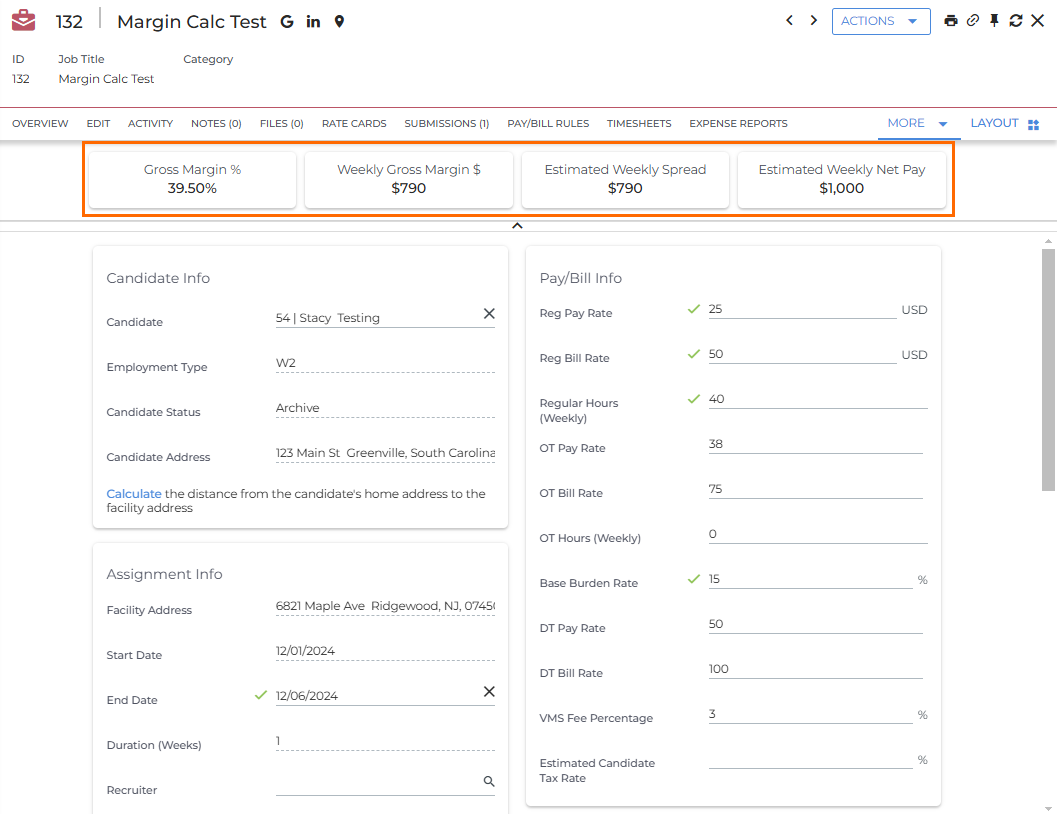
- Estimated Weekly Net Pay Example
Estimated Weekly Net Pay is calculated with the formula
[totalPay]/[durationWeeks]*(1-[candidateTaxRate])In this example, the candidate would be paid 25 USD an hour for 40 hours per week. The assignment is only one week long and there is no Candidate Tax Rate. The system automatically plugs in the numbers to the formula:
($25)*(40 hours)/(1 week)*(1-0 candidate tax rate). Then the total is displayed in the Estimated Weekly Net Pay card at the top of the screen:$1000.
- Add any Additional Costs by clicking the Add Additional Cost button at the bottom of the page.
- When you are done adding information, click Save.
After saving, your Margin Calculation record will show up on the Margin Calculator tab in a list view format with any other calculations that have been created. Here you can compare the calculations at a glace and Edit or Archive individual records through the Actions drop down button.
Selecting a Rate Unit (Hourly or Daily)
If your configuration supports it, a modal will appear before the form loads asking you to select whether this calculation will use Hourly Rates (pay and bill rates per hour) or Daily Rates (pay and bill rates per day). The job's current rate unit is shown as a reference.
This selection cannot be changed after the record is created. If you cancel the modal, record creation is aborted.
Frequently Asked Questions (FAQ)
Can the Margin Calculator push data back to the Job record or create Rate Cards?
No, the Margin Calculator is primarily a "pull" tool. It takes information from the Job record and other sources to calculate margins, but it does not have the ability to push data back onto the Job record, nor can it generate or create new Rate Cards.
Can the calculator handle complex rate structures like on-call or callback rates?
For hourly rate assignments, the calculator supports REG, OT, and DT pay and bill rates. For daily rate assignments, only REG rates are used — daily billing does not support overtime or double-time rate tiers. Additional rate types beyond these can be added via Earn Codes, which are particularly useful for travel nursing and healthcare clients.
Can I add many custom burden rate components directly into the calculator's input fields?
You can't add custom fields directly onto the Margin Calculator's user interface to display multiple burden components. These components would typically need to be set up on the Job record and then pulled into the calculator's formulas.
What if I have data related to the job that's in a one-to-many relationship (e.g., multiple billing profiles for a client)? Can the calculator pull that in?
The calculator can primarily pull data from records that have a direct "one-to-one" relationship with the job (e.g., a job has one client). For "one-to-many" relationships (like a client having many billing profiles), the calculator cannot directly specify which one to pull. In these cases, supplemental customization would be needed to copy the relevant data to the job record first, so the calculator can then access it.
Can I see a history of changes made to field configurations or additional cost records?
No, field configuration and additional cost records do not have an associated edit history.
Can I permanently delete margin calculation records?
Records can only be archived, not permanently deleted.
Can I customize the layout of the calculator directly from the Admin tools, like moving fields between sections?
While the Admin tool allows you to change field labels, sort order within sections, and other properties, moving fields between different sections of the Margin Calculator UI cannot be done through the Admin tool. Such changes require direct adjustments to the underlying configuration by a technical specialist.
Does the Margin Calculator act as a complete pricing tool, generating external documents or communicating with candidates?
No, this tool is designed as a basic margin calculation tool. It aims to get you "pretty close" to understanding your overall margin for pricing jobs, but it is not a full-fledged pricing tool that can generate documents for Jobs or Placements, or communicate directly with Candidates.
Can I switch a record from Hourly to Daily mode (or vice versa) after it's been saved?
No. The rate unit (Hourly or Daily) is set when the record is first created and is locked permanently for that record. To use a different rate unit, create a new margin calculation record.