Amplify Extract: Uploading Timesheet Images
Amplify Extract uses AI to read and parse timesheet images in , automatically extracting key details, such as candidate name, client, placement, week ending date, and time entries. This allows Admins to review, adjust, and approve timesheets faster and with less manual effort.
Amplify Extract allows you to upload timesheet images manually and via email. Follow the steps below to manually upload images of written timesheets through Amplify Extract.
-
In the Time Management Console (TMC), navigate to the branch you want to upload time for.
-
Select Tasks > Amplify Extract.
-
The Amplify Extract Dashboard will open to the current Week Ending Date. Click the Client the Candidate is placed under.
-
Click Upload next to the correct Candidate.
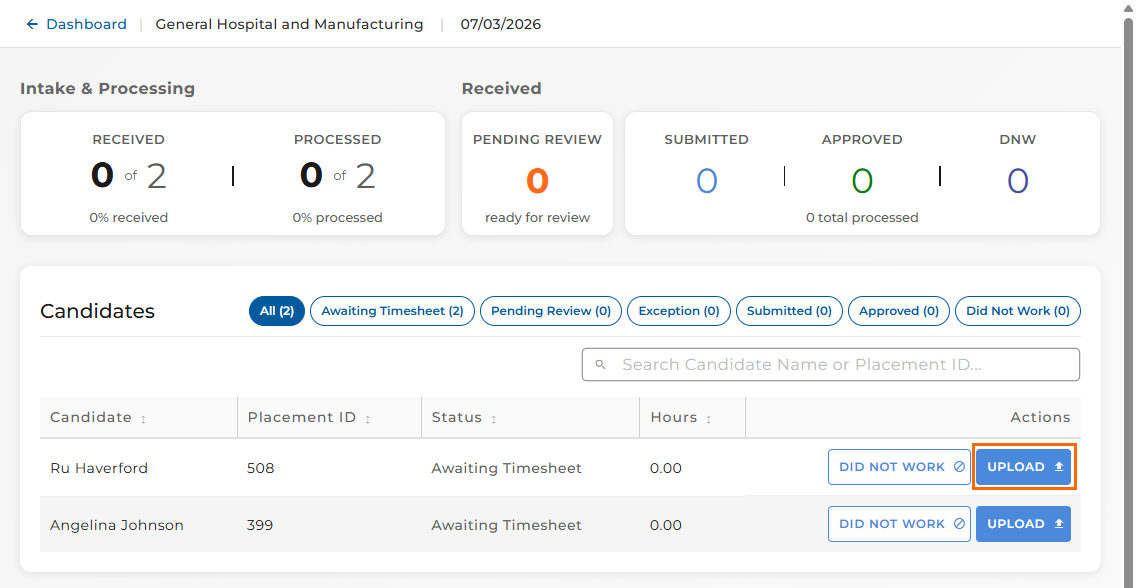
-
Click Select File to select the timesheet image form your device.
-
Click Upload. Amplify Extract will parse the data.
-
To review the parsed data, click Review.
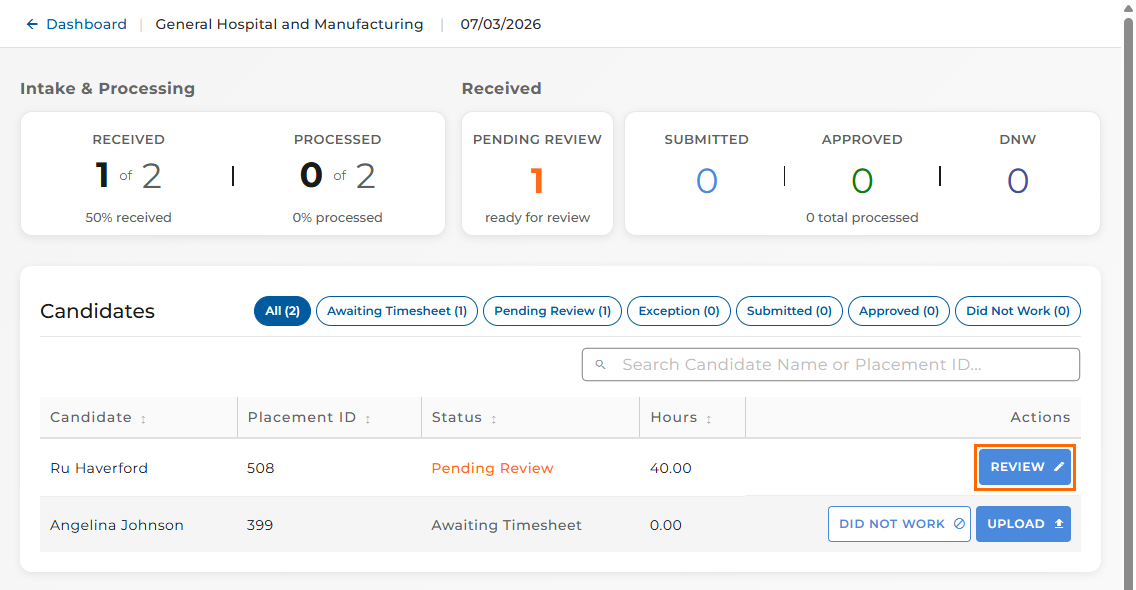
-
The file will open, allowing you to review the image you uploaded and compelte any of the following actions:
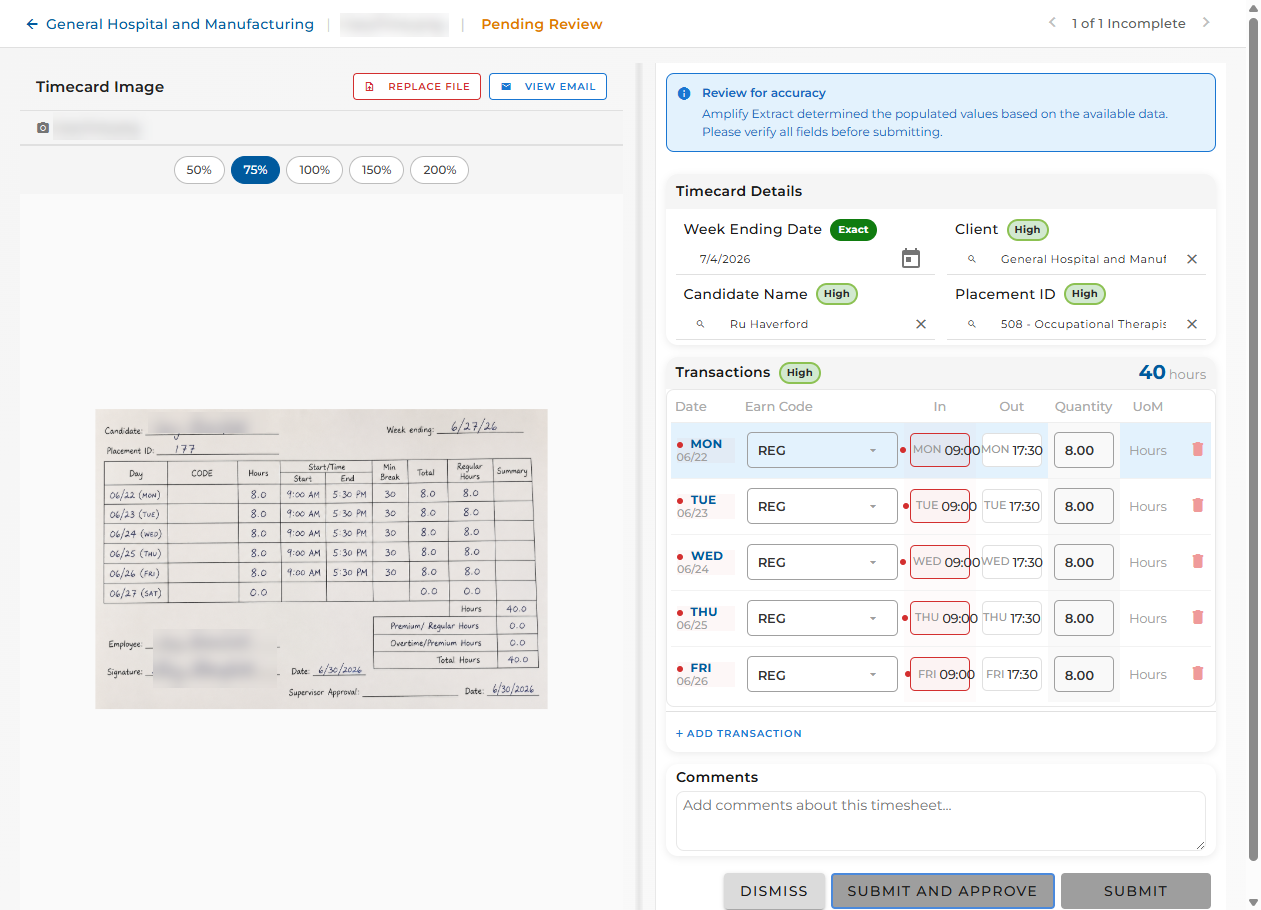
-
Fill in the missing details and add comments
-
Dismiss
-
Submit and Approve
-
Submit (without approving)
-