Using Amplify Extract
Amplify Extract uses AI to read and parse timesheet images in , automatically extracting key details, such as candidate name, client, placement, week ending date, and time entries. This allows Admins to review, adjust, and approve timesheets faster and with less manual effort.
Amplify Extract Workflow
Amplify Extract works from timesheet images that are emailed in or uploaded through the Amplify Extract Dashboard. The images are then automatically parsed and assigned to a Candidate, pre-populating timesheet data for submission via the Amplify Extract application.
Amplify Extract email inboxes are unique per Company. Anyone can email timesheets into the inbox.
Navigating to the Amplify Extract Dashboard
-
In the Time Management Console (TMC), navigate to the branch you want to upload time for.
-
Select Tasks > Amplify Extract.
-
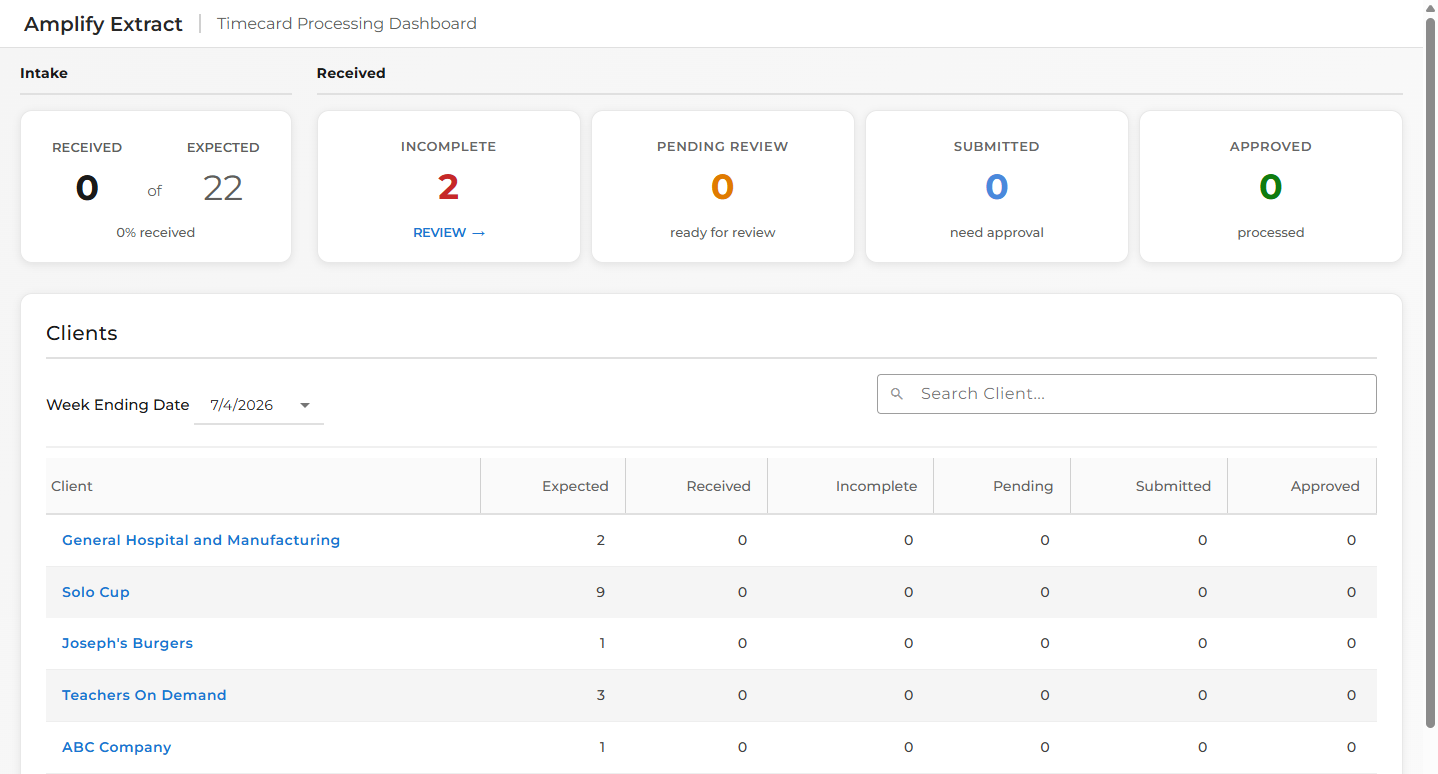
The Amplify Extract Dashboard will open to the current Week Ending Date. Here you can see the following information in summary blocks or per client.
-
Received and Expected: Quickly see how many timesheets you should be expecting for this Branch and Week Ending and how many you have received so far.
-
Incomplete: Click Review to open the Incomplete Queue. See Amplify Extract: Incomplete Queue for more information.
-
Pending Review: Total number of timesheets waiting for review.
-
Submitted: Total number of timesheets that have been submitted and still need approval.
-
Approved: Total number of approved timesheet for this Branch and Week Ending.
-
Available Actions in Amplify Extract
-
Quickly filter by Client name and Week Ending Date to drill into that client's timesheets for each week
-
Review and resolve incomplete uploads by Branch or Client. See Amplify Extract: Incomplete Queue for more information.
-
Upload timesheet images for individual Candidates. See Amplify Extract: Uploading Timesheet Images for more information.
-
View timesheet details
-
Review and approve/reject timesheets