Enrich Automation Step
You need Bullhorn Amplify Edition to use this feature.
The Amplify Enrich step enables you to trigger AI-powered actions at scale, helping you generate, enhance, and standardize record data without manual effort.
Example Use Cases
-
Create profile summaries for newly added candidates.
-
Enhance candidate descriptions for new lead submissions.
-
Generate position titles for candidates with blank fields.
-
Write public job descriptions optimized for candidate engagement.
By automating these tasks, you can improve data quality, save time, and make more informed, data-driven decisions.
How the Enrich Step Works
-
Add the Enrich step to an automation (see availability below).
-
Select the prompt you want to use.
-
You can choose from a selection of default prompts or create your own custom prompts in the Prompt Studio.
-
-
Choose where to save the AI-generated content:
-
Directly to an ATS field.
-
As a note on the candidate or job record.
-
Using the Enrich Step
Place the Enrich step at the desired point in your automation workflow.
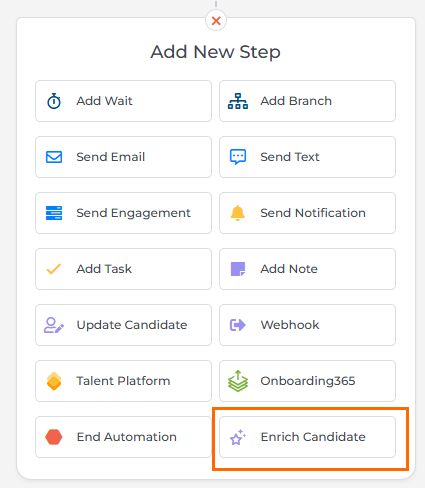
You can use the Enrich step in automations for the following record types:
-
Candidates (Enrich Candidate)
-
Jobs (Enrich Job)
-
Submissions (Enrich Candidate or Submission)
-
Sales Contacts (Enrich Sales Contact)
The Enrich step is available for both standard and date-based automations, offering flexibility for various use cases.
Enrich Step Options
The following options can be configured in the Enrich step:
Select Prompt
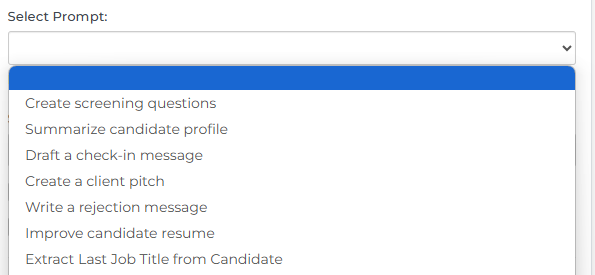
Select the prompt you'd like to use with this step. The Enrich step supports applicable default prompts found in Bullhorn ATS, as well as custom prompts created in the Prompt Studio.
Default prompts include:
-
Summarize candidate profile
-
Improve candidate resume
-
Extract Last Job Title from Candidate
After you select a prompt, the Enrich step will display that prompt’s label directly in the automation workflow, making it easy to understand the step’s purpose at a glance. If you add an Enrich step without choosing a prompt, it will show No Prompt Selected, reminding you to complete the configuration before turning on the automation.
Save Response to ATS Field

You can choose to save the AI-generated content directly to an ATS field. The Enrich step can write back text, integer, and date values. The generated content must adhere to the character and format limitations of the selected field.
-
If the field is already populated, the existing data will be overwritten by the AI-generated content.
-
Content will not be saved if the field format is incompatible (e.g., attempting to save a job title to a date field).
Add generated content to a single note
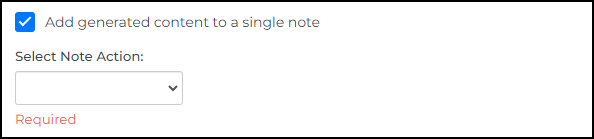
You can add the AI-generated content to the record as a note. If you select this option, you can also specify the note action.
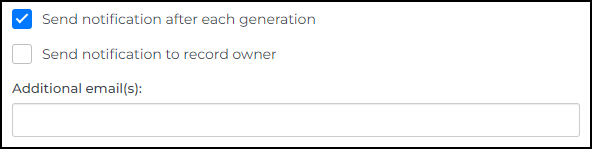
Send notification after each generation
If selected, an email will be sent after each record is processed. Notifications can be configured to:
-
Notify the record owner
-
Send to a specific email address
On Failed Request
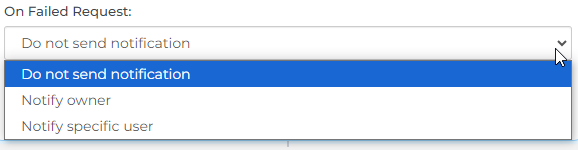
In case the Enrich step fails to execute all configured actions, an email notification can be sent.
Options:
-
Do not send notification
-
Notify owner
-
Notify specific user
-
Notifications will not be sent for partial failures. For example, if the step successfully adds a note but fails to save content to the ATS field, no notification will be triggered.
-
If the AI Assistant API encounters more than 25 errors within a 15-minute period, the automation will automatically pause with a status of "Stopped." This allows you and Automation Support to troubleshoot the issue and manually restart the automation when resolved.
Step Processing
When a record has passed through the Enrich step, you can check its status on the Activity Feed in Bullhorn Automation.
-
A status of "Waiting" indicates that the record has been processed and is now waiting on Amplify to complete the request.
-
A status of "Completed" means that Amplify has completed the request.
Using Custom Prompts with the Enrich Step
All prompts you create in the Prompt Studio are available to use with the Enrich step in Bullhorn Automation.
When configuring your prompt:
-
Open the Settings tab.
-
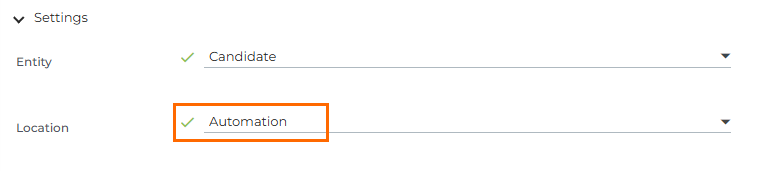
Under Location, choose where your prompt should be available:
-
Automation – makes the prompt available only in Bullhorn Automation.
-
Any other location – makes the prompt available in both Automation and the ATS.
-
Always test your prompt thoroughly before using it in a live automation to make sure the output behaves as expected.