Generating an Amplify Present Document
You need Bullhorn Amplify Edition to use this feature.
In this article, you’ll learn how to generate an Amplify Present document from a candidate record in Bullhorn ATS. When you generate a document, Amplify automatically fills your selected template with data from the candidate’s record, giving you a professional, tailored document in seconds.
For help setting up templates, see Building an Amplify Present Template From Scratch.
Generating a Document
-
Open a Candidate record in Bullhorn ATS.
-
Click the Amplify tab.
-
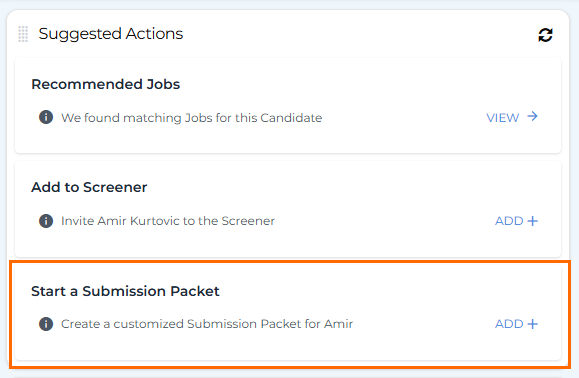
Under Suggested Actions, select Start a Submission Packet.
-
Choose the template you want to use.
The document will open with the candidate’s details automatically populated.
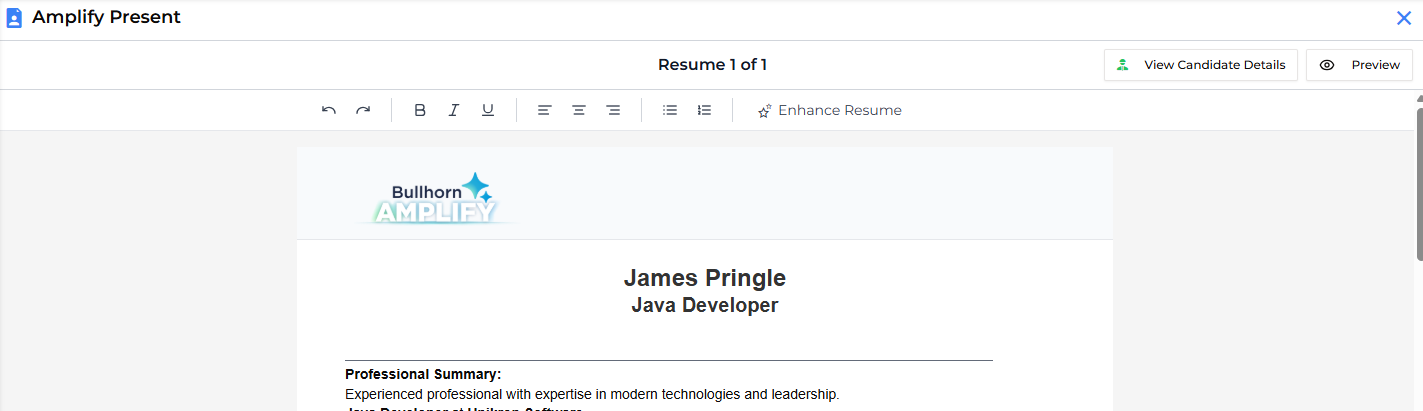
View Candidate Details / Preview
-
Click View Candidate Details to open the candidate’s current resume (from the Resume field on their record) in a slideout on the right. Use this to compare details or view notes.
-
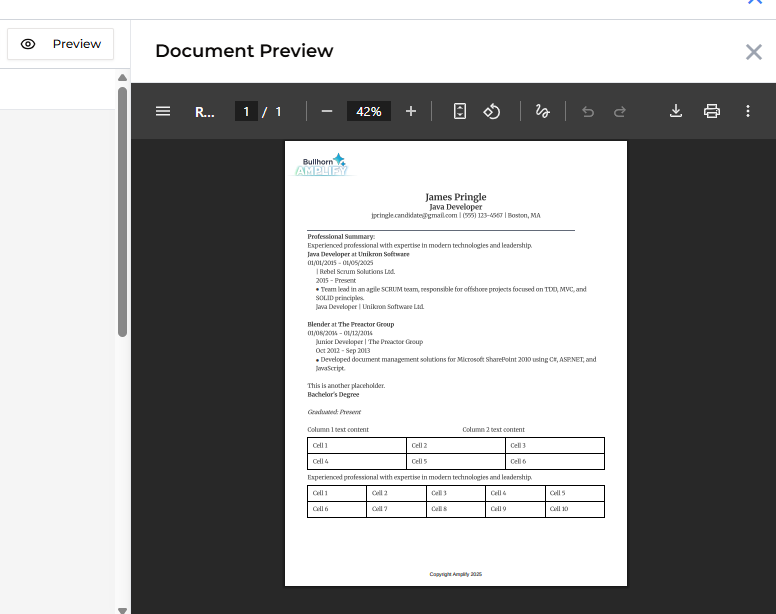
Click Preview to see how the final document will look when saved as a PDF. The preview updates automatically as you make edits.
Editing and Enhancing the Document
Before saving and sharing your document, you can review the content and make any adjustments needed.
Manually Edit Content
You can edit or delete text directly in the document. Use the formatting toolbar at the top to adjust font, size, spacing, and alignment.
Enhance with Amplify
You can enhance either a specific section of text or the entire document using Amplify.
-
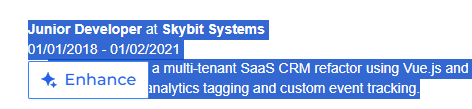
To enhance a specific section: Highlight any portion of text, then click Enhance.
-
To enhance the entire document: Select Enhance from the toolbar.

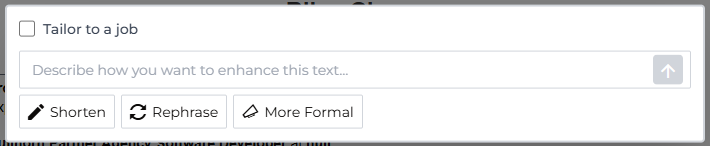
In both cases, you'll see the same enhancement options:
-
Tailor to a job: Check this box to tailor the enhancement to a specific job. A search field will appear below. Type the name or ID of a job and select it. Amplify will use the job description to align the enhancements with that role.

-
Describe how you want to enhance this text: Enter your own instructions to adjust the content. Press Enter or click the arrow button to apply your changes.
-
Shorten / Rephrase / More Formal: Use these quick options to apply common enhancements instantly.
Amplify will regenerate either the selected text or the entire document based on your instructions.
Saving
When you’re happy with your document:
-
Click Save to Candidate Record (bottom right).
-
In the save window, choose your settings:
-
Document Name: A name is generated automatically. You can edit it if needed.
-
File Type: Choose PDF (.pdf) or Microsoft Word (.docx).
-
Add Attachment: If File Type is set to PDF, this option appears. Select one of the candidate's existing Bullhorn file attachments from the dropdown to append it to the end of the document. Only PDF attachments are shown. The files are merged automatically when you save.
-
Download local copy: Select this option to save a copy of the file to your computer.
-
-
Click Save to finalize and store the document on the candidate’s record.
Always preview your document before saving to ensure formatting, merge tags, and AI enhancements appear exactly as expected.
If you're generating a document for speccing purposes rather than a live submission, use a template with anonymization enabled to remove identifying details and produce a clean, professional profile ready to send to a potential client.