Add to Talent Pool
Use these instructions to add selected candidate records to Talent Pool folders used in the Recruitment Studio dashboard.
- Hover over Searching on the navigator and then select Saved Results.
- After selecting Saved Results, select a search that matches the corresponding Batch Activity category. For this workflow your search should be a Candidate Search.
-
In the Activities drop-list, select Batch Processes > Candidates > Add to Talent Pool.
You can also open the saved search, select individual records then run the workflow from the Batch menu inside the search.>
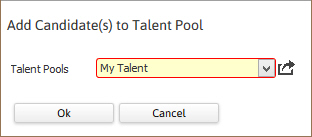
- The Add Candidate(s) to Talent Pool workflow will open in a new window.
-
Select the preferred folder and Ok the workflow to complete.
-
A confirmation message will display to confirm the selected candidates are now listed under the Talent Pool folder in the Recruitment Studio dashboard.
If one of the selected records was already in the folder that information is displayed in the message. This prevents duplicates in the folders as they have a limit of 250 records per folder.
-
To add the candidates to additional Talent Pool folders repeat the workflow.
- Verify the candidates are in the correct folder via the Talent Pool widget in the Recruitment Studio.