Custom Candidate Report
Use these instructions to create an Excel Report of the Candidates within the selected search result(s).
- Hover over Searching on the navigator and then select Saved Results.
- After selecting Saved Results, select a search that matches the corresponding Batch Activity category. For this workflow your search should be a Candidate Search.
-
In the Activities drop-list, select Batch Processes > Candidates > Custom Report.
You can also open the saved search, select individual records then run the workflow from the Batch menu inside the search.
- The Custom Candidate Report workflow will open in a new window.
-
Choose the information to appear in the report by clicking on the code group icon to the right of the Column fields. You can also add UDF fields to the custom report by selecting the UDF field in the Code Selection list.
There are over 50 available column fields.
-
After selecting the desired information click the Run button to generate the report. By clicking on the buttons to the right of certain fields, a new window will open, allowing you to search and select options related to that specific field.
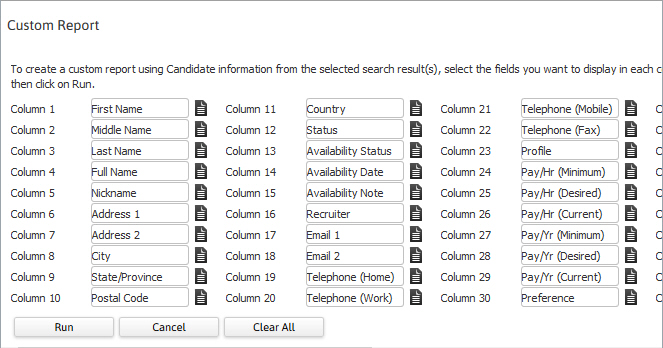
- Once the report is generated a MS Office box will open asking you to Open, Save or Cancel the document.
- Verify the batch activity completed by viewing a document in the Adapt Document Library.
- Select the Documents link from the My Adapt tab on the main navigation tab bar.
- Choose Reports from the Document Categories selection tree.
-
Locate the Custom Candidate Report in the main Adapt page. To open the document, double click on the report name.
The following attributes are considered "Confidential Information". The user must have Update Employee Confidential Information permission to see and/or add the attribute to the report.
- Social Security Number (SSN): If user does not have proper permission, the social security number is added to the custom report, but in a masked format.
- Date of Birth (DOB): If user does not have proper permission, the date of birth is added to the custom report, but in a masked format.
- Ethnicity: If the user does not have proper permission, this attribute is not presented in the custom report.
- Veterans Status: If the user does not have proper permission, this attribute is not presented in the custom report.
- Gender: If the user does not have proper permission, this attribute is not presented in the custom report.
- Covid Vaccination Status: If the user does not have proper permission, this attribute is not presented in the custom report.
- Covid Vaccination Date: If the user does not have proper permission, this attribute is not presented in the custom report.