GL Export Report
The GL Export Report allows you to review information contained within the GL Export file. This helps you determine if adjusting entries are needed.
Users must have Financial Admin Report Category permission to access this report.
Accessing the Report
- Access Reporting>Reporting & Analytics >System Reports > Financial Administration.
- Double-click GL Export Reportto open workflow view in a new window.
-
The following window displays:
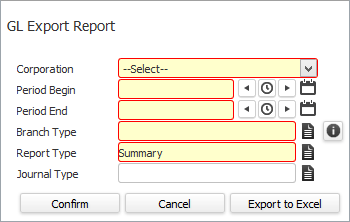
- In the Corporation field, use the droplist to select the corporation for which you want to run this report (REQUIRED).
- In the Period Begin and Period End fields, enter the date range on which you want to search (REQUIRED). This corresponds to the GL Export Begin and End dates.
-
In the Branch Type field, use the Code Selection icon to select the Branch Type (Assignment, Company, Employee or Job) on which to report.
Branch Type applies to the Sales and Cost of Sales Journals only. The GL Export file reports Sales and Cost of Sales based on the Assignment branch (REQUIRED).
- In the Report Type field, use the Code Selection icon to select whether you want a detailed or summary report (REQUIRED).
- In the Journal Type field, use the Code Selection icon to select a specific journal (AR Adjustments, Billing, Cash Receipts, Cost of Sales, Payroll or Sales) if you want data applicable only to that journal. This field is optional. If it is blank, the system reports on all journal types.
- When you are satisfied with your selections, click Confirm.
Information True of Both the Detailed and Summary Reports
Both reports (Detailed and Summary) are grouped by:
- Corporation
- Journal Type
- Journal Date
- Document Date
Both reports are totaled by:
- Journal
- Journal Type
Both reports (Detailed and Summary) are sorted by:
- Corporation
- Journal Type
- Journal Date
- Document Date
- Journal Entry
- Region
- Branch
- Division
- Company
- Employee
- Journal Entry Debit
- Journal Entry Credit
Some Journal entry types will not have values for all columns. For example, AR Payments will not have an associated Employee. In these cases, the column will be blank.
The Detailed GL Export Report
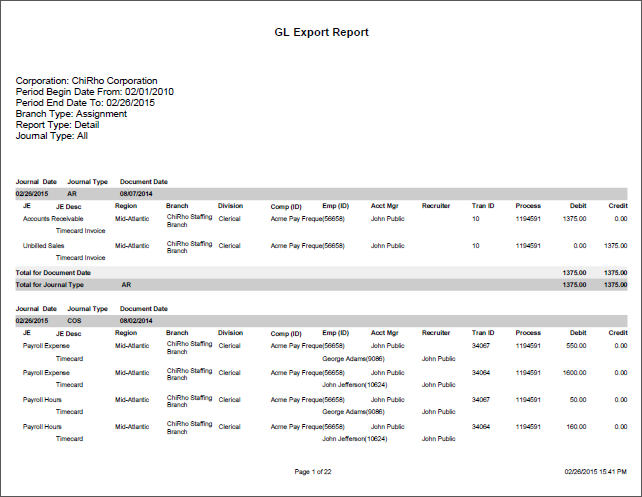
The Detailed Report shows the following information:
- Journal Date (Date Exported), Type, Entry and Entry Description
- Region
- Branch
- Division
- Company (ID)
- Employee (ID)
- Account Manager
- Recruiter
- Document Date
- Transaction ID
- Process ID
- Debit
- Credit
The Summary GL Export Report
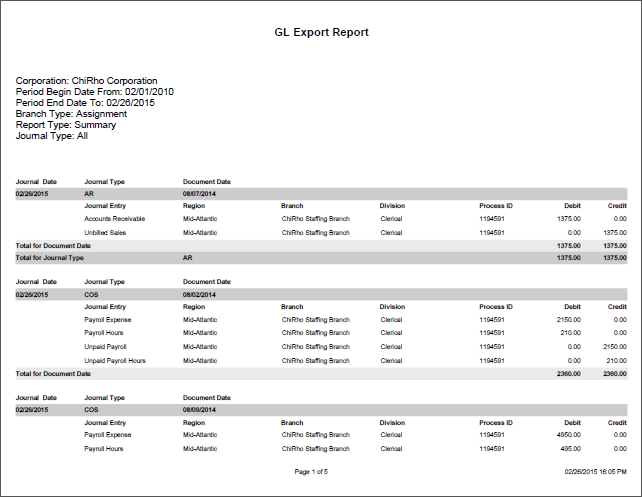
The Summary Report shows the following information:
- Journal Date (Date Exported), Type and Entry
- Region
- Branch
- Division
- Document Date
- Process ID
- Debit
- Credit