Creating a New Contact
Overview
This article covers how to manually create a new Contact or Department record associated with a company.

Note: If your Back Office / Onboarding is integrated with an ATS, Contact / Department records are typically created automatically when a new placement record pulls into the system.
Steps
- Navigate to the Companies tab.
- Open the company record by selecting the
 next to the company name.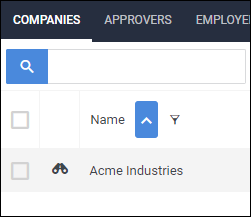
- Choose the Contacts tab.
- This tab may be labeled differently depending on your setup.
- Select
 .
. - In the Add Department slideout, locate the General Information section and complete the following required fields:
- Select a Branch for the department contact, if necessary.
- In the Title field, enter in a name for the department.
- This field is required and will be the name that appears in the Department tab list.
- Enter in a Username.
- This field is required and is necessary for Client Contacts in Onboarding.
- The Username must be at least 3 characters long.
- Add an Email Address for the contact, if necessary.
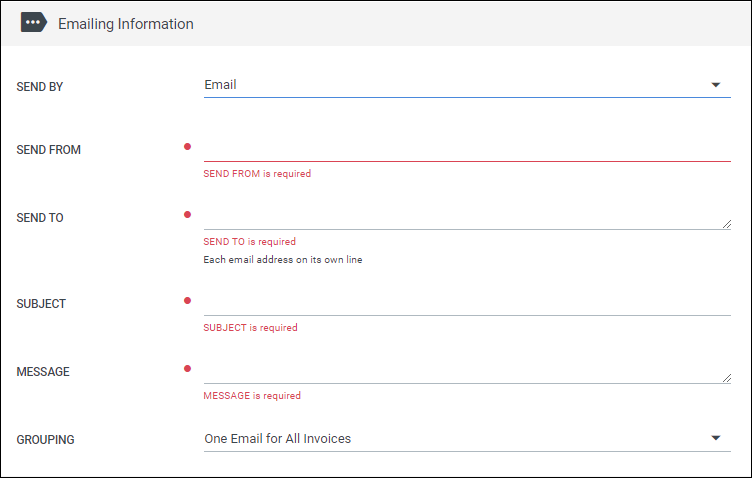
- This email is used for Client Contacts. The Send To address for emails is entered in the Emailing Information section toward the bottom of the page.
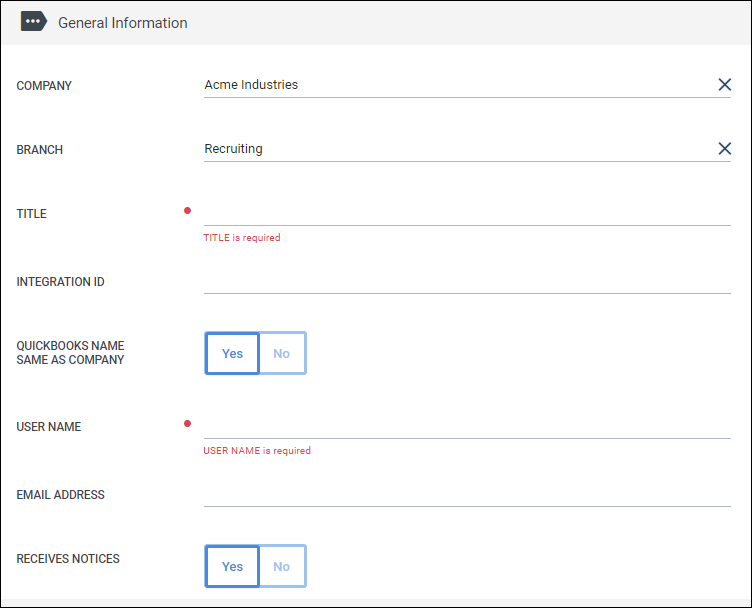
Those are the minimum fields required for setting up a department. You can further customize the department by updating settings in the sections listed below:
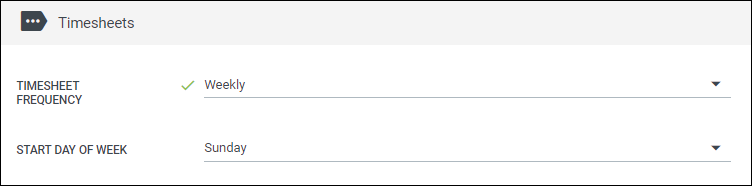
Timesheets
You can select the Timesheet Frequency and start day of the week for all placements placed in this department.
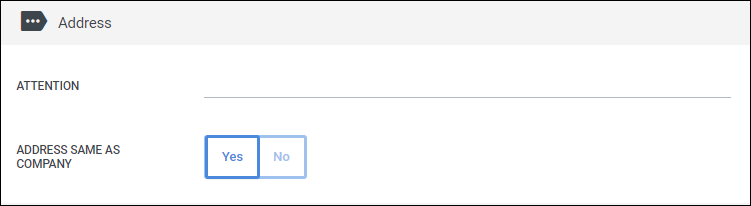
Address
The Attention/Address fields is the client address that will be printed on invoices.
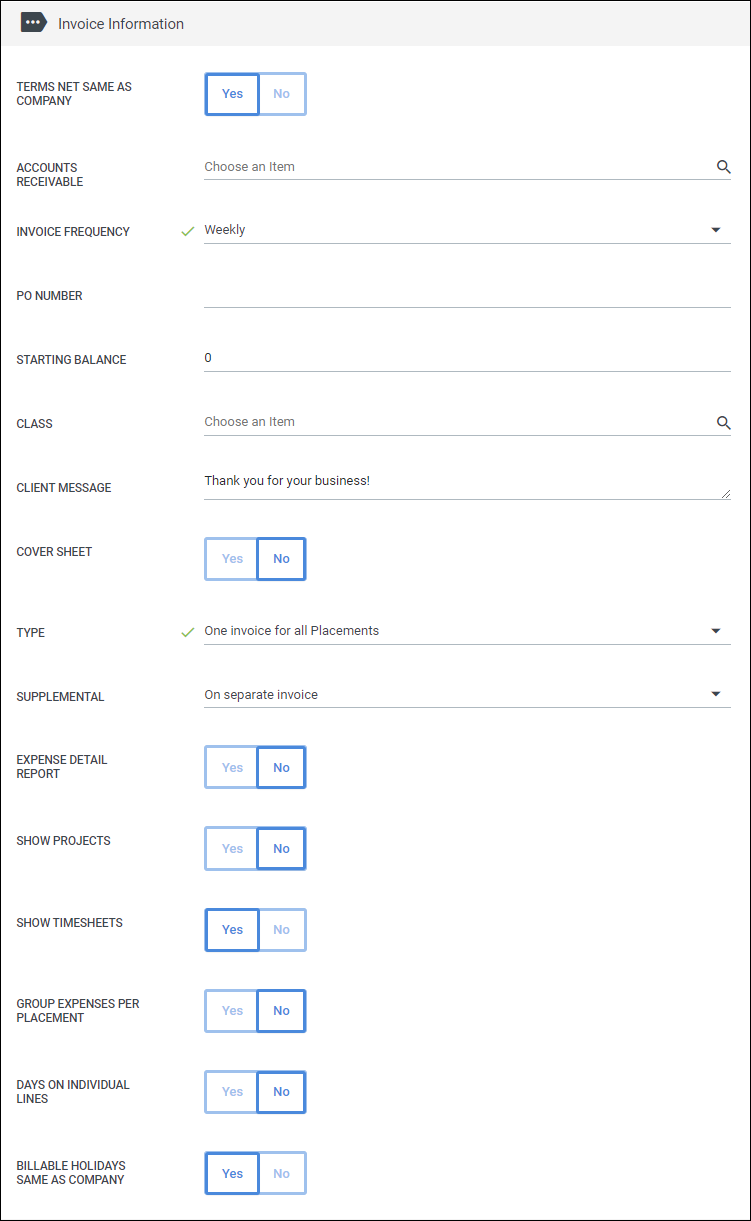
Invoice Information
Here you can customize various invoice settings such as frequency and terms.
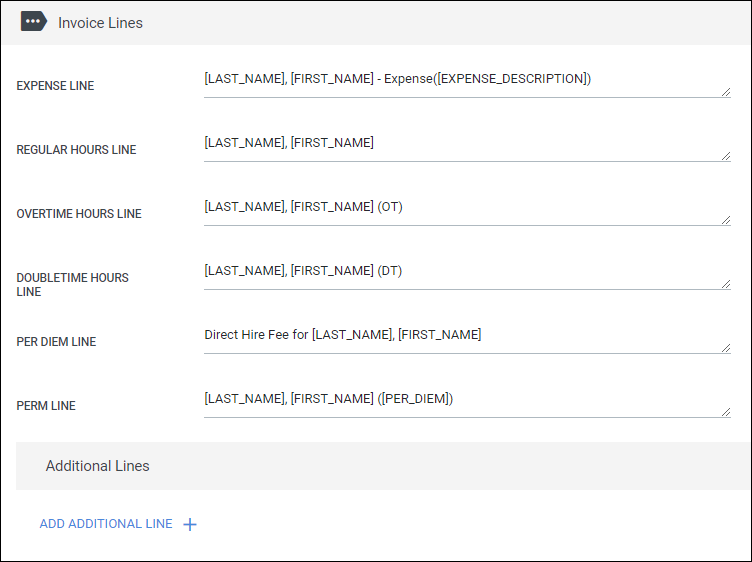
Invoice Lines
This section allows you to change the information that displays for individual line items on an invoice.
Note: This will override the default Invoice Line information set up in the Control Panel and will only apply to this billing contact.
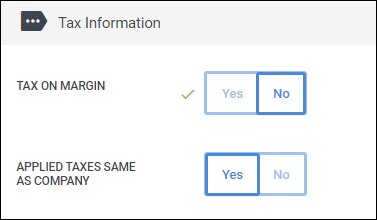
Taxes
Select if Tax is to be calculated on the Margin.
- Yes means that only the difference between Pay and Bill will be taxed
- Consult your tax advisor to make sure you are calculating and billing appropriately for Services Taxes based on your locality.
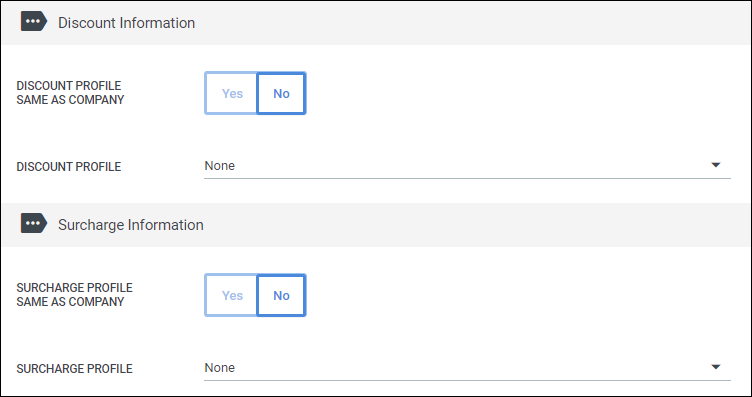
Discounts / Surcharges
If enabled, you can apply discounts and/or surcharges to all invoices for this department.
Emailing
If you will be emailing invoices, you can set up who will be receiving the invoices here. You can also customize the email message the contact receives.
- Select
 when you are finished.