In Process (Timecard Billing)
The In Process tab in the Timecard Billing screen lists all the completed/failed processes available to be updated for contract assignment timecards. The count of in process batches is displayed in the tab header badge.
- You can search for specific process from the list by entering a keyword in the 'Search' box; the processes matching the keyword across any attributes presented in the columns will be displayed. For example, to view processes belonging to a specific Corporation, enter the corporation name in the Search box.
- You can select/deselect all the process listed in a page by selecting the checkbox on the top left of the grid, or select multiple processes from the list by clicking on them individually. However, selecting processes from multiple Corporations to update will display a warning message as only processes belonging to the same Corporation can be updated together.
- Failed processes are marked with a red flag.
- You can choose to sort records on all columns by clicking the
 icon.
icon. - To expand a record and view details, click the
 icon corresponding to the Process ID.
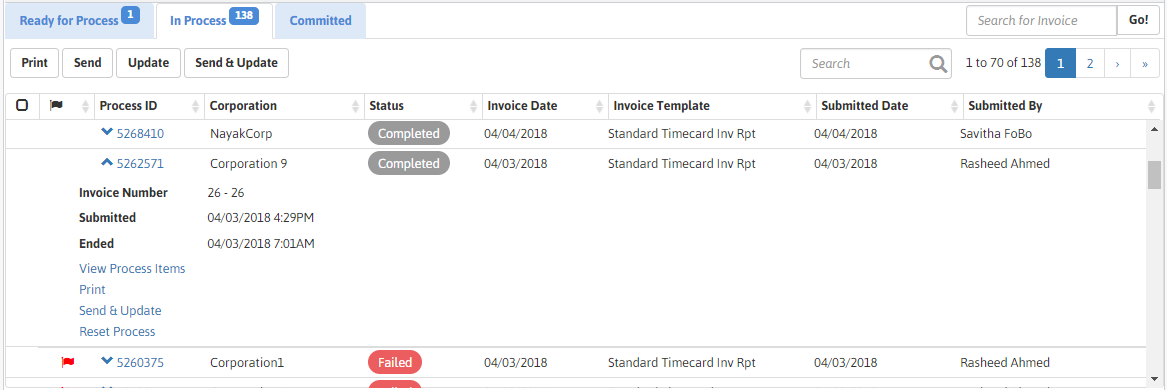
The following actions can be performed from individual records:
- View Process Items : Click View Process Items to go to the Process entity page. You can also access the Process entity page by clicking the Process ID.
- Print: Click Print to print the specified invoice(s). By default the entire range of invoices associated to the process is displayed. However, you can enter the invoice range you wish to print.
- Send & Update: Click Send & Update to send the process to the queue for processing and email the invoices. A success message is displayed if the email is sent and process is updated successfully. The count in the 'In Process' tab badge decreases and the process will now appear in the Committed tab.
- Reset Process: Click Reset Process to reset the completed/failed process. By default the entire range of invoices associated to the process is displayed. However, you can enter the invoice range you wish to reset. The reset process will move back to the Ready for Process tab.
You can also Print, Send, Update, and Send & Update Invoices using the buttons available on the top left of the process list grid.
To print invoices associated to a process:
-
Select a completed process from the list and click Print . The Print window displays.
You cannot perform this workflow if you have selected multiple processes.
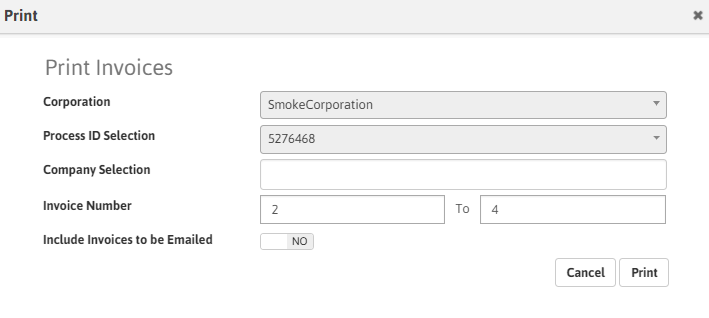
- The Corporation and Process ID defaults from the selection.
- Click inside the Company Selection field to lookup for companies.
- Specify the Invoice Number range you wish to print. By default the entire range of invoices associated to the process are displayed.
- Click on the Include Invoices to be Emailed toggle switch to include the invoices to be emailed. This is set to 'YES' by default, but once changed, retains the selection across sessions.
- Click Print to print the invoices specified.
Send
The Send workflow emails the invoices associated to the selected process(es).
Select a process or multiple processes (of the same Corporation) from the grid and click the Send button to email the associated invoices; the Send Email window displays.
If you select any process(es) from the list that doesn't have any invoices to email, a message is displayed indicating the same.
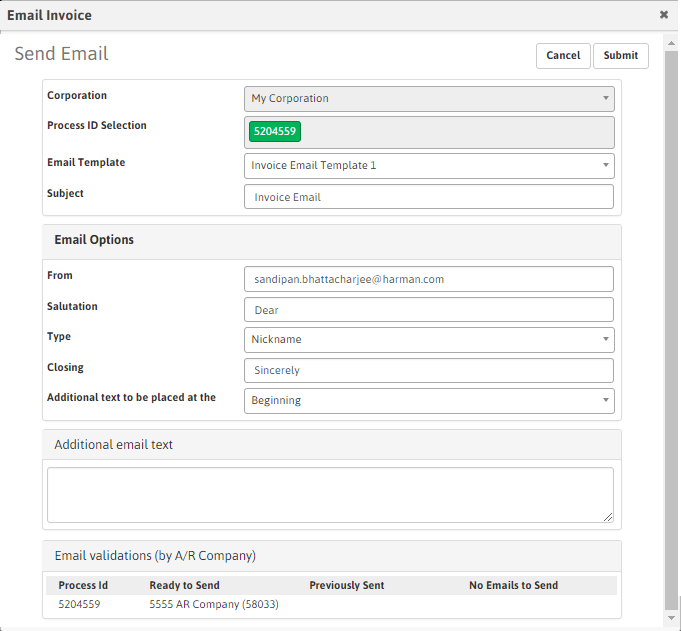
- The Corporation and Process ID are defaulted from the selected process and cannot be modified.
-
The following fields are auto-populated but can be modified if required:
- Email Template: defaults to 'Invoice Email Template'
- Subject: defaults to 'Invoice Email'
- From: defaults to 'current user's Email id'
- Salutation: defaults to 'Dear'
- Type: defaults to 'Nickname'
- Closing: defaults to 'Sincerely'
- Additional Text to be placed at the : defaults to 'Beginning'.
- Enter additional text, if required, in the Additional email text section.
- The Email Validations (by A/R Company) lists the AR Company IDs for the 'Ready to Send', 'Previously Sent', and 'No Emails to Send' processes.
- Click Submit. The invoices associated with the process is emailed. A success message is displayed if the email is sent successfully.
Update
The Update workflow updates the completed processes. You can select one or multiple processes (of the same Corporation) and click the Update button to send the process(es) to the queue for processing. A success message is displayed if the process is updated successfully.
However, if you do not select any record from the list and click the Update button, the Update window displays.
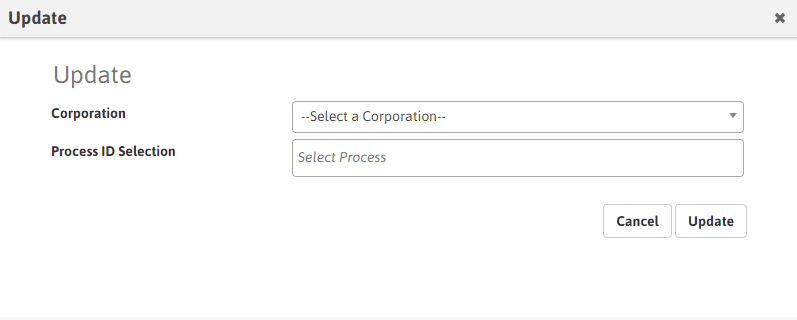
- Select a Corporation in the drop-down list. Based on your selection, the associated process id's will be listed in the Process ID Selection field.
- Select the Process ID(s). You can select multiple process id's belonging to the corporation selected.
-
Click Update. The process is sent to the queue for processing. A success message is displayed if the process is updated successfully.
The count in the In Process tab badge decreases by the number of processes updated, and the same processes will now move to the Committed tab.
Send & Update
The Send & Update workflow updates the completed process and sends an email with the associated invoices attached.
You can select one or multiple processes (of the same Corporation) and click the Send & Update button to send the process to the queue for processing and email the invoices. The Send Email window displays.
If you select any process(es) from the list that doesn't have any invoices to email, the Send and Update window doesn't display and a popup is displayed instead seeking your confirmation on updating the process(es). Click Yes to update the process; an email however will not be sent in this case.
- The Corporation and Process ID are defaulted from the selected process and cannot be modified.
-
The following fields are auto-populated but can be modified if required:
- Email Template: defaults to 'Invoice Email Template'
- Subject: defaults to 'Invoice Email'
- From: defaults to 'current user's Email id'
- Salutation: defaults to 'Dear'
- Type: defaults to 'Nickname'
- Closing: defaults to 'Sincerely'
- Additional Text to be placed at the : defaults to 'Beginning'.
- Enter additional text, if required, in the Additional email text section.
- The Email Validations (by A/R Company) lists the AR Company IDs for the 'Ready to Send', 'Previously Sent', and 'No Emails to Send' processes.
-
Click Submit. The process(es) is(are) sent to the queue for processing and the associated invoices are emailed. A success message is displayed if the email is sent and process is updated successfully.
The count in the In Process tab badge decreases by the number of processes updated, and the same processes will now move to the Committed tab.