Ready for Process (Timecard Billing)
The Ready for Process tab in the Timecard Billing screen lists all the posted batches available to be processed/adjusted for contract assignment timecards. The count of batches ready for process is displayed in the tab header badge.
- You can search for specific batch/batches from the list by entering a keyword in the 'Search' box; the batches matching the keyword across any attributes presented in the columns will be displayed. For example, to view batches from a specific Corporation, enter the corporation name in the Search box.
- You can select/deselect all the batches listed in a page by selecting the checkbox on the top left of the grid, or select multiple batches from the list by clicking on them individually. However, selecting batches from multiple Corporations to process will display a warning message as only batches belonging to the same Corporation can be processed together.
- You can choose to sort records on all columns by clicking the
 icon.
icon.

Start Process
To start the billing process and create invoice for a contract assignment timecard batch:
-
Select a batch from the list and click Start Process . The Billing Process window displays.
You can also open this workflow without selecting any batch and enter all the information manually.
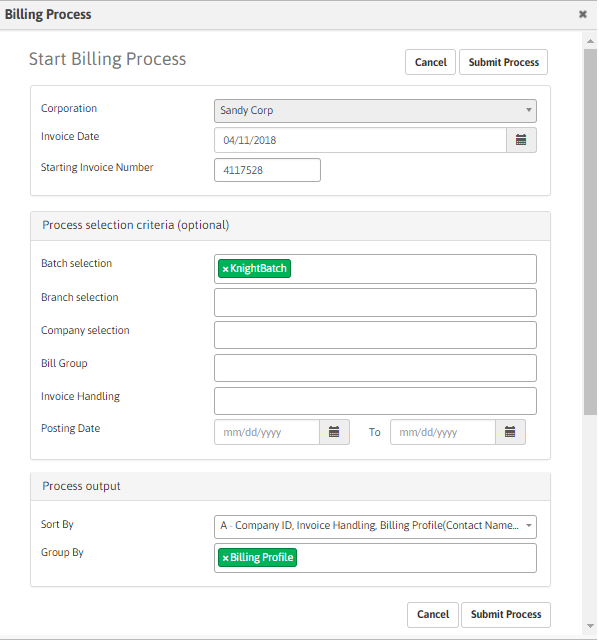
- The Corporation field is auto populated based on the batch selected.
- Invoice Date defaults to today's date. Click the calendar icon to select a different invoice date.
- The Starting Invoice Number will populate from the next invoice number field on the corporation record. If this is the first billing process you have run for the corporation, you will need to enter an initial invoice number here. If the numbering of invoices runs into a number already used, the system will automatically jump to the next available number.
-
Specify the process selection criteria (optional fields). Clicking inside these fields lists the options available for selection.
- Batch Selection: lists batches with a status of posted, where the batch contains transactions that have not been billing processed.
- Branch Selection: lists branches linked to the selected corporation and associated with posted timecard batches.
- Company Selection: lists available client records by name or ID.
- Bill Group: lists available billing group.
- Invoice Handling: list available invoice handling methods/options.
- Posting Date: select the date range of when the batch(es) were posted.
-
Specify the process output details. The selected output option will be used in determining the order and break points of the invoices within the specified process, and is remembered across sessions.
-
Sort By: Select the required sorting option. The available sorting groups are:
- A - Company ID, Invoice Handling, Billing Profile(Contact Name), Weekending, Candidate Last Name, Emp ID
- B - Company Branch, Invoice Handling, Company, Billing Profile, Worksite, PO, Job, Shift, Week Ending,Last Name, First Name, Emp ID, Assignment
- C - Invoice Handling, Company Branch, Company, Billing Profile, Worksite, PO, Job, Shift, Week Ending,Last Name, First Name, Emp ID, Assignment
- D - Invoice Handling, Company, Billing Profile, Worksite, PO, Job, Week Ending, Shift, Last Name, First Name, Emp ID, Assignment
- E - Invoice Handling, Company, PO, Billing Profile, Worksite, Job, Week Ending, Shift, Last Name, First Name, Emp ID, Assignment.
-
Group By: Select the required grouping option(s). The available options are:
- Company
- Billing Profile
- Worksite
- PO
- Shift
- Emp ID
- Week Ending
-
- After entering the desired criteria click the Submit Process button to send the batch(es) to the queue for processing. If successfully sent, a success message displays and the count in the Ready for Process tab badge decreases by the number of batches sent and the same batches will now appear in the In Process tab.
Start Adjustments
The Start Adjustments workflow applies billing adjustment transactions to timecard.
You can also open this workflow without selecting any batch and enter all the information manually.
-
Select a batch from the list and click Start Adjustments . The Billing Adjustment window displays.
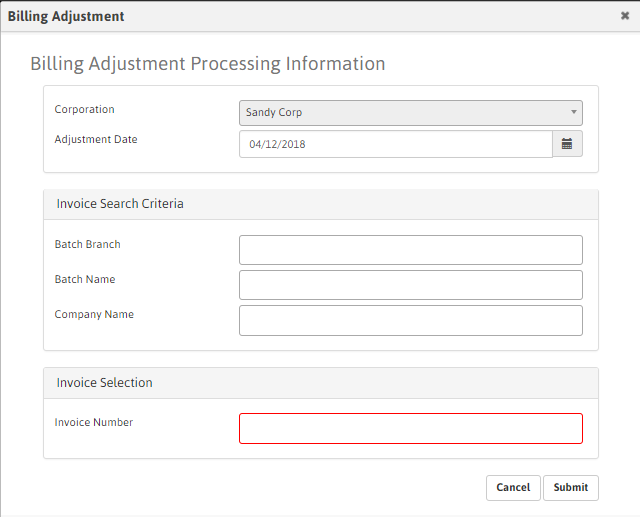
- The Corporation field is auto populated based on the batch selected.
- Adjustment Date defaults to today's date. Click the calendar icon to select a different adjustment date.
-
Specify the Invoice Search criteria (optional fields). Clicking inside these fields lists the options available for selection.
-
Batch Branch: lists available branches from the invoices available for adjustment.
-
Batch Name: lists available batch names from the invoices available for adjustment.
-
Company Name: lists available company records from the invoices available for adjustment.
-
- Specifying the search criteria populates the corresponding Invoices available for selection in the Invoice Number field. Select the Invoice Number from the available list.
- Once all the details are entered, click the Submit button to send the batch(es) to the queue for adjustment. If successfully sent, a success message displays and the count in the Ready for Process tab badge decreases by the number of batches sent, and the same batches will now move to the In Process tab.