Timecard Billing
The timecard billing process creates invoices for contract assignment timecards.
- Mouse over the Financials tab on the navigator and select the Financial Processing link from the menu.
- Select Timecard Billing from the Financial Process section.
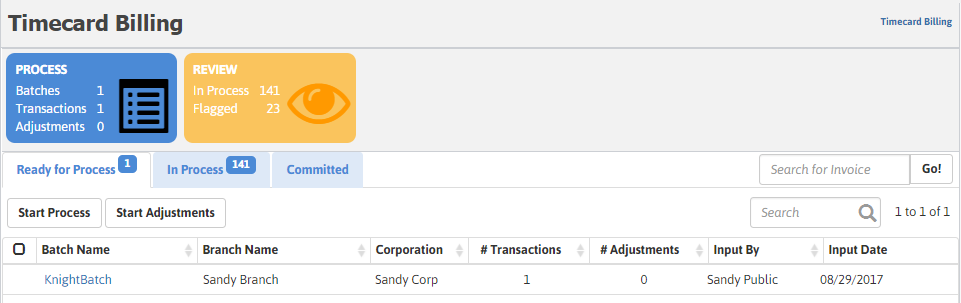
- The Timecard Billing screen is presented.
-
The top section of the screen gives you an overview of the count of batches grouped by the following stages:
- Process: Displays the count of Batches, Transactions and Adjustments to be processed.
- Review: Displays the count of batches in process and flagged (encountered an error while processing).
-
The next section displays the following tabs with their respective details and workflow items included:
-
Search For Invoice
You can search for a specific invoice and choose to email/print it from this screen.
-
Enter the Invoice number you intend to search for in the Search for Invoice box and click Go!. The Invoice Search window displays.
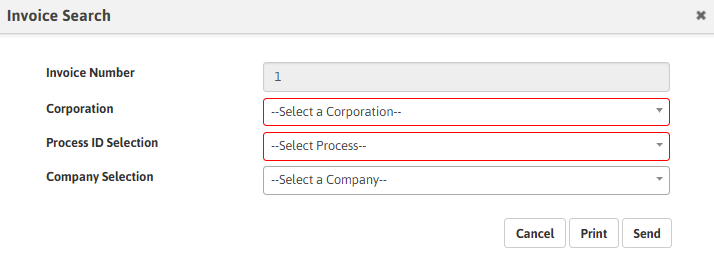
- Select the Corporation (required). If more than one corporation has the invoice number, all the available corporations are listed in the drop-down.
- Select the Process ID (required). If more than one value matches the invoice number and/or Corporation, Process combination, the drop-down will present all the available matches.
- Select the Company. All the companies matching the Invoice and/or Corporation, Process combination are displayed in the drop-down.
- Click Print to print the invoice or click Send to email the invoice.
Was this helpful?