Job Poster
The job poster segment is used to keep track of the locations where the job is posted and the status of each submission. Use these instructions to post a job to an internal website or a job board.
- Select Job Poster from the segments drop-list.
- The Job Poster Segment records all of the information used to post the Job Order to an internal web site or external job boards.
- Adding a Job Board Posting is done from the workflow buttons on this segment.
-
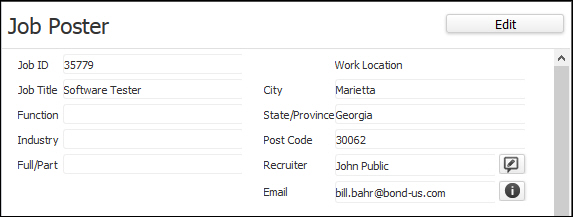
The segment is separated into two sections; the top section displays selected data fields from the Job Order relating to the job location, function, type and longevity.
-
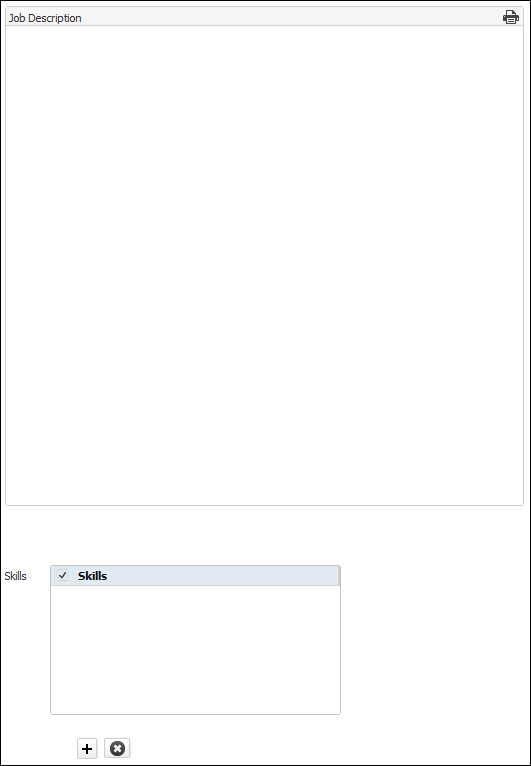
Job Description automatically pulls data from the Job Description field on the Job Summary segment, but can be edited here. You may also copy and paste a job description into the field. For example, you may want to copy a job description from the Monster website and paste it into the Job Description field here.
Due to various formatting differences between HTML and RTF, you may need to do some clean-up after the description is pasted. For example, there may be extra lines added or special characters that do not come over correctly. When you post the job, each job board and job feed page has a Help Tip giving you formatting advice for the specific job board or job feed. For information on using the Text Editor, click here.
-
You can click
 to add a Skill. This opens the Add Skill window allowing you to add up to 5 skills at a time. You can also remove a skill by selecting it and clicking
  .
.
-
If you want to post the job to Careerbuilder, click the CareerBuilder button or the CareerBuilder logo. This opens a window allowing you to enter information necessary to that specific Job Board in order to post this job order. The window also has a Help Tip button that gives advice on formatting the Job Description to best work on the Careerbuilder site. When you are finished, the posting displays in the Job grid. Keep in mind the following:
- If the worksite is in Canada the job will post to CareerBuilder’s Canadian job board ( www.careerbuilder.ca ) and the Industry field is not allowed.
- The recruiter and staffing company are used for the contact information in the CareerBuilder posting.
- CareerBuilder has a 10,000 character limit in job descriptions.
-
If you want to post the job to Monster, click the Monster button or the Monster logo. This opens a window allowing you to enter information necessary to that specific Job Board in order to post this job order. The window also has a Help Tip button that gives advice on formatting the Job Description to best work on the Monster site. When you are finished, the posting displays in the Job grid. Keep in mind the following:
-
The recruiter and staffing company are used for the contact information in the posting.
-
Monster has a character limit on job descriptions; the minimum is 25 characters.
-
-
If you want to post the job to the Compass Career Site, click the Compass button. This opens a window prompting you to select the Compass Site to which you will be posting the job. Use the droplist to select the site. You can also select whether this job posting is active (the default) or not. Finally, the Job Description defaults from the Description on the Job Poster page, but can be edited specifically for the Compass Career Site. Once the job is posted, a checkmark appears next to the Compass button.
You can post the job to multiple Compass Sites by repeating the workflow and selecting a different Compass Site ID.
-
If you want to post the job to eQuest, click the EQuest button or the eQuest logo. This opens a window allowing you to enter information necessary to that specific Job Board in order to post this job order. The window also has a Help Tip button that gives advice on formatting the Job Description. When you are finished, the posting displays in the Job grid. Keep in mind the following:
-
The recruiter field on the Job Poster segment must contain an email address to use this workflow. The Staffing Company and Recruiter are used for contact information in the postings.
-
- If you want to post the job to a Job Feed, click the Job Feed button. This opens a window allowing you to enter information necessary to post this job order. In order to set up a job feed, Entity XML Mapping and File Transfer Settings must be set up in System Settings (either manually if you are an Enterprise user or by Bullhorn personnel if you are not). When you are finished, the posting displays in the Job grid.
- If you want to post the job on your Internal website, click the Web Portal button. This places a check in the checkbox beside the button and indicates that the job is now available for searches on your website. Clicking the button again clears the checkbox and removes the posting
- If you want a notification sent whenever a candidate responds to this posting on your internal site, enter an email address in the EmailResponses to field. This address can contain a single User email address or a Group email address. If no email is added here, the site will use the email address contained in the Email field in the top part of the Job Poster segment (this is the Recruiter's email address).
- The Job grid displays postings that have been sent to the various Job Boards/Job Feeds. The Post Date and Post time listed for each vendor indicates the date/time the xml was transmitted or picked up by the service. The job feed is sent via an xml file on a set schedule. Once you have added the feed, it may take a couple of days to update the post date/time with some vendors.
-
To update a posting on the Job grid, select the radio button to the left of the row you want to edit and click Update.
For an Indeed Job Feed Posting, the Update option allows you to set the Sponsored Job flag.
- To remove a posting in the Job grid, select the radio button to the left of the row you want to remove and click Delete. This removes the posting from the Job Board as well.
- To Check the Status on a posting in the Job grid, click the radio button to the left of the row you want to check and click Check Status. This only applies to CareerBuilder job postings.
- To View a posting on Monster's website, click the radio button to the left of the Monster posting you want to view and click View. This only applies to Monster postings. Your Monster account information must be populated in the System Settings Integration information in order to run this workflow.