WhatsApp Templates in Bullhorn Messaging
WhatsApp requires approved templates to initiate contact with a recipient and to send messages after the 24-hour service window closes. This article covers template categories, approval statuses, and how to create a template in Bullhorn Messaging.
What the WhatsApp Template Categories Mean
All WhatsApp templates belong to one of three categories. The category determines how the template can be used and whether it can be sent to US phone numbers. This table describes each category and its appropriate use cases.
| Category | Use for | Can be sent to US (+1) numbers? |
|---|---|---|
| Utility | Transactional or operational messages tied to an existing relationship: interview confirmations, application follow-ups, account updates, service notifications | Yes |
| Authentication | One-time passcodes, two-factor authentication, login verification. May require additional Meta approval. | Yes |
| Marketing | Promotional messages, new business outreach, offers, re-engagement of inactive contacts. Marketing is the default category if a template does not clearly fit Utility or Authentication. | No (blocked as of April 2025) |
Marketing templates are blocked for US phone numbers: As of April 2025, Meta does not allow marketing templates to be sent to US (+1) numbers. Messages sent using a marketing template to a US recipient will fail. This restriction applies regardless of the sender's phone number location. When messaging US contacts, use Utility or Authentication templates only.
If a template does not clearly fit Utility or Authentication, Meta assigns it the Marketing category by default. Review your template content carefully before submission. Framing matters. For example, "Following up on your application for [job title]" is Utility. "Check out our new open roles this week" is Marketing.
What WhatsApp Template Approval Statuses Mean
All WhatsApp templates must be reviewed and approved by Meta before they can be sent. This table lists the five possible approval statuses for a template and what each one means.
| Status | Meaning | Can be sent? |
|---|---|---|
| Active | Approved by Meta and ready to use | Yes |
| In Review | Submitted and awaiting Meta's approval decision. Approval typically happens quickly but can take up to 48 hours. | No |
| Rejected | Meta did not approve the template. Common reasons include formatting errors and policy violations. The template can be edited and resubmitted. | No |
| Paused | Previously active, but limited due to negative recipient feedback. Can be edited and resubmitted to restore Active status. | No |
| Disabled | Previously active, but disabled due to negative recipient feedback. Can be edited and resubmitted to restore Active status. | No |
Submit custom templates well before you plan to use them. Meta review can take up to 48 hours. Blueprint templates are pre-approved and available immediately, but customizing a blueprint removes its pre-approved status and requires a new review.
Create a WhatsApp Template
WhatsApp templates can be created from the Settings page or directly from your Inbox. Both paths lead to the same template creation form, and any user on the account can submit a template for approval.
Prerequisites
- WhatsApp must be registered and connected for your organization before templates can be created.
Option 1: Create a Template from Settings
- Select Settings from the top navigation in Bullhorn Messaging.
- Under Messaging Settings, select Messages.
- Select Templates.
- Select the WhatsApp tab.
- Select Add New in the top right corner.
- Complete the template form (see Template Fields below).
- Select Submit for Review.
Option 2: Create a Template from the Inbox
- Open a conversation in your Inbox.
- Select Choose Template in the compose box.
- Select the + (plus) icon in the Template Library.
- Complete the template form (see Template Fields below).
- Select Submit for Review.
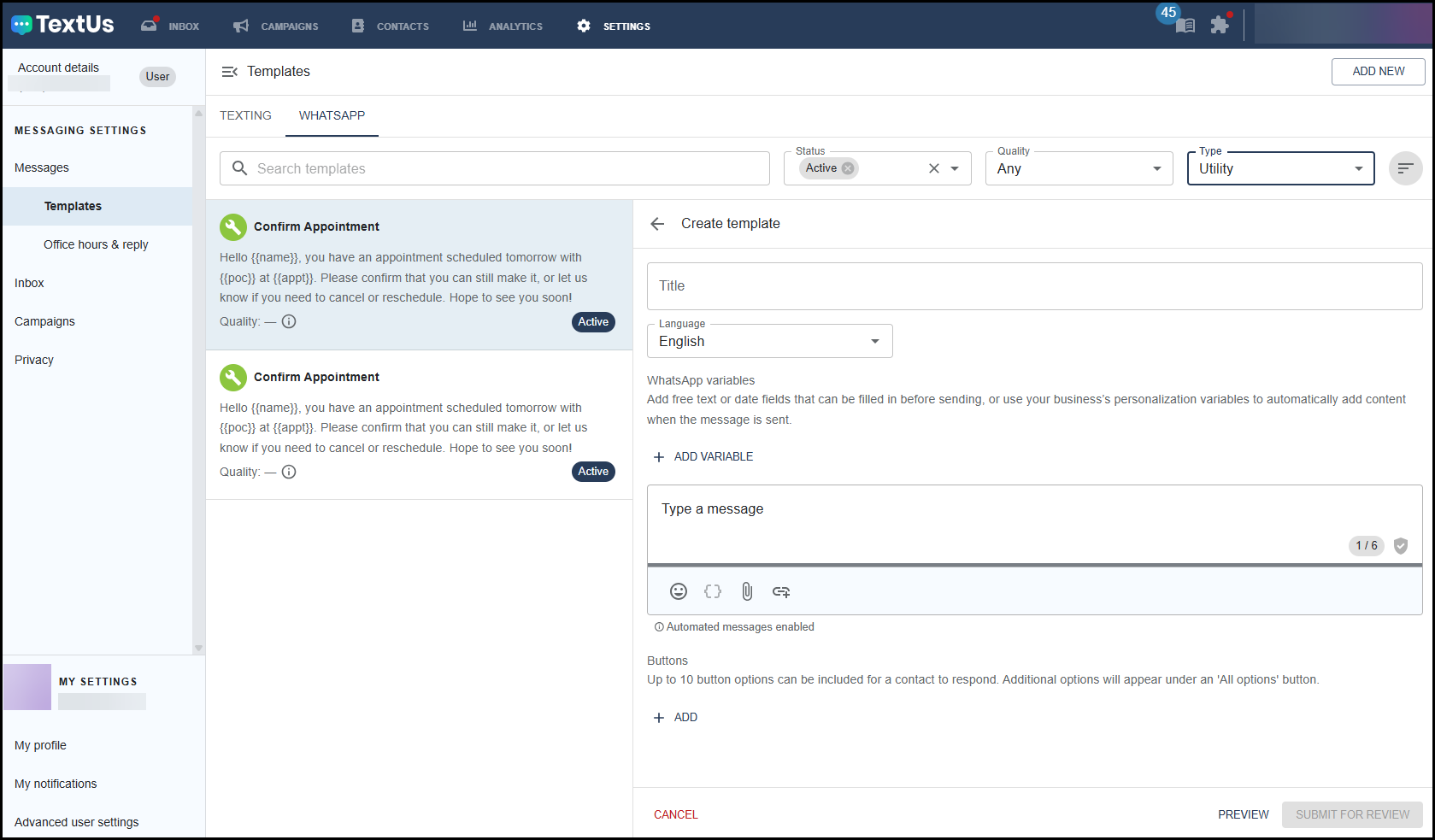
Template Fields
This table describes each field in the WhatsApp template creation form.
| Field | Description |
|---|---|
| Title | Internal name for the template. Not visible to message recipients. |
| Language | Language of the template content. Select from the dropdown. |
| Variables | Optional placeholders that personalize the message before sending. See Variable Types below. |
| Message body | The text of your template. Use the Personalize ({}) icon in the toolbar to insert variables into the message body. |
| Buttons | Optional pre-defined responses or actions. Up to 10 buttons per template. See Button Types below. |
Variable Types
Variables allow you to personalize a template with contact-specific information. This table describes the three variable types available and how each one works.
| Variable type | How it works | Can be edited before sending? |
|---|---|---|
| Personalization variable | Pulls data from the contact's record in Bullhorn, such as first name or company. Populated automatically at send time. | No (read-only) |
| Text | A freeform text field you define. You assign a variable name and provide an example value. The sender fills in the actual value before sending. | Yes, required before send |
| Date | A date field you define. You assign a variable name. The sender selects the date before sending. | Yes, required before send |
-
All variables added to a template must be used in the message body. The Submit for Review button and the send button are not available until all variables are filled in.
-
Personalization variables support default values. If a contact's record does not have data for the variable, the default value is used instead. For example,
{{contact.firstName | default: "there"}}will display "there" if no first name is on file, producing "Hi there" rather than "Hi ."
Button Types
This table describes the three button types available in WhatsApp templates.
| Button type | What it does |
|---|---|
| Quick reply | Displays a pre-defined response option the recipient can tap to reply instantly. The tapped reply appears in the conversation as a message. Use for yes/no questions or other simple response options. |
| Call a number | Displays a button that opens the recipient's dialer with a pre-defined phone number. Define the phone number when creating the template. |
| Go to website | Displays a button that opens a pre-defined URL in the recipient's browser. Define the URL when creating the template. |
Watch this demo for a walkthrough of the template creation process.
Troubleshoot WhatsApp Templates
If the Submit for Review button is unavailable, check for unused variables
All variables added to a template must be used in the message body. If a variable has been added but not inserted into the message body, the Submit for Review button remains inactive. Review your variables and insert or remove any unused ones.
If a template is Rejected, review Meta's feedback and resubmit
A rejected template can be edited and resubmitted. Common rejection reasons include incorrect variable formatting and violations of WhatsApp's Business Messaging Policy. Correct the issue and select Submit for Review again.
Where to Find More Information
- Using WhatsApp with TextUs: TextUs documentation covering WhatsApp setup, templates, and messaging in detail
- Meta's Template Categorization Guide