May 2026 Release: ATSv2 Features & Enhancements
Support for ‘Click-To-Dial’ Functionality - Phase 1
-
Feature: ATS v2
-
Level of Configuration: Low
With this release, we begin a phased approach to adding support for ‘Click-To-Dial’ throughout the BHRC-managed package.
In Salesforce, when CTI (Computer-Telephony Integration) is enabled for the Org, then 'Click-to-Dial' is supported and users can initiate calls by clicking phone numbers in records. Some of the BHRC custom functionalities were not developed to include support for ‘Click To Dial’ when CTI is enabled and this is now being addressed.
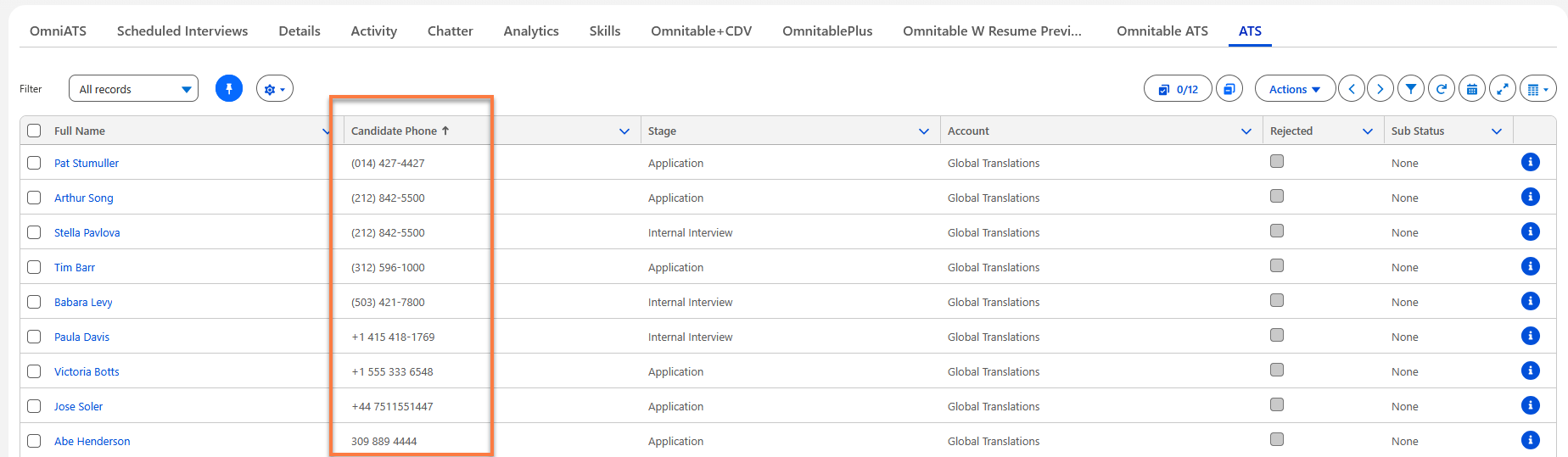
In this release, support for ‘Click-to-Dial’ has been added to the following BHRC functionalities:
-
ATSv2 Datatable Columns
-
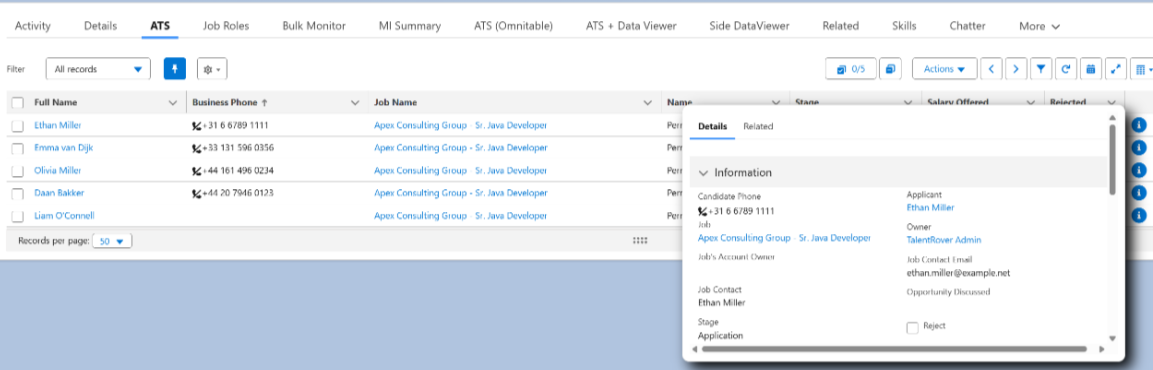
ATSv2 ‘i’ Pop-Up
-
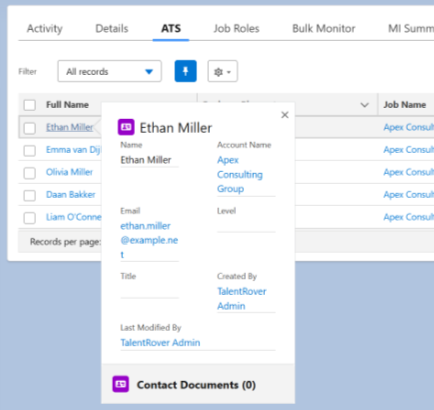
ATSv2 Contact Detail Pop-Up (if configured) - This is the pop-up that opens in ATSv2 when hovering over the Candidate name.
The Contact Detail pop-up component is also used on the search result page for Textkernel Candidate Search and Textkernel Job Search, so 'Click-To-Dial' can now also be enabled for those locations.
Configuration
Phone Fields in ATSv2 Datatable Columns
There are no post-deployment configuration steps unless you are using formula fields. Salesforce formula fields exposing a parent's phone value have a ‘DisplayType’ of STRING, not PHONE, so those will still render as text. If you want ‘Click-to-Dial’ on those then you should reference the relationship path (e.g., Applicant__r.Phone) directly in the FieldSet.
Phone Felds in ATSv2 ‘i’ Pop-Up
The out-of-the-box ‘i’ pop-up leverages a lightning-record-form (page-layout-based) that does not support ‘Click-To-Dial’, so you need to replace it with a Screen Flow if you want the phone numbers in the pop-up to be clickable.
-
Go to .
-
Tick the ‘Enable Screen Flow - ATS v2’ checkbox. The ‘i’ pop-up form is now rendered by the “Record Detail View - Application V2” packaged Flow (TR1__Record_Detail_View_Application_V2).
Phone Fields in ATSv2 Contact Detail Pop-Up
This is only relevant if you have this pop-up configured in your Org - it is not on ATSv2 UI out of the box.
The Candidate Details pop-up leverages a static lightning-record-form (page-layout-based) that does not support 'Click-To-Dial', so you need to replace it with a Screen Flow if you want the phone numbers in the pop-up to be clickable.
-
Go to .
-
Tick the ‘Enable Screen Flow - ATS v2 Popover’ checkbox. The ‘Candidate Details' pop-up form is now rendered by the 'Record Detail View - Contact Popover' packaged Flow (TR1__Record_Detail_View_Contact_Popover).