Applicant/Employee Guide: Getting Started with the Talent Platform Task Hub
Talent Platform is your onboarding portal. Your staffing agency uses it to send you forms to complete, collect credentials, and manage your onboarding paperwork, all in one place. You can access Talent Platform from any device, including your phone.
Your portal is set up by your staffing agency. The options, sections, and tasks you see may look different from what is shown here.
Activate Your Account
When your recruiter adds you to the system, you will receive an activation email or SMS message. The email includes your username and a link to set up your account.
-
Open the activation email(or SMS message) and click the link.
-
Create a password when prompted.
-
Review the Terms of Use and click Agree to continue.
You are taken to your home page.
If you click Disagree, you will be logged out. Contact your recruiter if you have questions about the Terms of Use.
Your Home Page
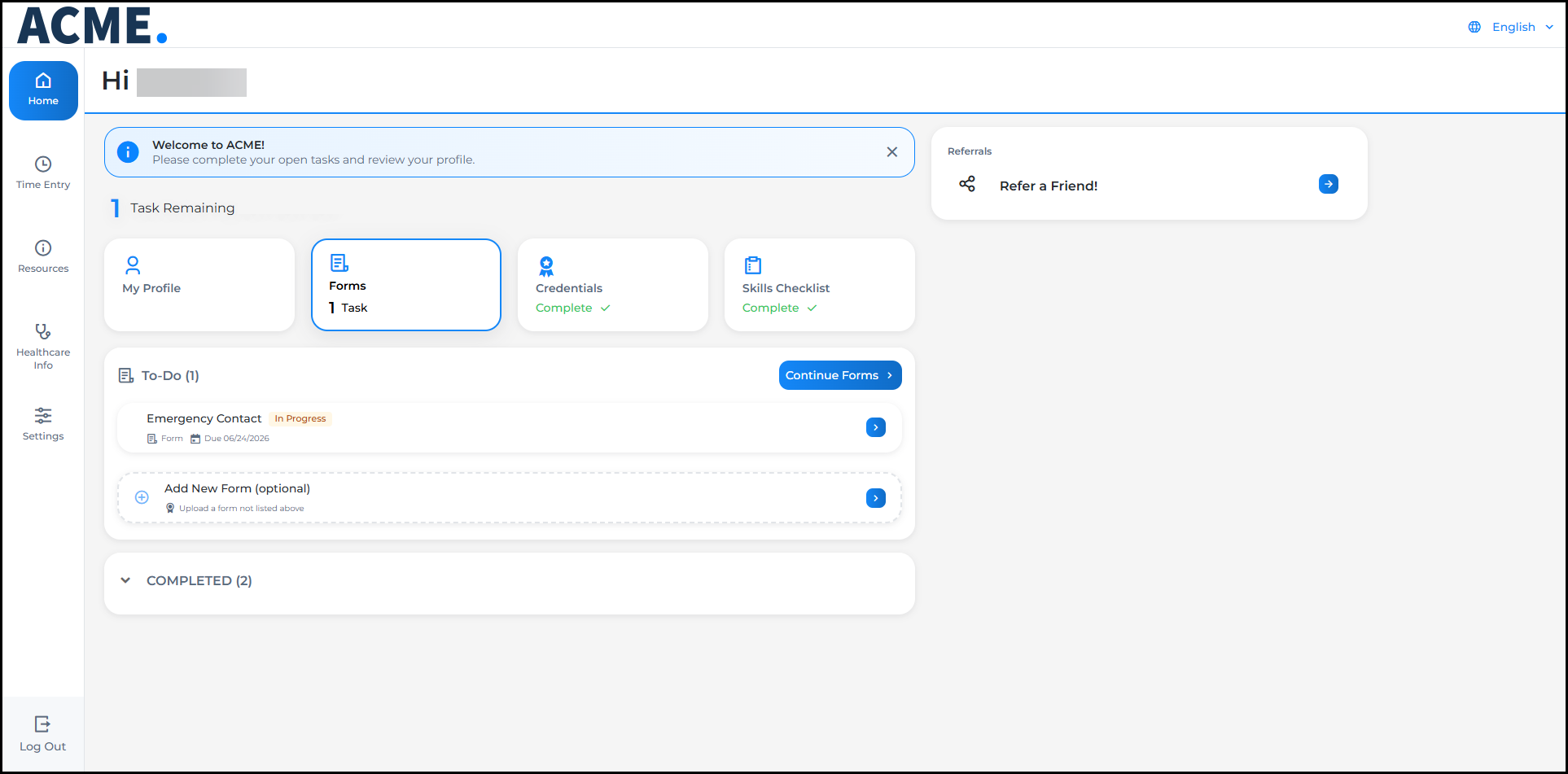
After logging in, you land on your home page. This is where you can see your outstanding tasks, track your progress, and update your profile.
Task Summary
At the top of the page, a summary displays your total remaining tasks. Below, tasks are categorized into interactive tiles. While these tiles are customized to each client’s specific configuration, common categories include:
-
Profile
 The Applicant’s self-service ability to add or update information about themselves (e.g., job preferences, references, education, work history): Your personal information
 - Forms: Documents assigned to you to complete and sign
-
Credentials: Certifications or documentation your agency has requested
-
Skills Checklist
A Candidate’s self-assessment of their aptitude of a specific area of expertise. To complete a Checklist, an Applicant must answer all Skills prompts with a score (and sub-score, if required) and provide a digital signature, which certifies that the information provided is accurate.: Self-assessments of your skills and experience
The tile for your current task category is highlighted. When a category is complete, it displays Complete with a checkmark.

Welcome Banner
When you first log in, a welcome banner appears at the top of the page with a message from your staffing agency and a reminder to complete your open tasks. You can dismiss it by clicking X.

Left Navigation
Use the left navigation to move between sections of the portal. Depending on your agency's setup, you may see some or all of the following:
-
Home
-
Jobs
-
Time Entry
-
Employee Resources
-
Healthcare Information
-
Settings
-
Log Out

Complete Your Profile
Your profile stores basic information about you, such as your contact details, work history, and job preferences. Keeping your profile up to date helps your recruiter match you with the right opportunities.
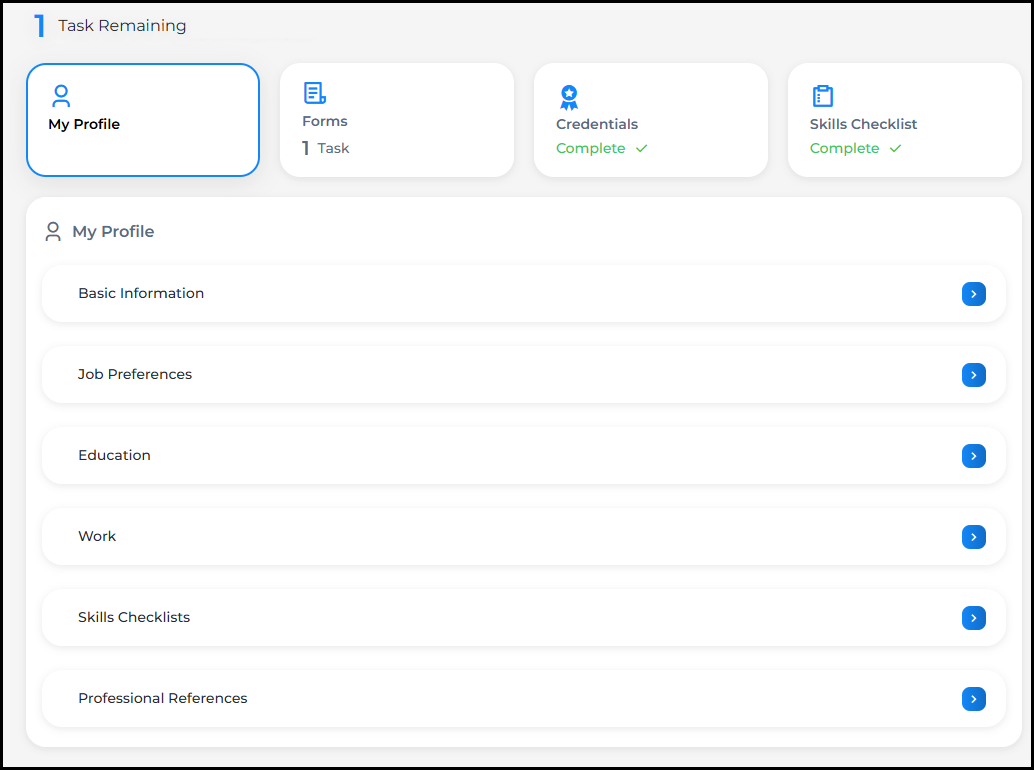
To update your profile, click Profile from the task tiles or select any section from the My Profile list on your home page. Profile sections may include:
-
Basic Information
-
Job Preferences
-
Education History
-
Work Experience
-
Skills Checklists
Any updates you make to your profile sync back to your recruiter's system automatically.
Depending on your agency's settings, you may be required to complete your profile before you can start your assigned forms. If the Start Task A specific action that needs to be completed by a Candidate (e.g., completing a Form, Package, Credential, Skills Checklist) button appears grayed out, complete your profile first.
Complete Your Assigned Tasks
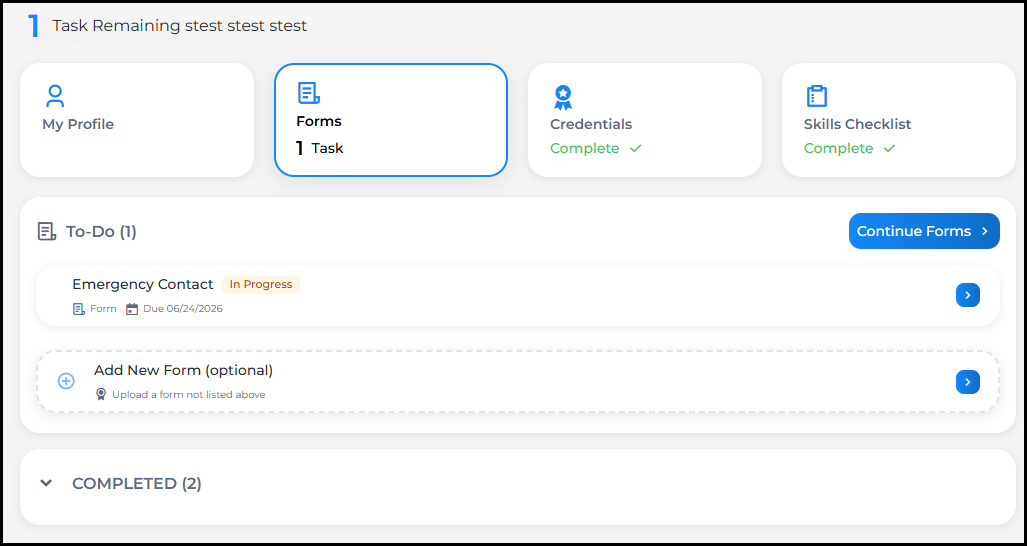
The To-Do list updates based on the selected tile. Click Forms, Credentials, or Skills Checklist to see the tasks for that category.. Each task shows the task name, the package it belongs to, and a due date if one has been set. New tasks are labeled New.
Start a Task
-
Click Start Task from the To-Do section.
-
If prompted, fill in your Preliminary Information. This may include your name, email address, phone number, Social Security number, date of birth, and address. This information pre-fills your forms so you do not have to re-enter it on every document.
-
Review the Privacy Policy and click Agree and Continue to proceed.
If you click Disagree and Log Out, you will be signed out. Contact your recruiter if you have questions about the Privacy Policy.
Fill Out Your Forms
After completing preliminary information, you are taken into your assigned forms. Fill out each field as prompted, then click Finish.
Sign Your Documents
After you finish your forms, a signing instructions screen appears:
You are about to sign your paperwork electronically.
-
Once you click the button below, your forms will be generated and filled out for you.
-
Please scroll down to review all documents completely before signing.
-
Once you have reviewed all documents, click I Accept to begin signing.
-
Follow the prompts to sign each document.
Upload Your Own Form (Optional)
If your agency has enabled self-service uploads, you may see an Add New Form Any document that needs to be completed and signed by a Candidate row at the bottom of your To-Do list. Click it to upload a form that was not included in your assigned tasks.
When You Are Finished
When all tasks are complete, your home page updates to show 0 Total Tasks Remaining. Each completed task category displays Complete with a green checkmark.
Your profile sections remain available so you can continue to update your information at any time.
Need Help?
If you have questions about your tasks, due dates, or forms, contact your recruiter directly. They manage your onboarding setup and can assist with anything specific to your account.