Add Data Mapping Items
This workflow creates data mapping items for the data mapping profile. For example, a data mapping item might tell Adapt that wages labelled REG in the imported file should be mapped to the Regular PayBill Code.
Permission for this component is granted via the Manage Data Mapping permission under the general administration category.
- From the Data Mapping Profile page, select the Data Group for which you want to add mapping items and click the Add button below the listbox.
-
The Add Data Mapping Item workflow opens in a new window.
- To add a data mapping item to the list, type in the external data value (the value name in the file you are going to import) and then use the droplist to select the Adapt value it should be mapped to. Once you are satisfied with the data entered, click Add DM Item.
- To edit an existing data mapping item, select the item and click Edit/Save DM Item. The values from the selected item populate the External Data Value and Adapt Data Value fields. Edit either or both fields and click Edit/Save DM Item again. Your changes are saved to the item listbox.
- To remove an existing data mapping item, select the item and click Remove DM Item.
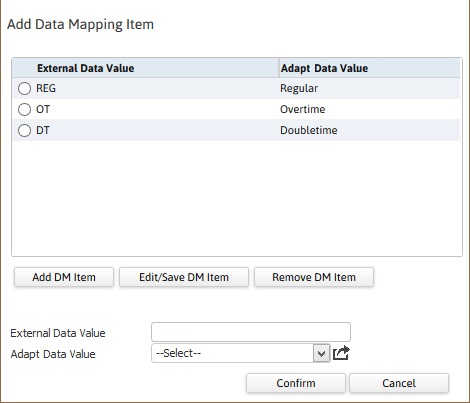
- When you are satisfied with your list of data mapping items, click Confirm to save your changes and close the screen.
Was this helpful?