Data Mapping Profile
This workflow defines the way the profile maps data.
- There are two ways to access this workflow. First, it is the second page displayed when you are adding a new data mapping profile. Second, you can reach this page by clicking on the Profile link on the Manage Data Mapping segment.
-
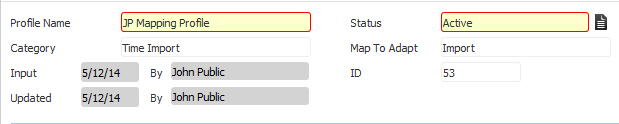
The Data Mapping Profile page has three sections. The General Information section displays the Profile Name, Category, Status, etc. Clicking the Edit button allows you to change the Profile Name and/or the Status. All of the other fields are read-only and cannot be edited here.
-
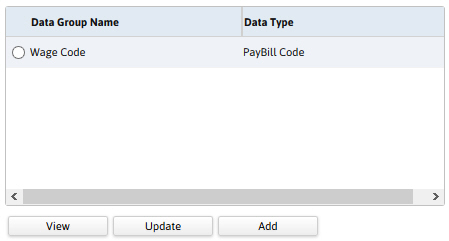
The Data Group section defaults based on the Category you selected. In the example below, the profile is telling Adapt that the Wage Code data group name on the external file matches up with the PayBill Code data type in Adapt. You can change the Data Group Name by selecting the Data Group and clicking Update. You can add data mapping items (see below) to the data group by selecting the Data Group and clicking Add. You can look at previously added data mapping items by selecting the Data Group and clicking View. The data mapping items are displayed in the Data Mapping Items section.
-
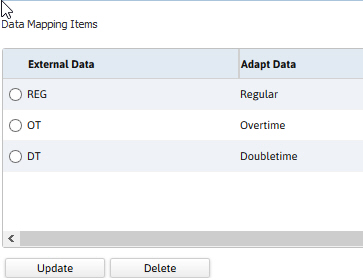
The Data Mapping Items section lists the names of the values in the external data group and their equivalent in Adapt. For example, the file you want to import may designate regular hours with the code REG. It is in this section that you are able to tell Adapt that REG hours should be mapped to Regular hours. you can edit the External Data Value and/or the Adapt Data Value by selecting the item you want to edit and clicking Update. You can remove a data mapping item, by selecting and clicking Delete.