Add Shared Documents
Use these instructions to add documents to a candidate’s Adapt record that the candidate can view via web services.
- From the Segments drop-list, click
 .
. -
After the Document Library loads select Add Document at the top of the Document Categories.
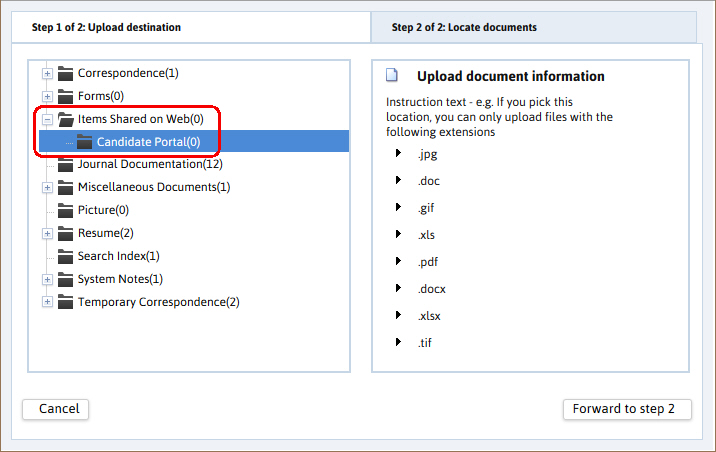
- From the Upload Documents dialog select the destination folder > Items Shared on Web then Candidate Portal. The second page will give you details on what document types are configured for the chosen folder.
-
Select Forward to step 2 to proceed.
-
From the Step 2 window click on Browse to locate the document. Add additional documents as needed.
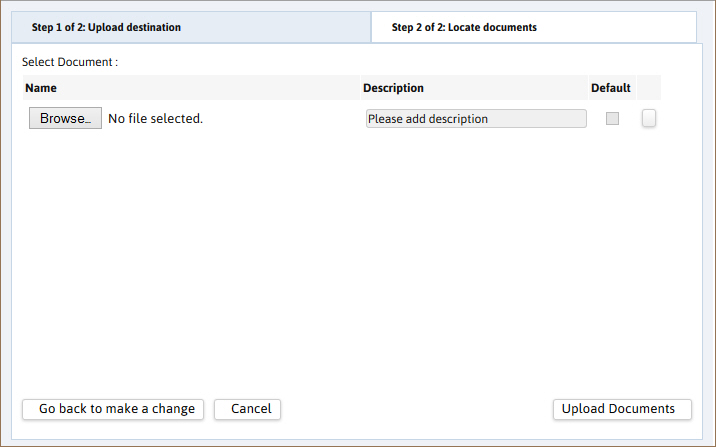
- Throughout the workflow use the options in the lower left corner to cancel or reverse to make changes.
- Click Upload Documents to continue workflow.
-
After the upload completes you will receive a confirmation message, click Ok to complete workflow.

-
The segment will refresh to display the newly acquired document.
The number of documents saved in the folder is updated next to the folder name in the Document Categories.
-
The candidate can now login to web services and see the document in the Shared Documents segment.
The Candidate can also upload documents to the Web Services Shared Documents segment that can be viewed on their record in Adapt.
If you added a document in error you can select the document name, select the Tools menu, and click Delete to delete the document from the library. Please make sure the document is not a default one as default documents cannot be deleted. You can uncheck the Default status of a document by clicking the 'Default Document' option from the Tools menu.